You can hide headings so they don’t appear during document generation or Word export. This is handy for governing several paragraphs with a single rule on the heading, without showing the heading itself in the text.
Hide a single heading
Click the heading, then the ⋯ (three dots) and Hide. The heading turns light grey. To undo, click the heading → ! → Do not hide anymore.

Hide all headings
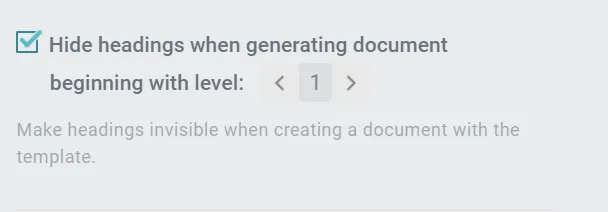
Do it globally under Options → tick Hide headings when generating document.
Good to know
- Numbering at the start: if the first heading is hidden and the paragraphs below are numbered, the first visible heading is numbered consecutively (e.g. “2.”). To start at “1.”, don’t use classic numbering under the first hidden heading - use list elements or serial numbering (
[#i]) instead. - Nested headings: if you hide a heading under a visible one, it takes the numbering of the visible heading above.