Client meeting + document generation, variant 1
If you want to add case notes directly during a client meeting, you can set up the template as follows:
Under a “Preliminary questions” section, first ask the select question “Should case notes be created?”.
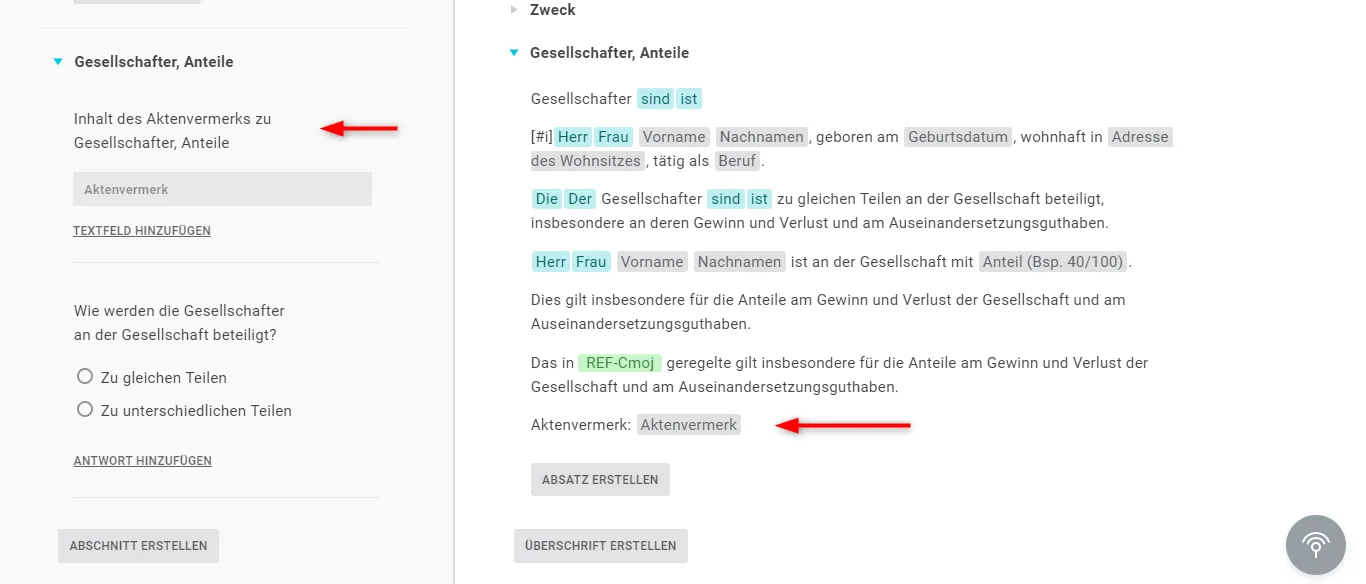
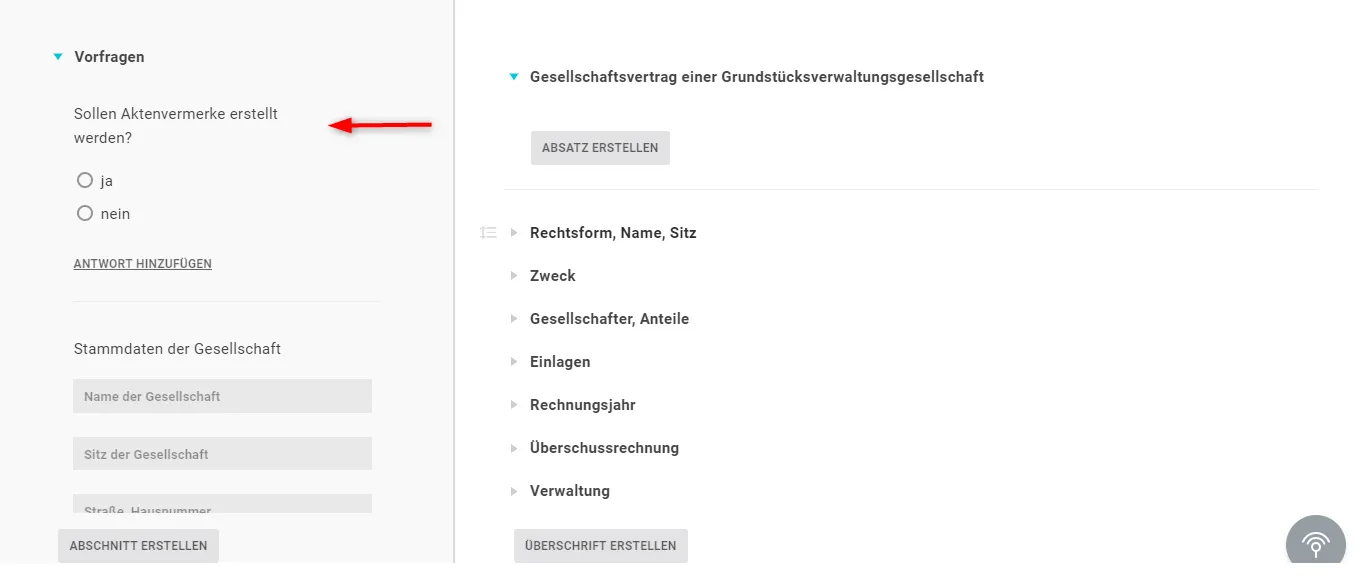 Then, in a section where you might need the case notes, create the text question “Content of the case note on shareholders, shares”. On the text page, under the heading “Shareholders, shares”, add a new paragraph at the end and insert the placeholder there.
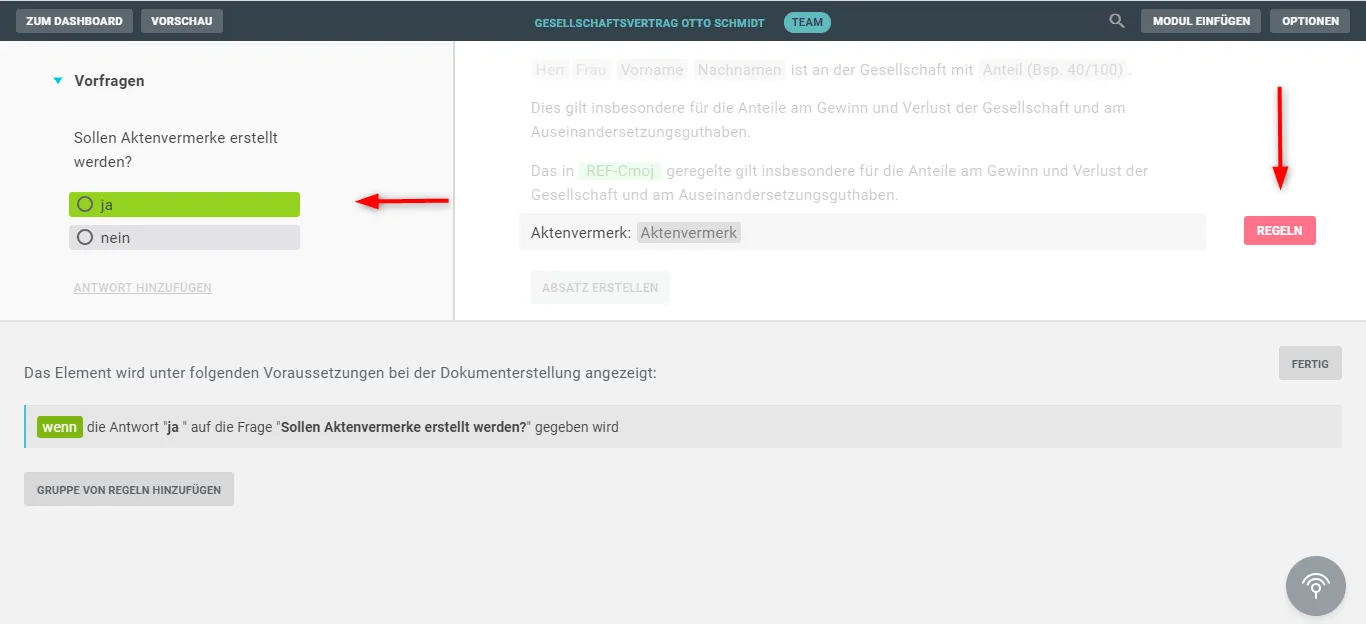
 Finally, rule both the question “Content of the case note on shareholders, shares” and the paragraph “Case note: [placeholder]” with the question “Should case notes be created?” from the “Preliminary questions” section.
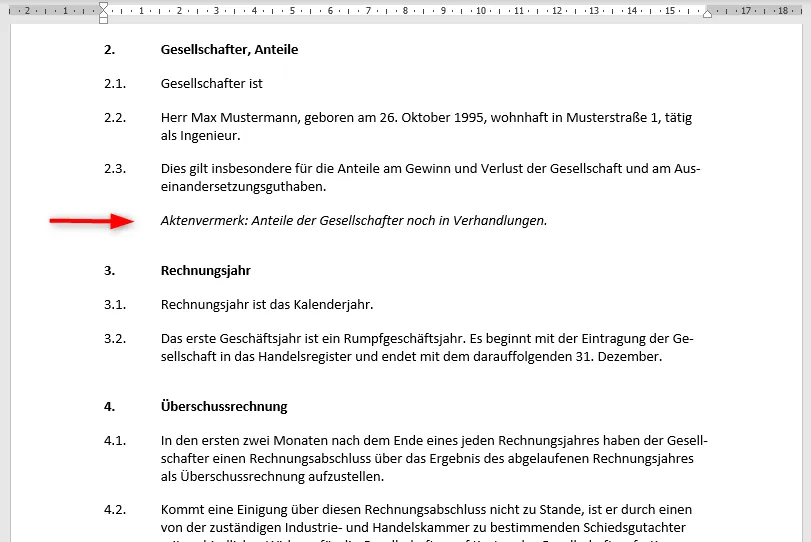
 To make the case notes stand out, you can format the text in italics, for example, or put it on a level that you have formatted differently in the Word letterhead template. You can also assign a special format to the case note using the
 ::customstyle function (see Special style for a heading or paragraph).
Do this for every section and heading where you want to store case notes.
When generating the document, the user can create two documents: one for the client without case notes, and an internal one that includes them.
Client meeting + document generation, variant 2
As an alternative to a case note under every heading and section, you can also create a separate heading “Case notes” at the end of the template and let the notes, comments and thoughts from the client meeting flow in there.
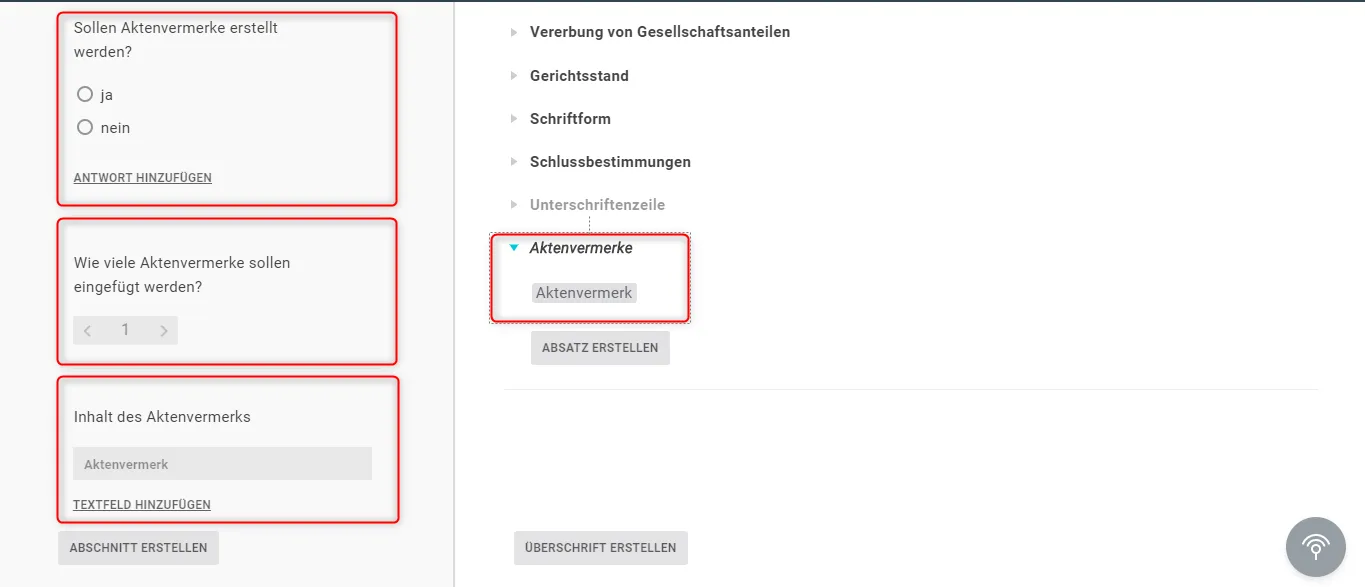 To do this, create a select question asking whether the case notes should be shown. This lets you control whether the notes appear during document generation, or switch them off for the final version.