Rules control when an element (a heading, paragraph, section, question or answer) appears - based on the answers given in the questionnaire.
Set a rule
-
Click the element that should only appear under a condition.
-
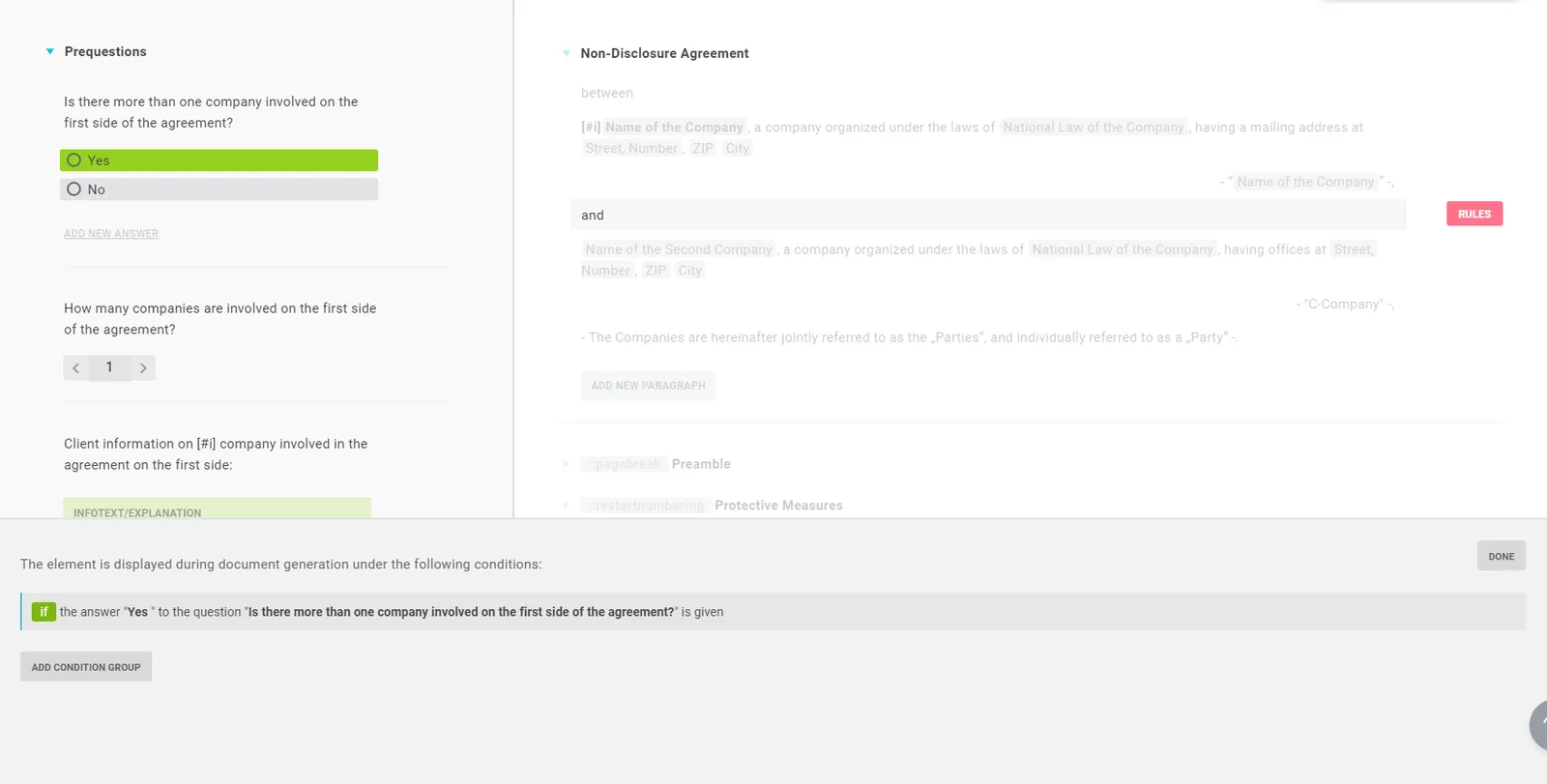
Click Rules to the right of it. The rule bar opens at the bottom, and every answer in the questionnaire that can be linked is highlighted in grey.

-
Click the answer that should trigger the element - clicking again cycles the rule type:
- Click once - positive rule: if the answer is given, the element appears (marked green).
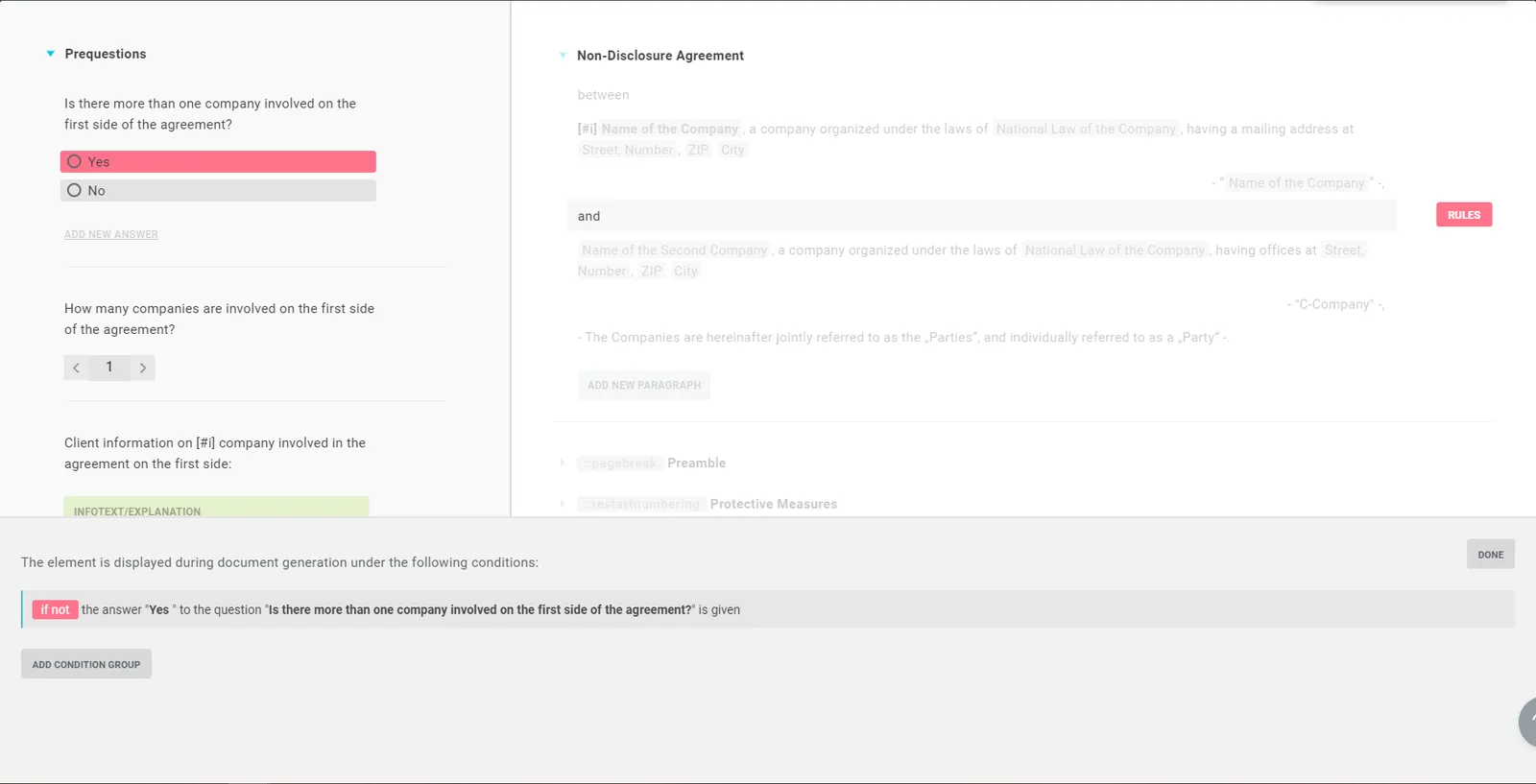
- Click twice - negative rule: the element appears if the answer is not given (marked red).
- Click a third time - delete the rule.
Tip: You can also set rules inside the questionnaire - that’s how you ask follow-up questions only under certain conditions. Where a rule already exists, the Rules button has a blue background.
Combine rules (AND/OR & groups)
You can make an element depend on any number of answers.
- The rule bar shows all rules for an element. A click on OR turns it into AND - and vice versa. Within one group you can use either only AND or only OR.
- For mixed AND/OR logic, click Add condition group. Think of each group as a bracket in mathematics.
- A small blue bar on the left shows the group you’re editing; click another group to switch.
Good to know
- Rules on higher-level elements apply downwards. A rule on a heading applies to every paragraph below it - and when you indent a heading, a rule on the heading above applies to the indented one too.