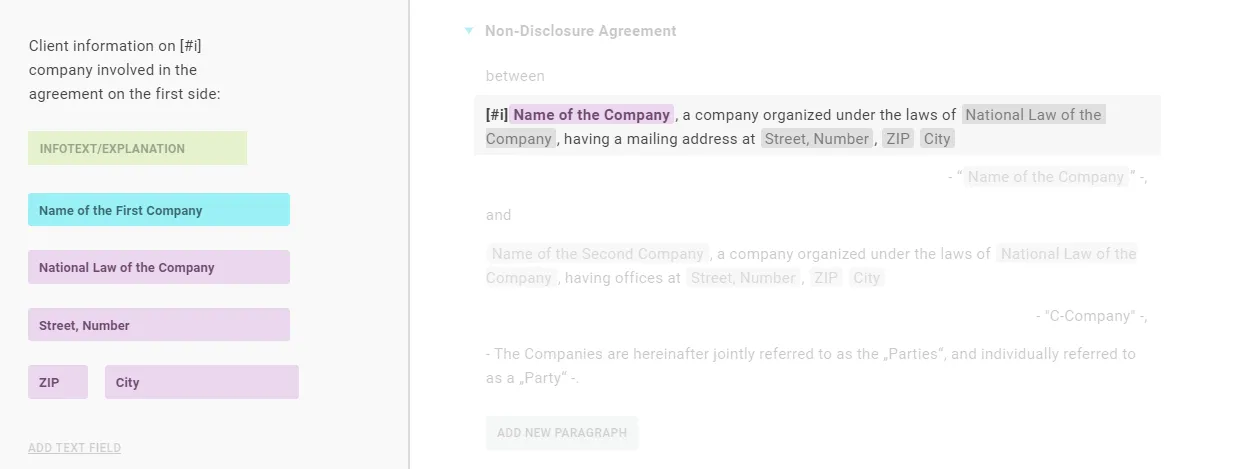
A placeholder links an answer from the questionnaire to the text. The user’s input then appears where the placeholder sits.
Step by step
-
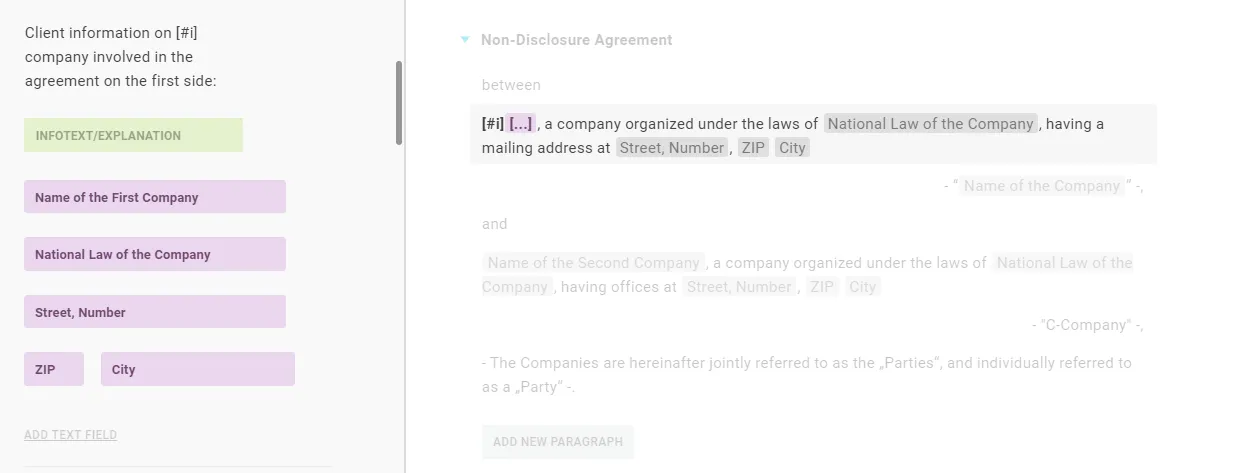
Click in the element (heading, paragraph, question or answer) where the placeholder should go, then click Placeholder. It appears as three dots in parentheses with a coloured background.

-
Every element you can link to is highlighted in purple in the questionnaire. Click the text field label (from a text question) or a select/multiple-choice question you want to link.
For select and multiple-choice questions, the chosen answers appear as text instead of the placeholder - for multiple-choice joined with ”,” and “and”, in the template’s language.
Good to know
-
Linking only works while elements are highlighted. If the highlight has disappeared, click the placeholder again.
-
Check the link: click the placeholder once - the linked answer is highlighted in turquoise.