Lawlift’s logic is built on four question types. Which one you choose depends on how the user should answer.
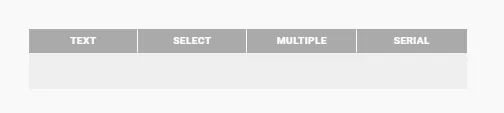
Every question is created the same way: click Add new question, pick the type, type your question and press Enter.
Text question
For placeholders (free fields) the user fills in themselves - such as names, addresses, party names, amounts or dates.
-
Add new question → type Text, enter the question, Enter.
-
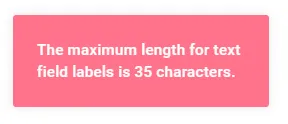
Click the grey text field, give it a short, abstract label (max. 35 characters), Enter.
-
Link the text field to a placeholder in the text - the user’s input then appears there in the generated document.
Tip: Ask for several details at once with Add text field. To add an info text to a question, click the question and press Enter.
Select question
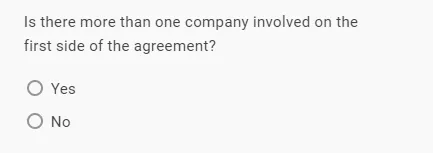
When exactly one of several variants should be chosen - or to set a direction in the questionnaire.
Add new question → Select, enter the question, Enter. Use Add answer for each option.
Multiple-choice question
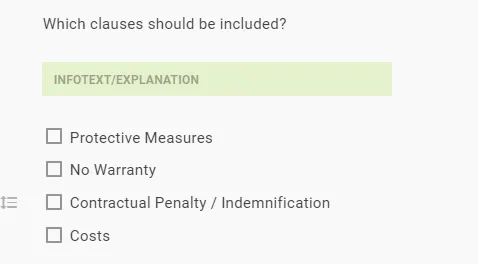
When several answers can apply at the same time.
Add new question → Multiple, enter the question and answer options.
Serial question
When a text element repeats but the number of repetitions isn’t known yet (for example “How many shareholders are there?”). The user enters the count during document generation.
Add new question → Serial, enter the question, Enter.
Good to know
- Check anytime: use the Preview to see the template exactly as the user will.