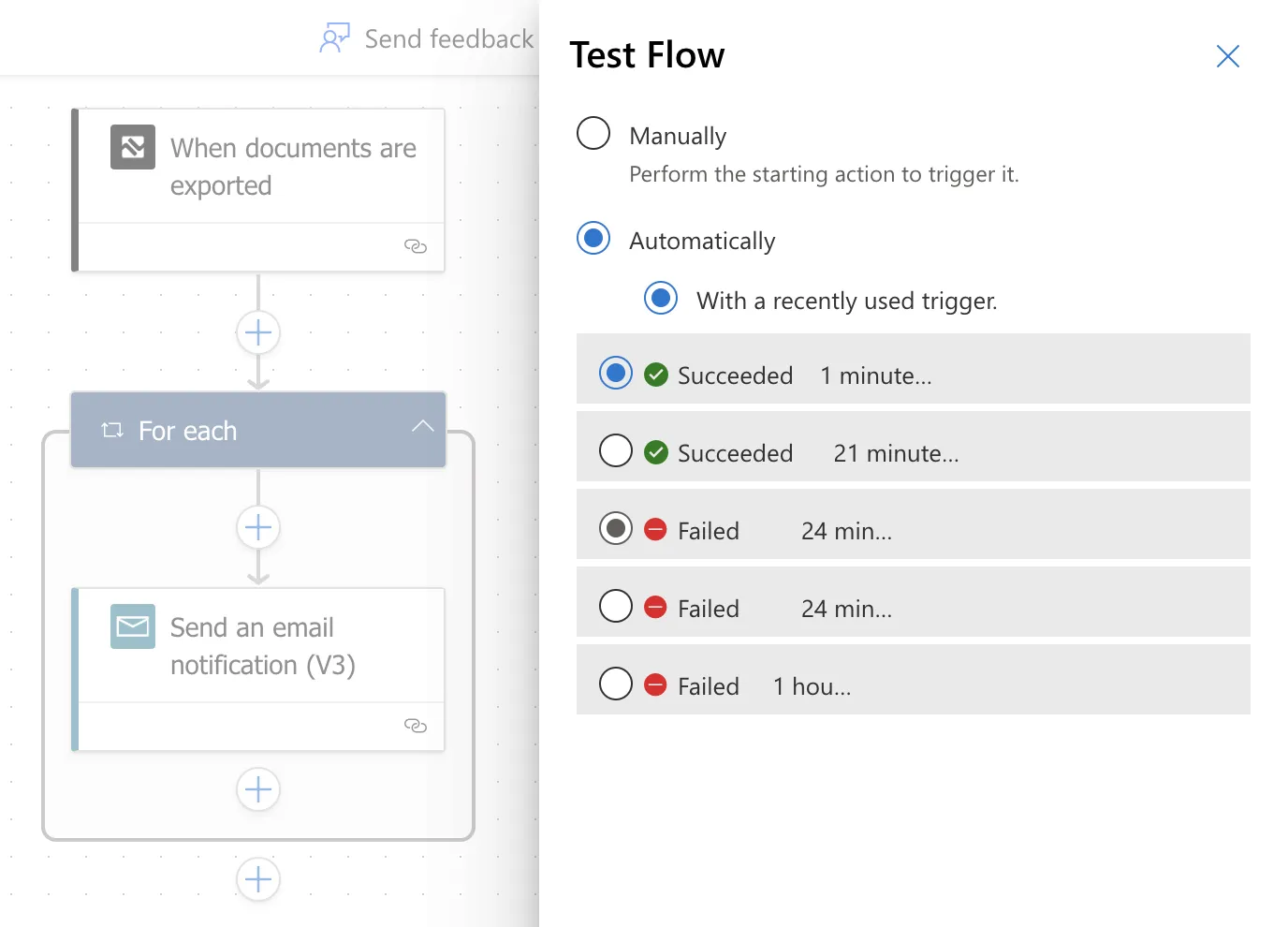
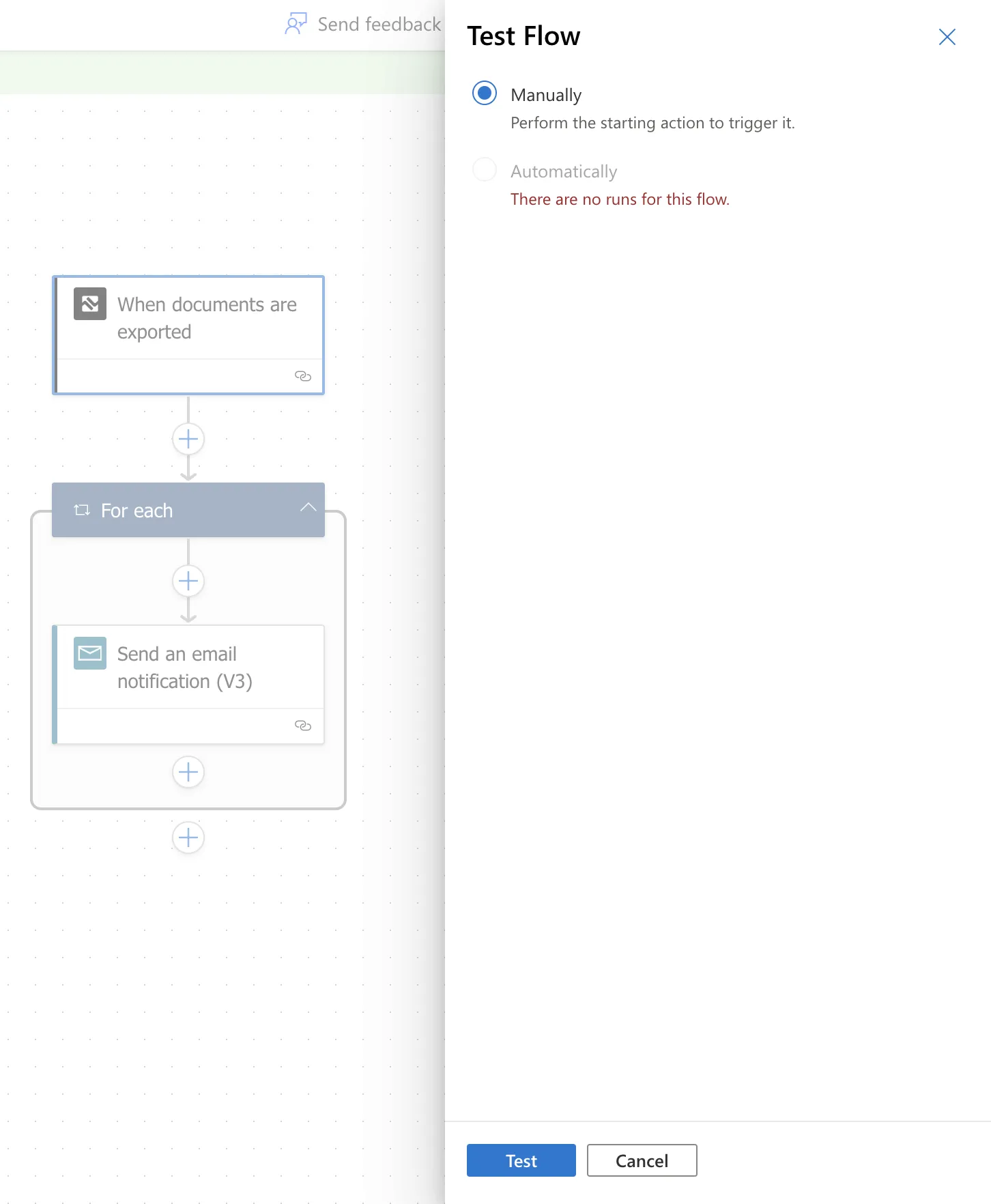
Go back to the “Flow Creator” view and click the “Test” button in the upper right corner. Click on “Manually” and “Test”.
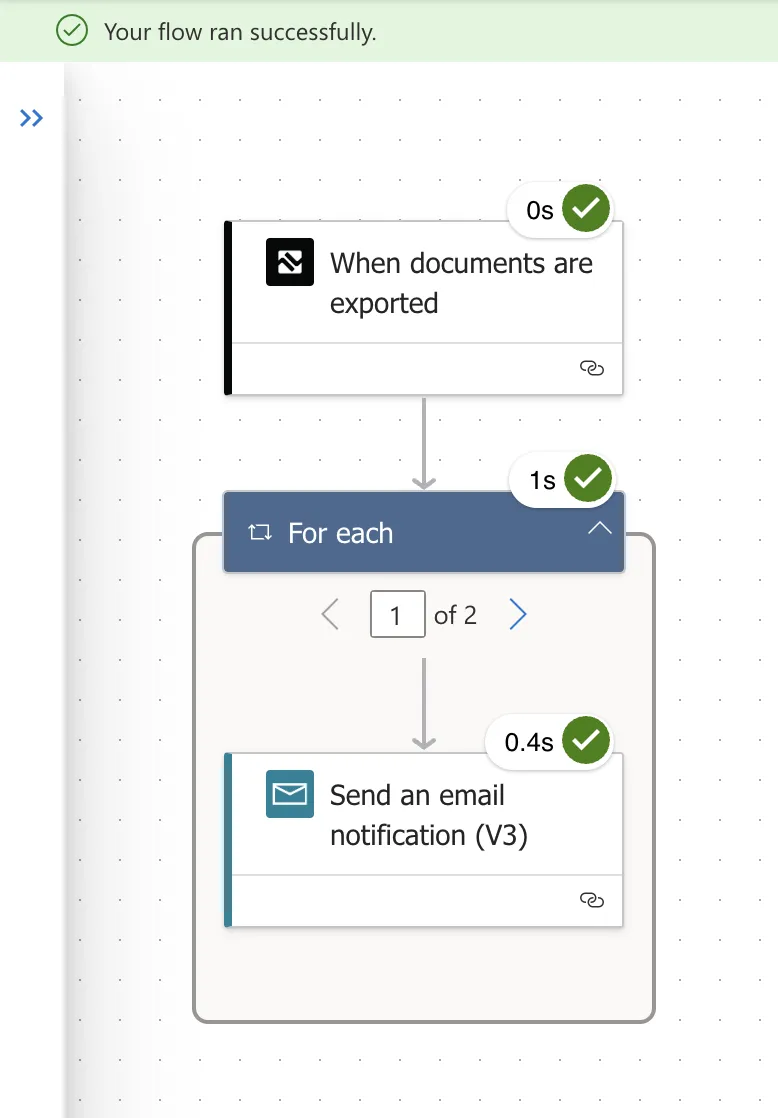
Now you can go to your publication that you previously activated with Power Automate and click the “Export Document(s)” button. If everything went well, you should see this, and the files will be sent to the email address you specified.
You should test your flow every time you make changes. Once you have tested your flow, you can select “Automatic” and use the previous request if you click “Export Document(s)”.