This macro automatically indents your footnote text so the footnote number and the text line up cleanly, without touching each footnote by hand.
The aim is to automatically implement the formatting shown below:
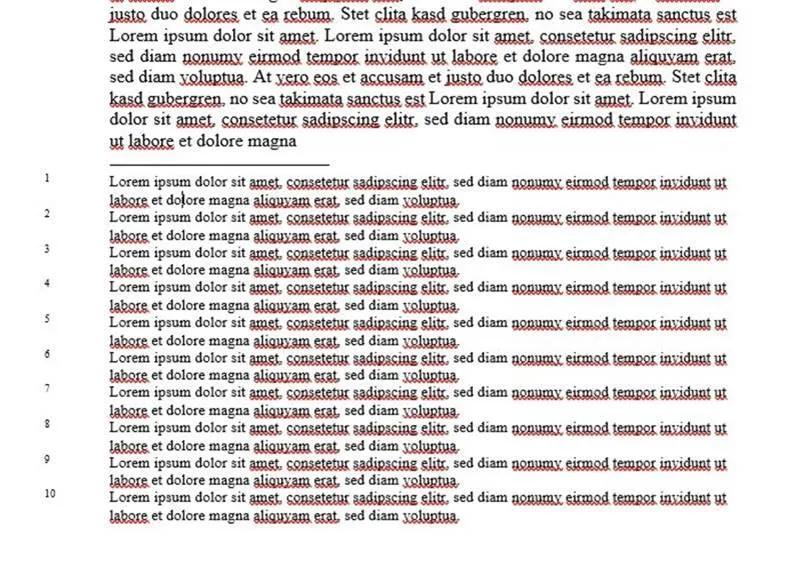
The problem is that Word does not allow the automatic different control of footnote texts and footnote characters via the format templates. Only the second line can be controlled via the hanging indent of the footnote text format template. Thus, a tab must be set and the first line must always be indented manually for each footnote with the tab key behind the footnote number or the footnote character. This can be automated with the following code snippet. The indent is then set to 1.5 in the first and second lines.
Note: Since the macro automates the manual steps for each footnote, it may take some time if there are a lot of footnotes. In our experience, it takes about 40 seconds for about 70 footnotes. This cannot be sped up within Word. If you want the macro to run automatically the first time you open it, please replace the name “FormateFootnotes” with “AutoOpen”.
Attention: When the macro is executed, it converts the .docm file into a .docx file and saves it in the location you specify.
Sub FormateFootnotes()
For i = 1 To ActiveDocument.Footnotes.Count
ActiveDocument.Footnotes(i).Range.Select
With Selection
.Collapse Direction:=wdCollapseStart
.MoveLeft Unit:=wdCharacter, Count:=1, Extend:=wdExtend
.TypeText Text:=vbTab
.ParagraphFormat.FirstLineIndent = CentimetersToPoints(-1.5)
End With
Next
Application.FileDialog(msoFileDialogSaveAs).Show
End Sub
Run the macro: see How to insert and run a Word macro.