A data tab generates customized metadata as a JSON file - based on the answers in the questionnaire and ready for automatic downstream processing.
Activate
Create a new tab in your template and, under Options, set Use as a data tab.
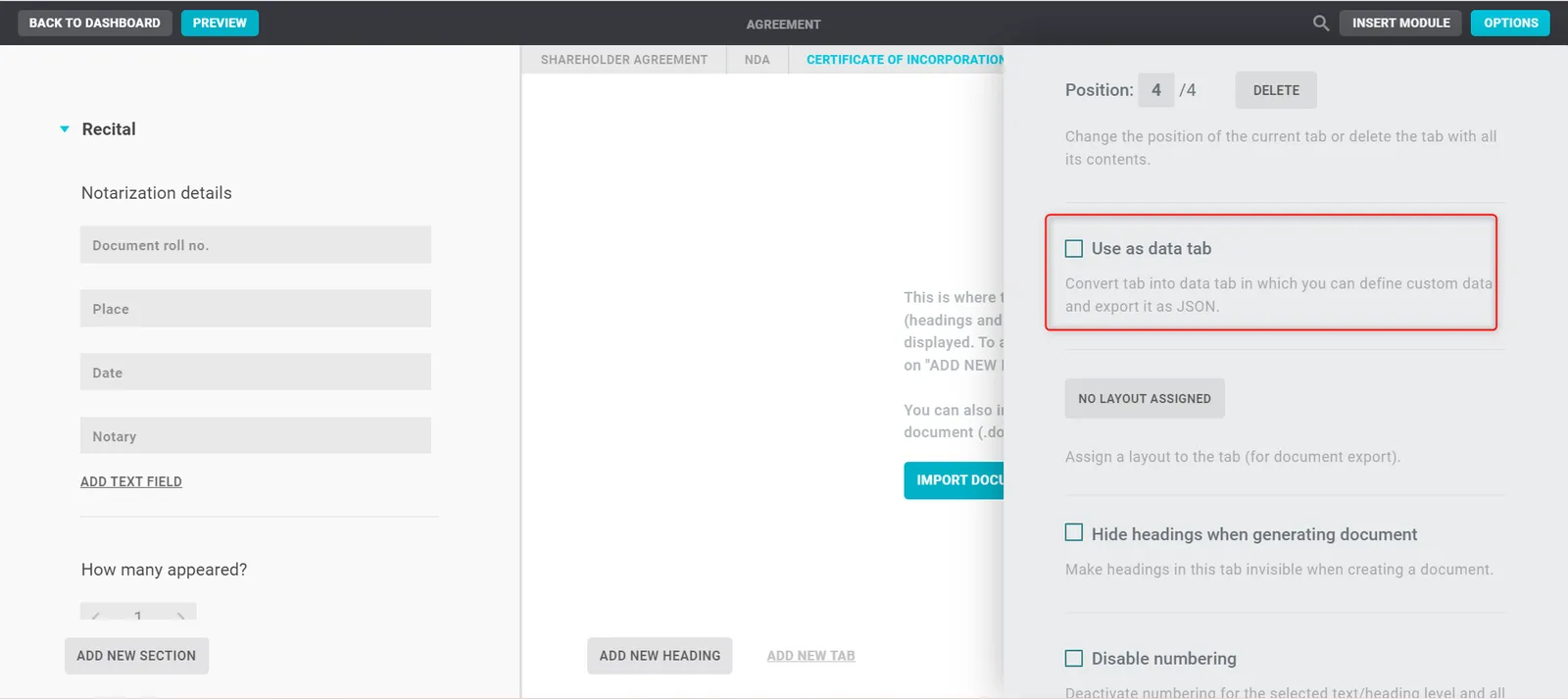
Set up
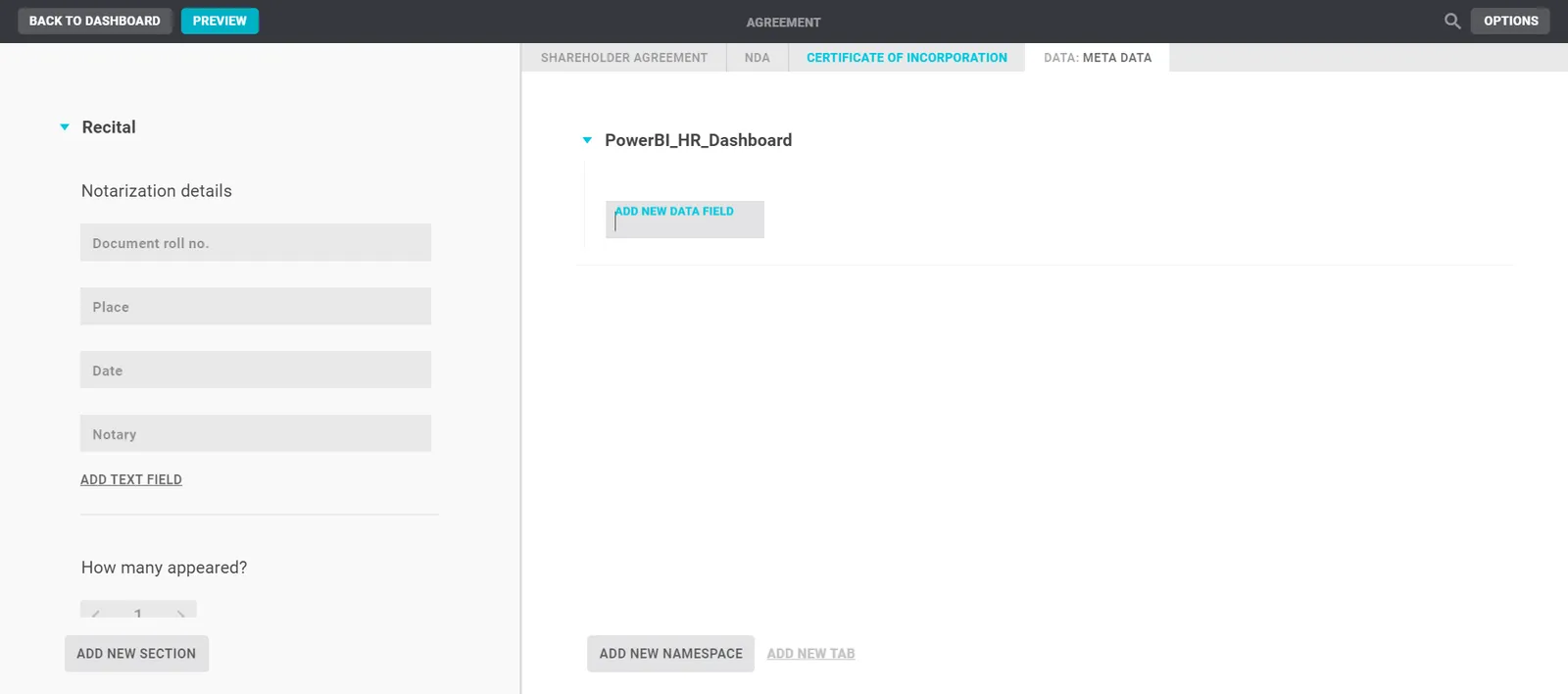
A data tab is structured like a normal tab: headings are the namespaces, paragraphs the data fields. Inside data fields, the data is always a key-value pair. On export it appears as JSON:
"{"Namespace1":{"key1":"value1","key2":"value2"}}"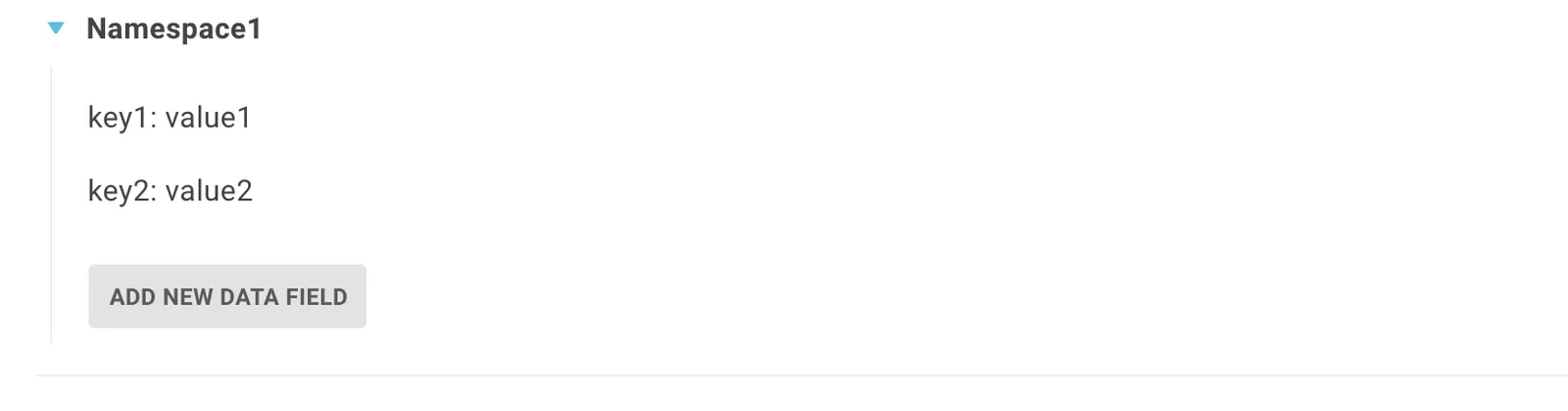
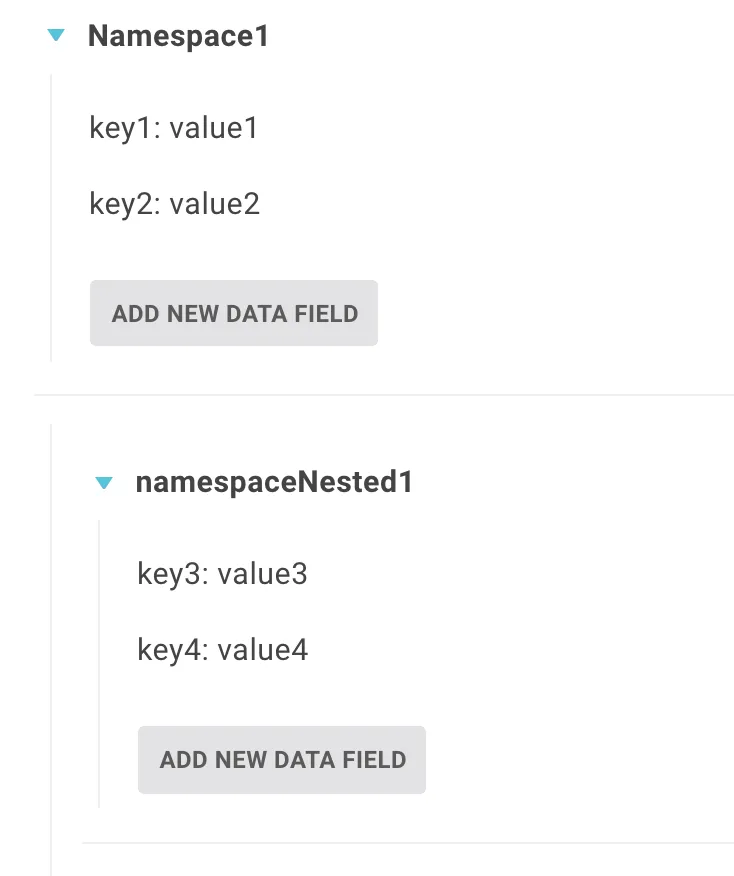
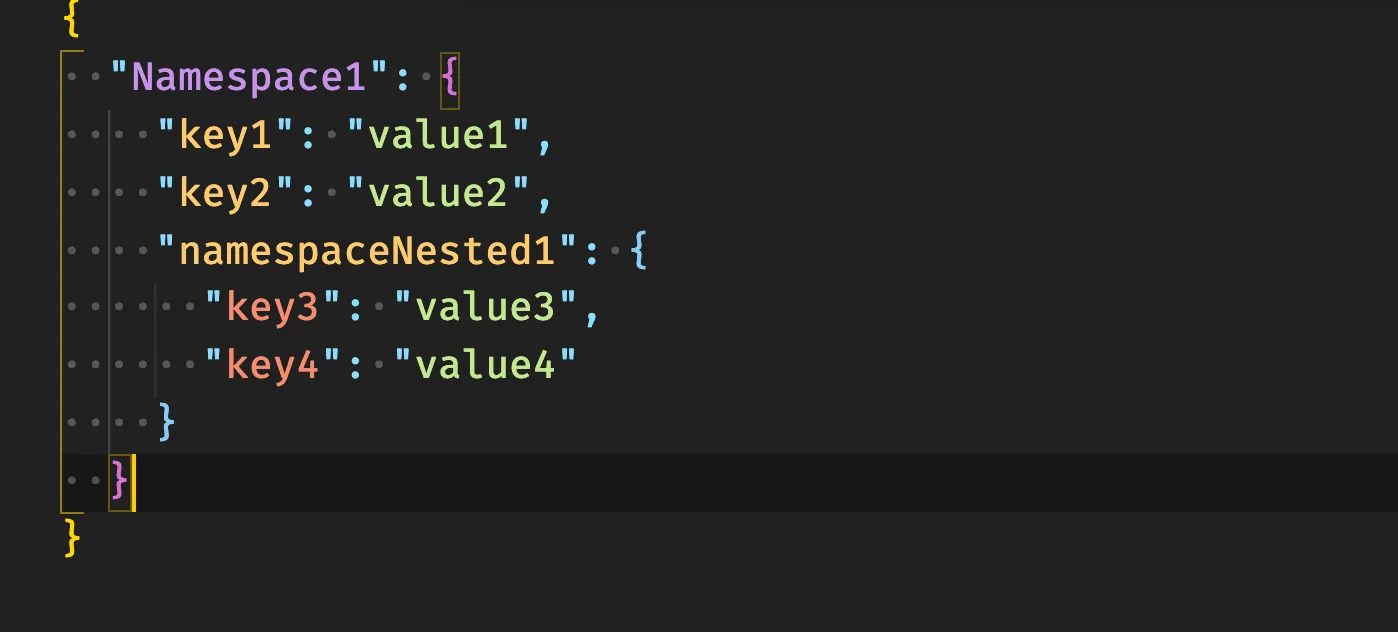
Namespaces and data fields can also be indented - the generated JSON reflects that:
What the data tab can do
As with normal tabs, all entries can be governed by rules - with placeholders, inline rules and the questionnaire. That makes the exported data fully individualized and dependent on the answers. Keep these rules in mind:
- Namespaces on the same level must be named uniquely.
- Namespaces themselves must not contain rules or placeholders.
- Namespaces may only contain A-Z, 0-9 and
_. - The key-value format (
key: value) must be kept. - All data fields on one level must have unique
keys. keyscan’t be shown dynamically (via rules/placeholders) -valuescan.keysmay only contain A-Z, 0-9 and_.valuescan contain any information.
Publication mode
You can also use data tabs in publication mode.
If you don’t want users to export the JSON file, prevent the export: select the data tab → Options at the top right → the data tab (in the example “DATA: DATA TAB”) → clear the Include in export checkbox. To hide the data tab from users entirely, set that in the template’s options.