Invitation mode lets you send a template to someone outside your organization - a client or a colleague - so they fill it in themselves. You stay in control of what they can see and export.
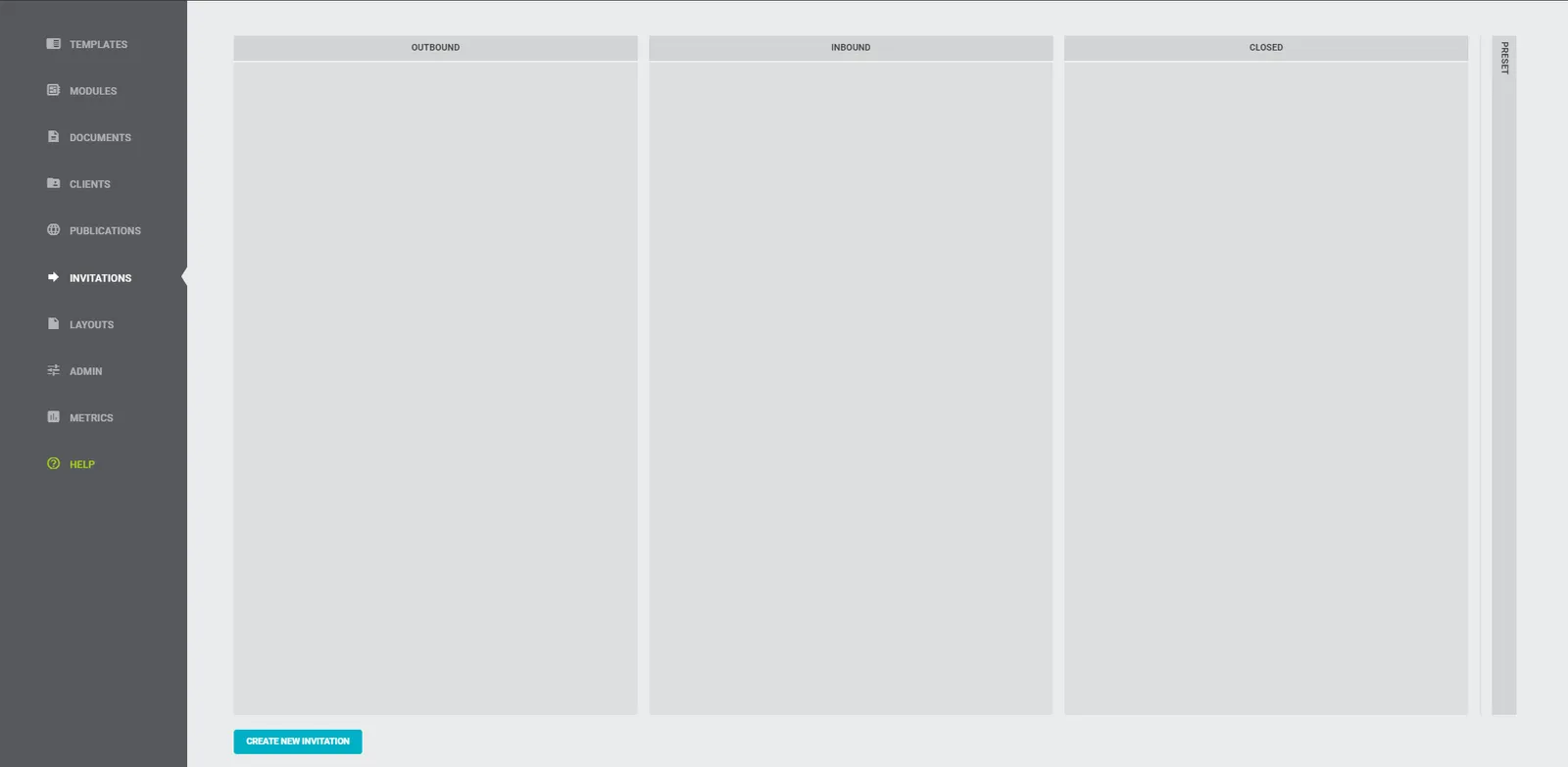
The Invitations menu is organized into four columns:
- Outbound - invitations you’ve sent or saved as drafts.
- Inbound - completed documents sent back to you.
- Closed - finished and archived invitations.
- Preset - saved invitation setups for reuse.
Create and send an invitation
- At the bottom left, click New invitation. A window opens where you set it up.
- Fill the three required fields: Title, Template, and at least one Recipient email address.
- Optionally set:
- Expiration period - how long the link stays valid (7 days by default).
- Custom welcome message - shown to the recipient before they reach the template.
- Under Advanced settings, control what the recipient can do:
- Receive copy of the document - you get a finished copy; the recipient can still export their own.
- Prevent export - the recipient can’t export; you receive the copy (this turns Receive copy on automatically).
- Questionnaire only - the recipient sees just the questionnaire, not the full document, and can’t export it (this turns the two options above on automatically).
- Custom letterhead - choose a layout for the template in this invitation.
- Click Save as draft to finish later, or Send invitation to send it now.
Tip: Save a setup you use often as a Preset so you don’t recreate it each time.
What happens after sending
- The invitation shows Pending for 15 seconds - click Undo in that window to pull it back (it becomes a draft again). After that it turns Sent.
- The recipient gets an email with a link. When they open it, the status becomes Opened.
- Need to stop it? Open the settings and click Revoke invitation - the recipient then sees that access was withdrawn.
- Once the recipient finishes, the invitation moves to Closed, where you can archive it from the ⋯ menu.
If you chose “Receive copy” or “Questionnaire only”
- Receive copy: the recipient’s Export button becomes Export & send. After they use it, the invitation moves to Inbound - open it with Open document, edit and export it yourself, then use Move to closed.
- Questionnaire only: the recipient sees only the questionnaire and can just Send their answers - they can’t export the document.
Presets
Save any invitation as a Preset to reuse its setup. It appears in the Preset column; click Use preset to start a new invitation from it, or the ⋯ menu to edit the preset itself.