Tabs split a template into several documents (a multi-document workflow). Here’s how to manage them.
Rules on tabs
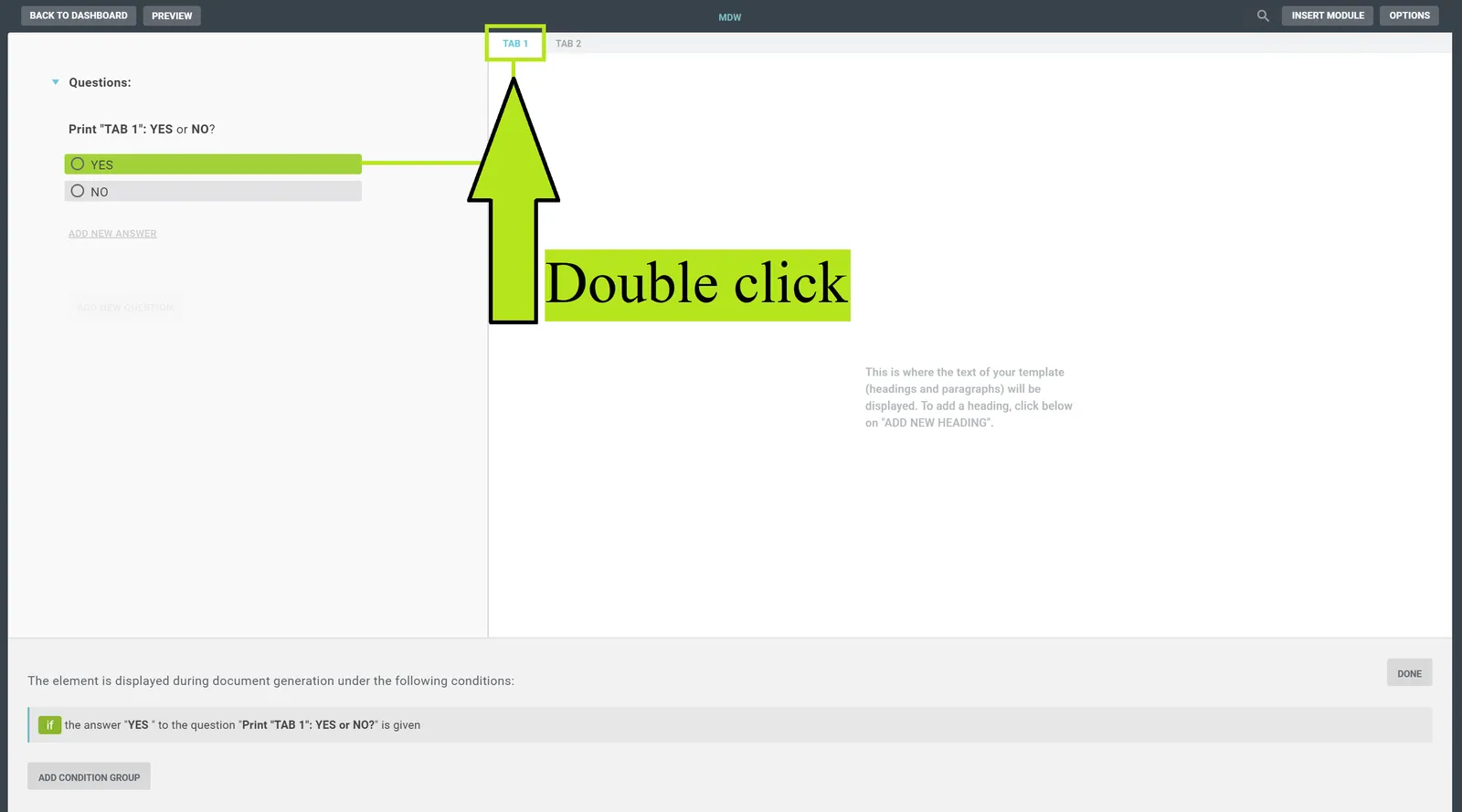
Double-click the tab name to open the menu for setting rules. With rules on tabs you can control, among other things, which tabs are exported - handy when reviewing a template if you’d rather focus on one tab than download them all.
Name, position and deletion
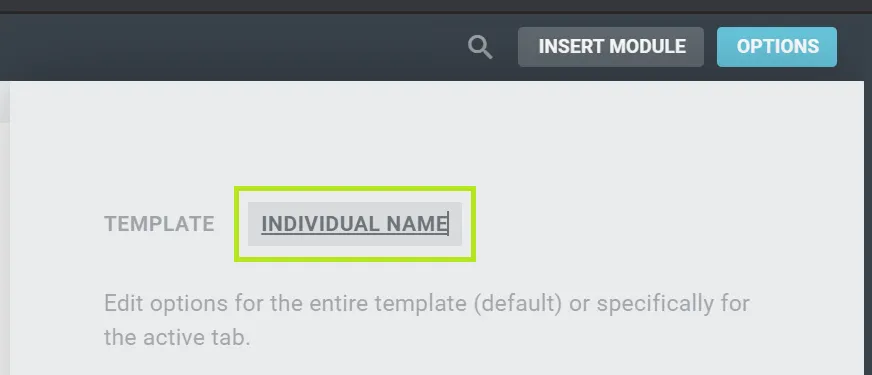
Under Options, select the tab (it appears underlined):
-
Change the name: click the name and type your preferred one.
-
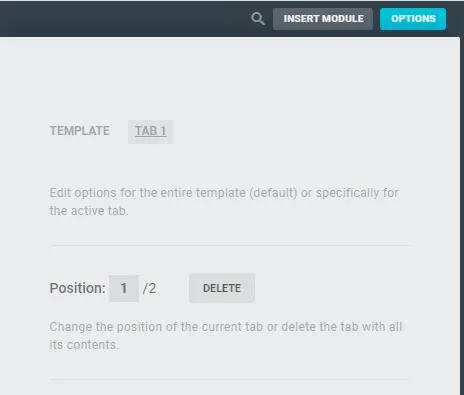
Change the position: enter the order under Position.
-
Delete: click Delete - the tab and all its contents are removed.
You can create as many tabs as you like and scroll between them in the bar.
Synchronization between tab and template
In the multi-document workflow options there are two tabs at the top: Template (global settings like language, layout, numbering, bilingual mode) and the currently selected tab (position, name, its own layout).
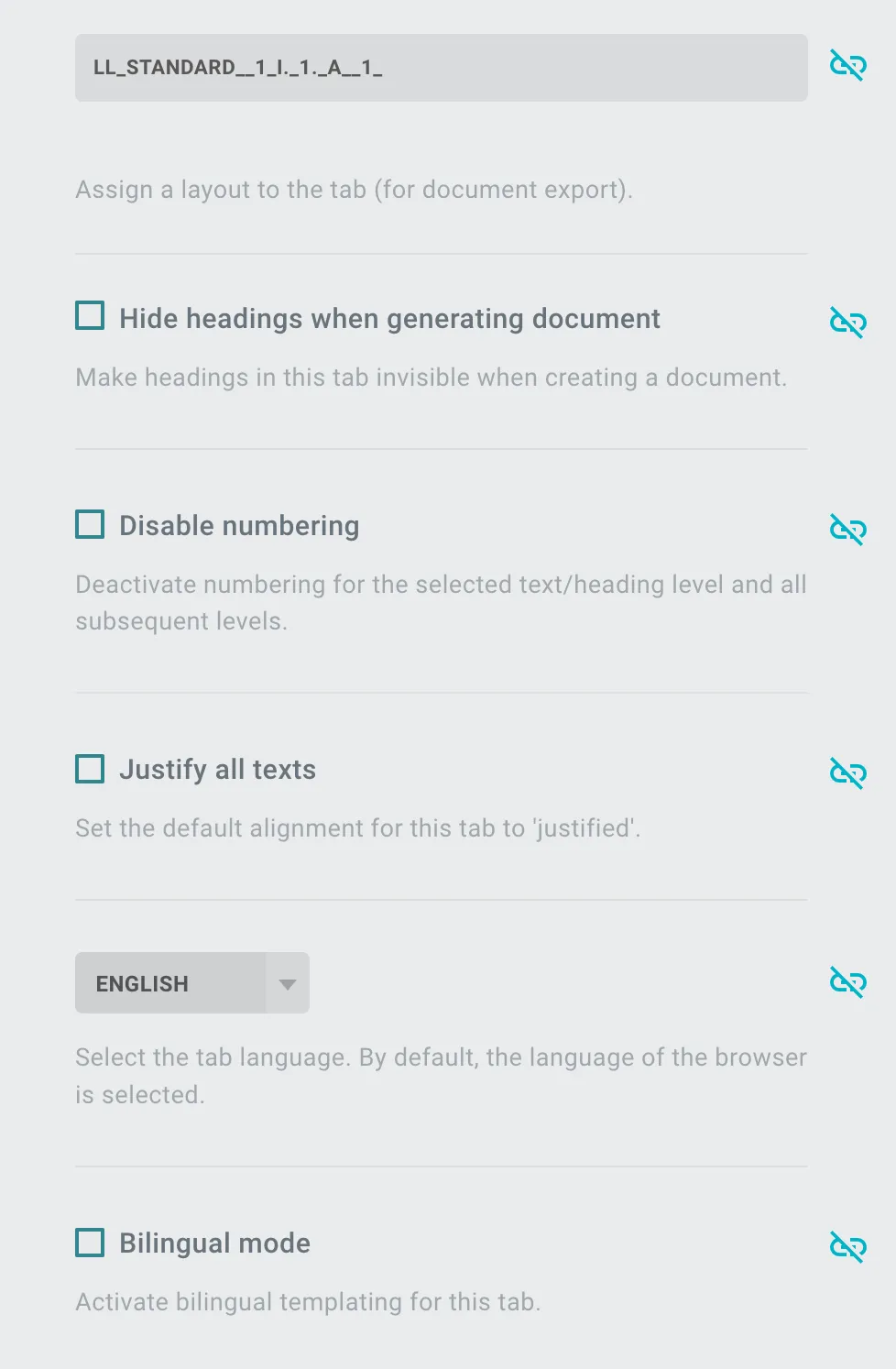
Next to each tab setting, a synchronization icon shows whether it’s adopted from the template. For a new tab, all settings are adopted by default.

To cancel it, click the icon or simply change a setting within the tab - the icon then changes:

You can then set layout, heading display, numbering, justification, language and bilingual mode separately for this tab.
Note: If you remove all but one tab in the multi-document workflow, that tab’s last settings are adopted as the template settings.