The calculation function lets you perform calculations with variables during text generation. You can try every option directly in this example template.
1. Declare a variable
Declare the variable name in a text field of the questionnaire: ::var[NAME_OF_THE_VARIABLE] (you can also use ::variable or ::v). The name must contain letters and be unique - if it already exists, Lawlift adds a number. A text question can contain several fields, so you can declare several variables under one question.
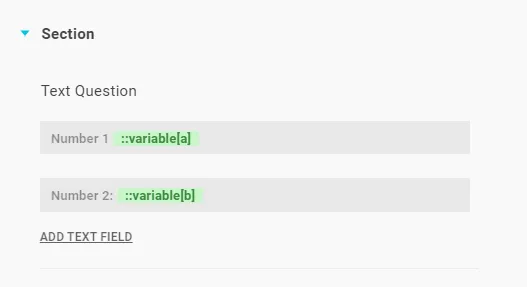
In use or preview mode, only numbers are allowed in these fields. Point and comma are reserved as decimal separators, so they can’t be used as thousand separators.
Tip: If a field should only take numbers, enter the variable directly as a command in the text field - you don’t need a calculation function for that. Then link it as a placeholder in the text.
2. Build the calculation
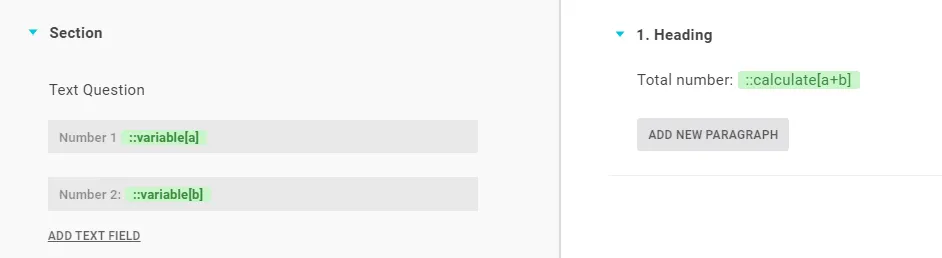
On the text page (right side), insert the calculation function where you want the result: ::calculate[CALCULATION] (you can also use ::calc[ ] or ::c[ ]). Inside the brackets, write the calculation using the variable names.
| Operator | Meaning |
|---|---|
+ | addition |
- | subtraction |
/ | division |
* | multiplication |
% | remainder of a division (modulo), e.g. 12 % 5 = 2 |
** | exponentiation, e.g. 2**3 = 8 |
The usual order of operations applies (multiplication/division before addition/subtraction); brackets and numbers are allowed. The operator is highlighted green, and in use or preview mode the result appears directly.

3. Format the result
Inside the brackets you can format the result:
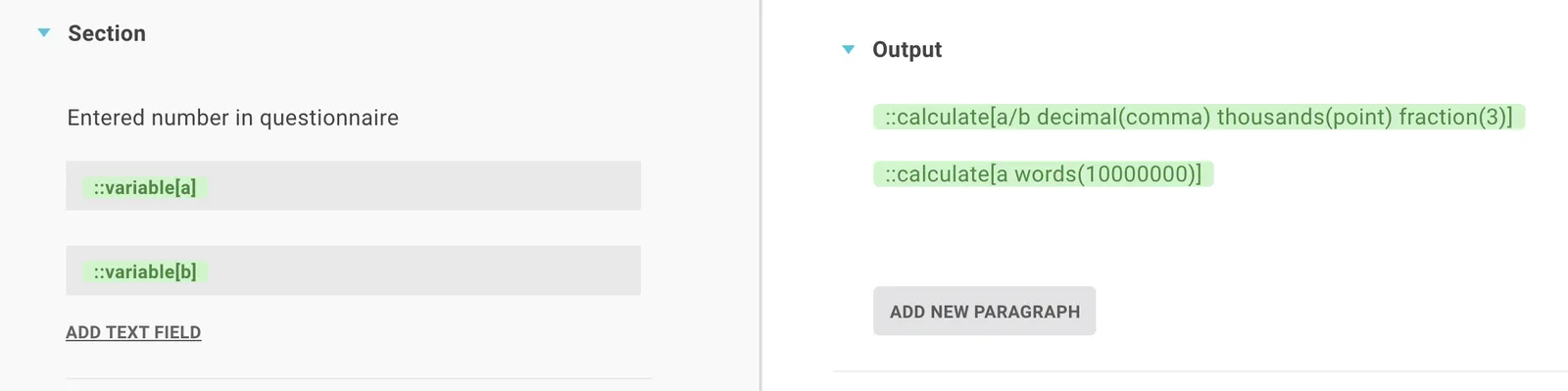
fraction(2)- number of decimal places (fraction(0)rounds to a whole number).decimal(comma/point)- decimal separator.thousands(comma/point/space/apostrophe/prime)- thousands separation. Numbers in the questionnaire must always be entered without thousand separators; only the output is formatted.words(12)- the number in words up to a maximum; beyond that it stays a figure. The language follows the template’s language.
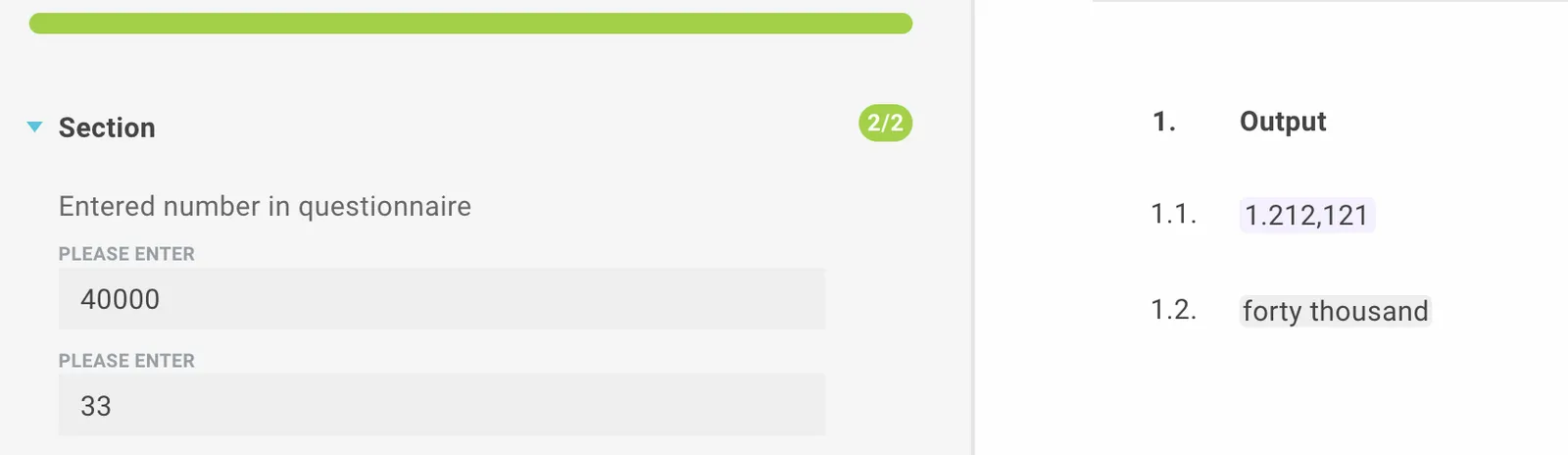
Examples: ::calc[a/b decimal(comma) thousands(point) fraction(3)] · ::calc[a words(10000000)]
4. Show euro and cent separately
With the % operator you split the number into the part before and after the decimal point. For a variable a with the value 10.50:
::calculate[a - a%1 fraction(0) words(100000000)] euros and ::calculate[a%1 * 100 fraction(0) words(100)] cents.

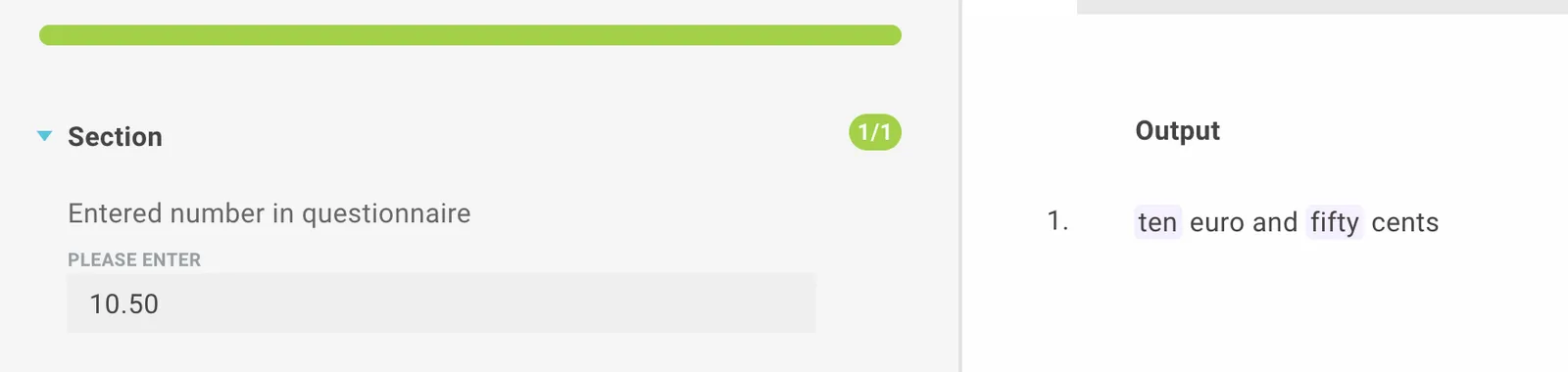
5. Store an intermediate result in a variable
Use variable(name) to store the result of a calculation, for example ::calc[a+b variable(result1)]. Show it again elsewhere with ::calc[result1].
6. Calculate in a serial
Calculations also work in serialized paragraphs: create the variables and calculation as above, then link both the text fields and the paragraph to the same serial question.
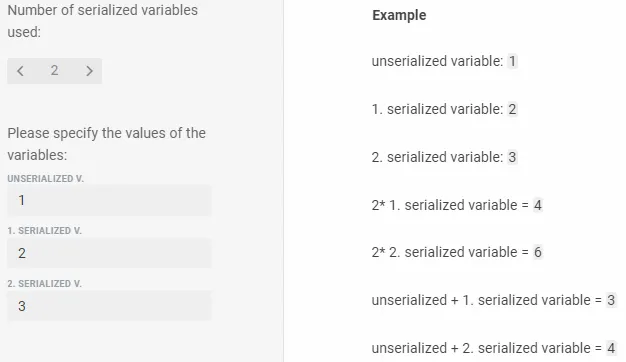
You can mix serialized and non-serialized variables.
Good to know
- Edit a calculation later: use the arrow keys to move onto the green calculation function. When the outline appears, press Backspace to turn it into plain text and edit it. When you’re done, it turns green again.
- Don’t combine: don’t mix the
variable(...)variant with the formatting options.