Lawlift automatically merges identical inline rules - so you change a link in one place and it takes effect everywhere. This note then appears:

In these cases, Lawlift automatically turns the same inline rules into one and the same rule, which is used multiple times within the template.
This means that if you wish to have a different link for this rule than the one initially set, you only have to change one of these merged inline rules. The change to the link then affects all other places in the template where this same inline rule was recognized. This will save you a lot of time when revising your template.
Example: Here you can see different inline rules that contain the same text and are linked to the same question. As soon as, for example, rule changes are made to the inline rule “1”, this affects all other inline rules with the same text in the entire template, which are also previously linked to the same rule.
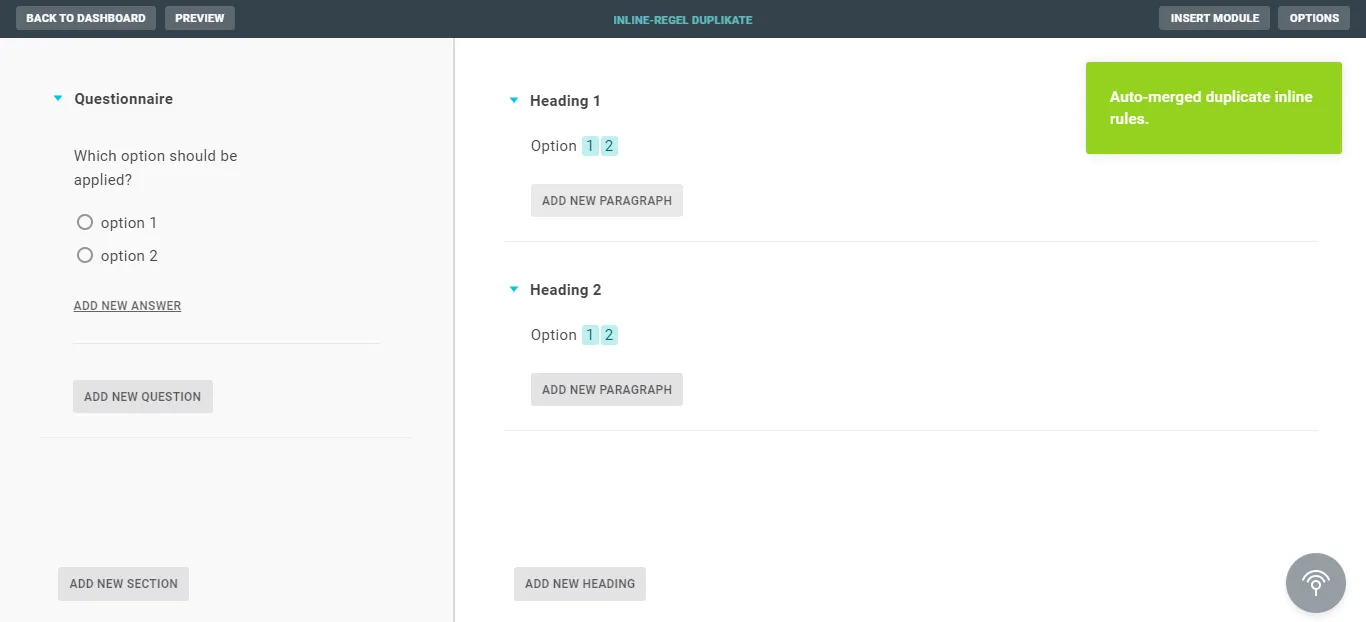
If you first inadvertently link “1” with the answer “option 2” and “2” with the answer “option 1”, Lawlift merges all inline rules that follow the same logic into a single rule that is used in multiple places. If you then make a change to one of these exactly identical inline rules because, for example, you want to link “1” with “option 1” and “2” with “option 2” in our case, you only need to do this once. The change is then made at all points in the text where “1” was previously linked with “option 2” and “2” with “option 1”.
Note
Special case: if a new inline rule has the same name as existing ones but should behave differently, correct it separately - insert the relevant text into Lawlift again and edit that copy there.
Tip
If you notice during template construction that an inline rule is misnamed or misruled, you can easily select it from the inline rule library, paste it anywhere you want, and edit it there. Because of the automatic merging of the inline rule, all merged inline rules are now updated throughout the template. Afterwards, you can delete the last added inline rule as needed. This saves you searching for the respective inline rule, especially in complex templates.