Here’s how to insert an image into your template and adjust how it looks.
Step by step
-
Hover over Add new paragraph for a second - the option Upload picture appears on the right. Click it.

-
Choose the image in your file explorer. Supported formats are JPG, JPEG, PNG and GIF.
-
Adjust the image:
- Position: drag it with the handle to the left of the image (see Relocate elements).
- Rules: click the image, then Rules on the right (see Set rules).
-
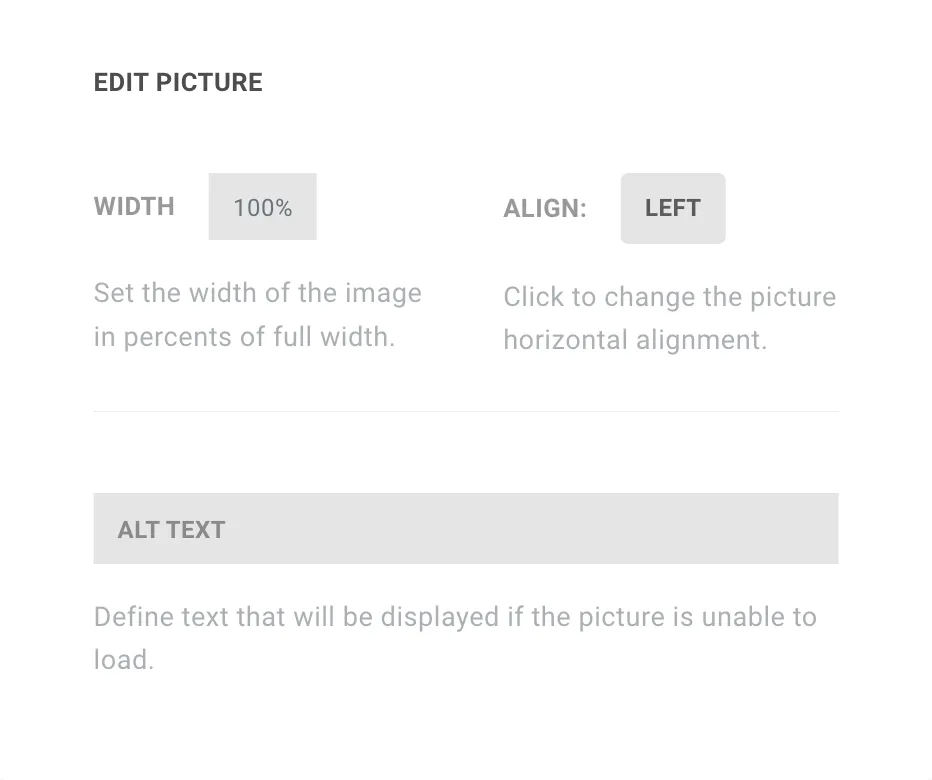
For more options, click the ⋯ (three dots) to the right of the image → Edit: width, alignment and an alt text shown if the image can’t load.
Good to know
- No placeholder or inline rule: these can’t be set on an image.