There are three ways to add notes to your templates: on questions, on the text page, and in a separate document. Try them all interactively in this Lawlift template.
Notes on questions
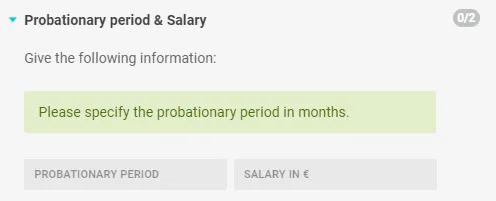
Click in the (already created) question and press Enter - a light-green Info text / explanation field appears below it. This works for every question type. Keep the text short; it guides the user precisely while they answer.
Notes on the text page
Insert a paragraph with the note where you want it. To avoid disrupting the text flow, it’s usually better to put the notes at the end of a heading or the document and point to the relevant spot with superscript numbers.
Note: These superscript numbers are not footnotes and are not numbered automatically.
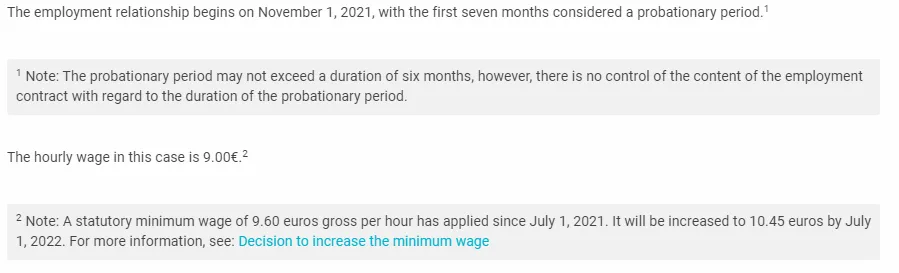
For a clean layout, put the note into a single-column, single-row table cell and assign it a style via the ::customstyle function (see Assign a Word style).
Notes in a separate document
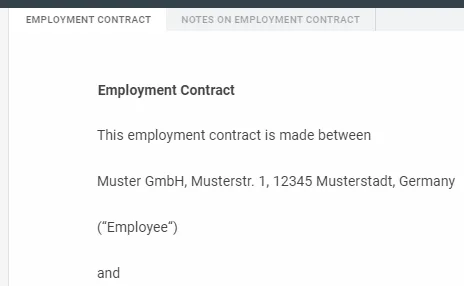
With the multi-document workflow you can put all notes in a separate tab - they’re then output as their own Word document alongside the generated one. For longer templates, mirror the template’s structure (e.g. the headings) in the notes to make them easier to match up.
Control notes with rules
Notes on the text page and in a separate document can be linked to rules. That makes their display depend on an answer - you can even let the user choose whether notes appear (similar to a “redliner” version).

With ::donotpublish you can also show notes only to certain groups of people and hide them from others.