Export
With a document export, you can export your answers to a CSV or a JSON file. If you export a document as a Word file, the answers are saved in the metadata of the Docx file. This means that you can restore the answers you have given by uploading the Word file again afterwards. You can find out more about this in the following section.
Import
There are two ways to import previously exported answers back into our app. The first is to upload a previously generated document as a Word file under the Documents menu item. The answers given are then recognized and a new document is created with the same answers. The second is to upload answers from a CSV, JSON, or Docx file directly into the questionnaire.
Importing Answers from Document Overview
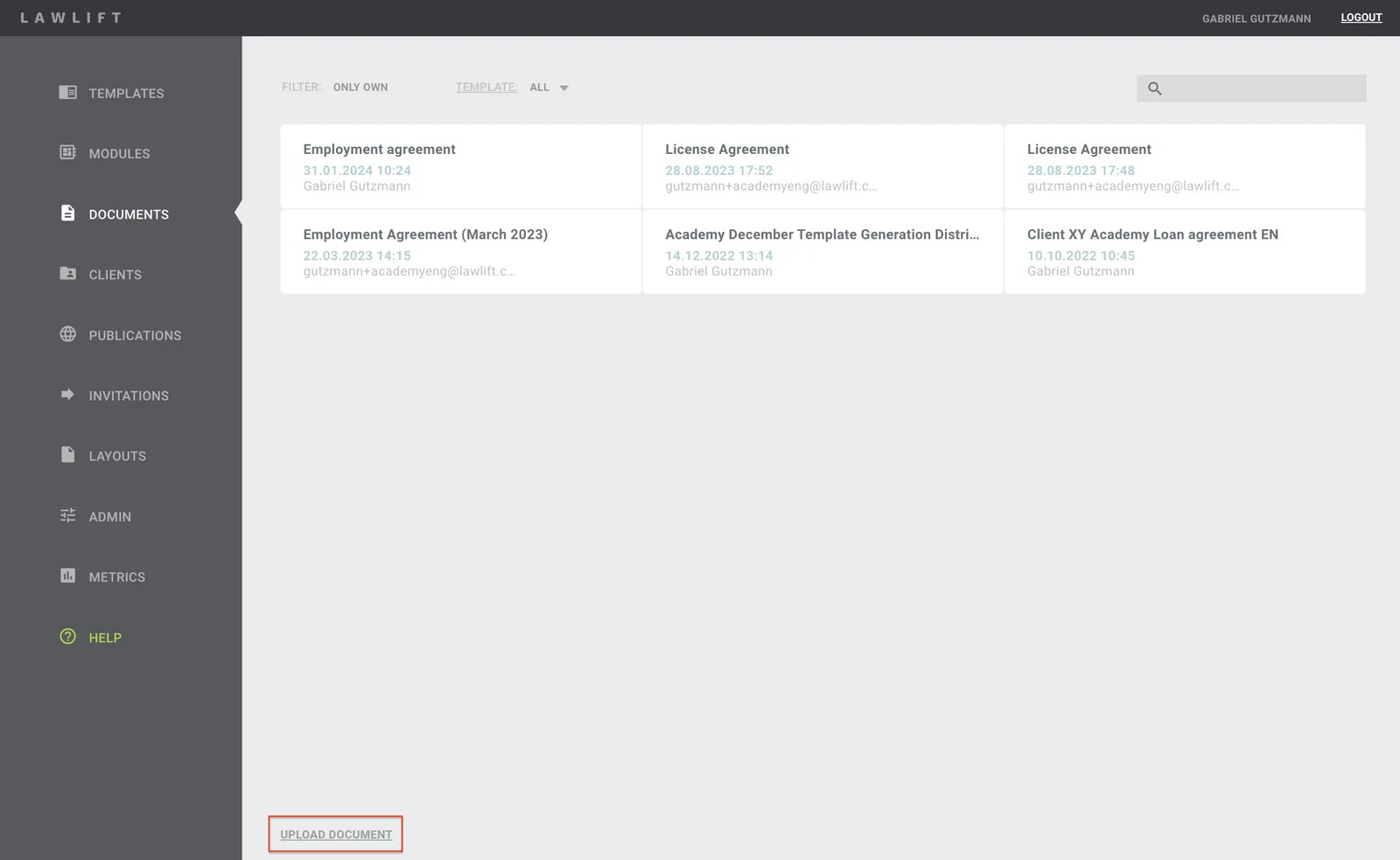
In the dashboard, you will find the category DOCUMENTS.
Now click the UPLOAD DOCUMENT button to upload the previously downloaded Docx document.
If you have changed the template since the download, the document is based on an older version. In this case, select which template version the uploaded document should be based on.
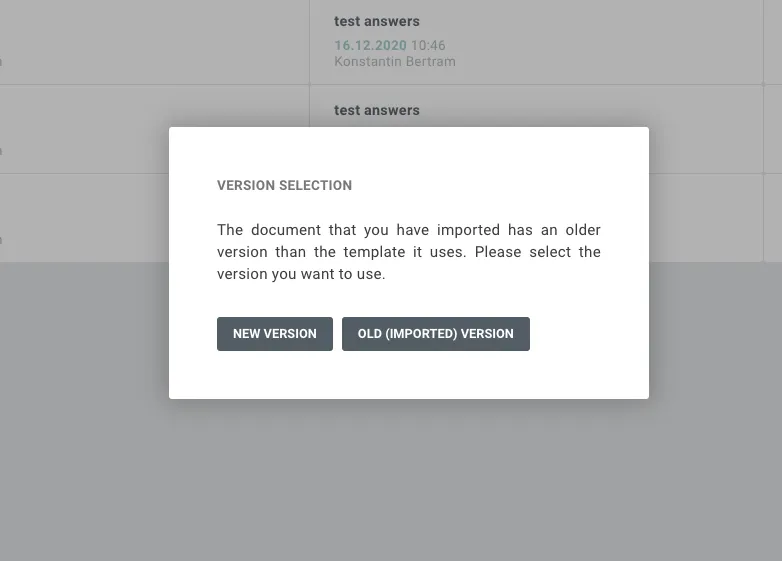
Please note that if you decide on the current version, the document will be opened with the current changes. This means if you have already created a document and then delete or add a question in the template, the document will be opened without the deleted question or with the added question.
Note
You can only choose a version once in a document, i.e. when uploading the answers again, you cannot select a different version than the one previously selected.
The newly imported document will be displayed in a new window with preselected answers and the document will appear in the document overview list.
Attention!
Please only use Docx-files downloaded from our app.
Importing Answers from File (JSON, CSV or Docx) in Use-Mode or Publication
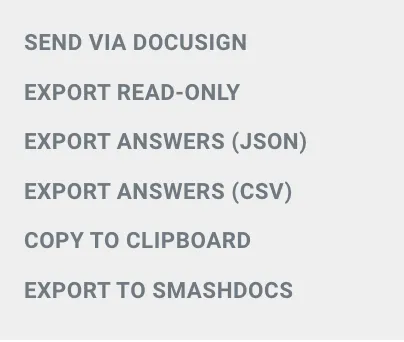
In Use Mode or while using a Publication, additional export options are shown next to the export button. When you click on the three grey dots, you can see the options “EXPORT ANSWERS (JSON)” and “EXPORT ANSWERS (CSV)”. Clicking either of these options lets you download just the answers of the questionnaire.
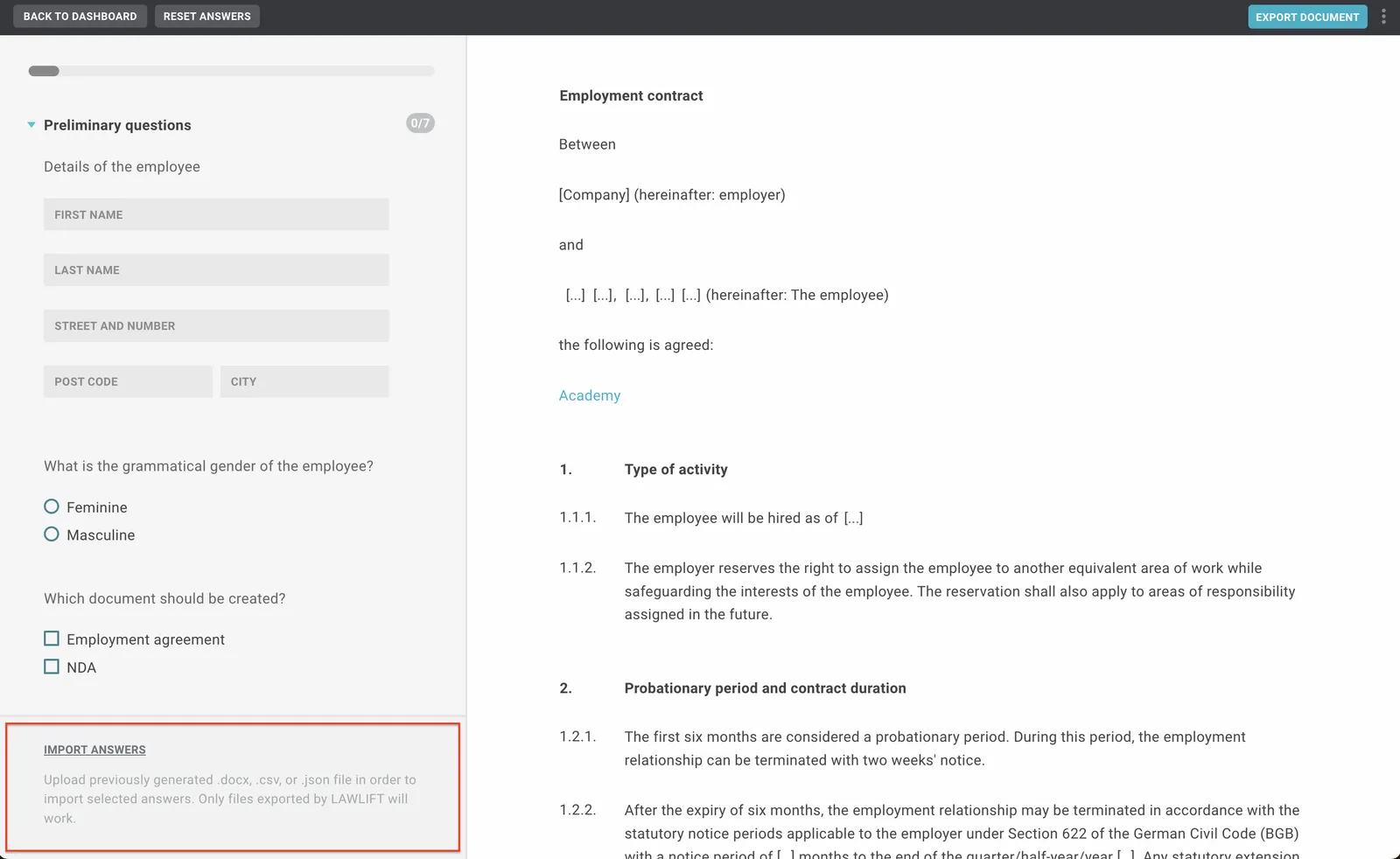
You will then have the option to import the respective answers into the document or publication directly via the IMPORT ANSWERS button. If you haven’t saved the answers as a JSON or CSV file, it’s still possible to import the answers that were given for a certain document. Just select the created Docx file after clicking “UPLOAD ANSWERS” and the answers will be imported.
In case the template has been changed since you downloaded this document, i.e. it is based on an older version of the template, you will be asked which template version you want the document to be based upon.
After you have selected the respective version, the newly imported answers will be displayed. If you have selected the previous (“old”) version, the page will be reloaded and the data of the “new” version will be displayed.
Note
The Import button is displayed only if you have not selected an answer yet.
We can only import files that share the same template as the current document.
Tip
You can control the option to upload responses individually in your publications.
You can also upload answers to a copy of the original template. In the event that, for example, extensive changes are made to a template, the template on which the publication is based can therefore simply be replaced by an updated copy.