If you want to use a template that is automated with Lawlift, you can do this in two ways:
1. You use the automated template within Lawlift. Therefore, you need a user account and you have to log in.
2. You use the automated template outside of Lawlift. You do not need a Lawlift user account for this.
The second possibility to generate documents is the focus of this article.
Info
Feel free to share the following article internally with your staff to guide them in creating documents.
Where can I find the templates?
If you want to use a template, ask your team how the template is made available to you. The template can be made accessible
- in Word via a “template button”,
- on one page in the intranet,
- on a page in your SharePoint, Confluence etc. or
- via a link.
Where you can access the template, you will usually find additional information provided by your teams, such as a video or a short text on the content of the templates.
Use the template
To use the template, click on the button, link or menu item.
Your browser will now open and the document creation process will start.
Tip
If you want, you are welcome to take a look at a few sample templates here on our website and also try them out: https://de.lawlift.com/use-cases-document-automation. To do this, please always click on “View the template”.
Please answer all the questions now. Depending on your answers, the text modules provided by the author are put together.
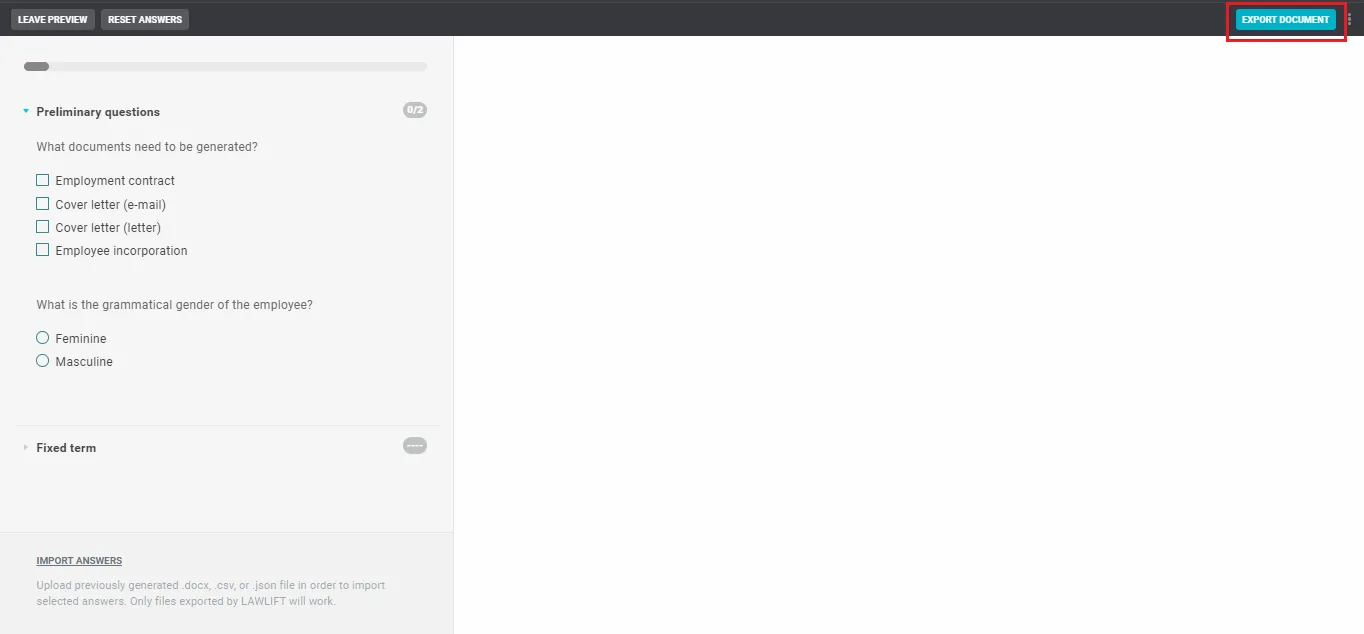
Once you have answered all of the questions, click the “Export Document” button in the top right corner. The Word file is generated and saved locally. You can now continue to use it like any other Word file.
Options
It is possible that you will only be able to export to Word if all questions have been answered. The author of the template can set this by choosing that all questions should be mandatory.
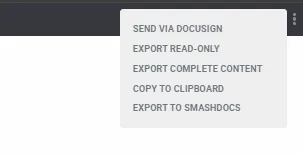
It is also possible that you only generate a write-protected Word file that you are not allowed to edit yourself. The author of the template can control this.
Access to the template can be restricted by the author. Depending on the procedure chosen (single sign-on, IP whitelisting, domain whitelisting) you either don’t have to do anything or enter a one-time password. If you have any questions, please contact the author.
If the layout (formatting) of the Word file is incorrect or looks different than usual, please contact the author of the template, who can control the formatting.
The author can also give you the option to download not only the Word file but also the answers in JSON file format or CSV file format.
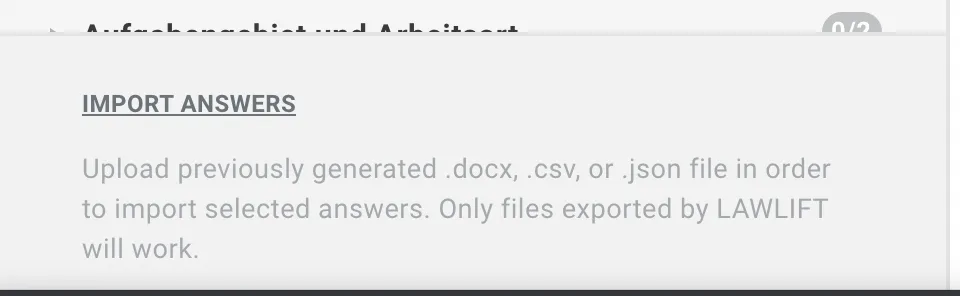
Once you have downloaded the answers, you can upload the answers again at a later time. To do this, go back to the template and use the “Import answers” link in the lower-left corner of the questionnaire.
In the case of bilingual documents (two columns), you can choose during the export whether you need both languages or only want to use one language.
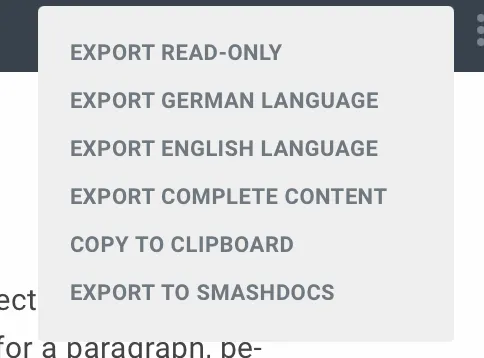
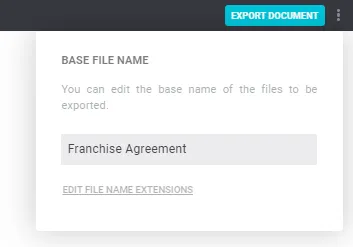
You can change the filename, as well as the filenames of the other files to be generated, by hovering over the “Export document” button without clicking it. A menu will then appear in which you can make the changes.