Lawlift numbers the headings and paragraphs in your templates automatically - you never add numbers by hand. When you build a template you only decide whether something is numbered and at which level. On export, Word applies the styles and numbering symbols you defined for each level.
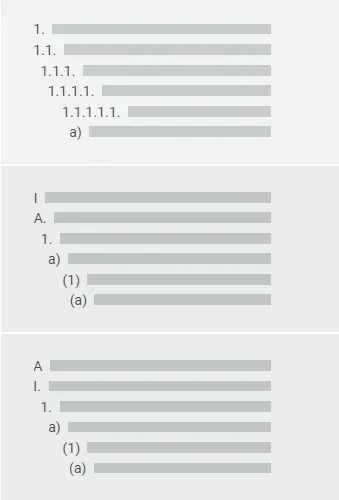
Global numbering (whole template)
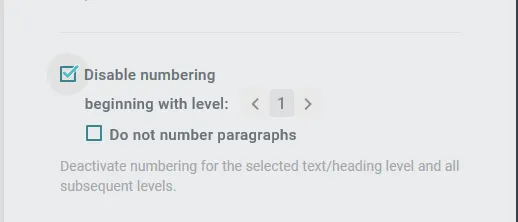
In edit mode, open Options:
- Tick Disable numbering to switch numbering off for the whole template. Use the arrows that appear to choose the level from which numbering is off.
- To number only the headings, choose Do not number paragraphs.
Numbering single headings or paragraphs
With numbering globally on, you can control each heading and paragraph individually:
- Click into the heading or paragraph.
- Click the ⋯ (three dots) and choose Do not number.
An ! replaces the three dots on any element you changed. To switch numbering back on, click the ! and choose Number.

Note: Turning off a heading’s numbering also turns it off for every paragraph beneath it.
Hidden headings
Hiding headings changes how numbering behaves:
- All headings hidden: the paragraphs are numbered consecutively. The hidden headings still let you set rules on whole sections and keep the template organized.
- Some headings hidden: a paragraph under a hidden heading follows the nearest visible heading above it.
Good to know
- Numbering is applied at preview and generation, not in the editor. That’s why references show a placeholder code while you edit - the final position isn’t fixed yet.
- Numbered list despite global off: click into the paragraph, open the ⋯ menu and choose List element (repeat per item; the ! toggles it back).
- For how Lawlift levels map to Word styles, see the design guide on levels.