Set up DocuSign once to let recipients sign documents straight from your publications. The initial setup takes about 30 minutes, plus DocuSign’s own go-live approval.
DocuSign
- All you need first is a DocuSign developer-account on https://account-d.docusign.com.
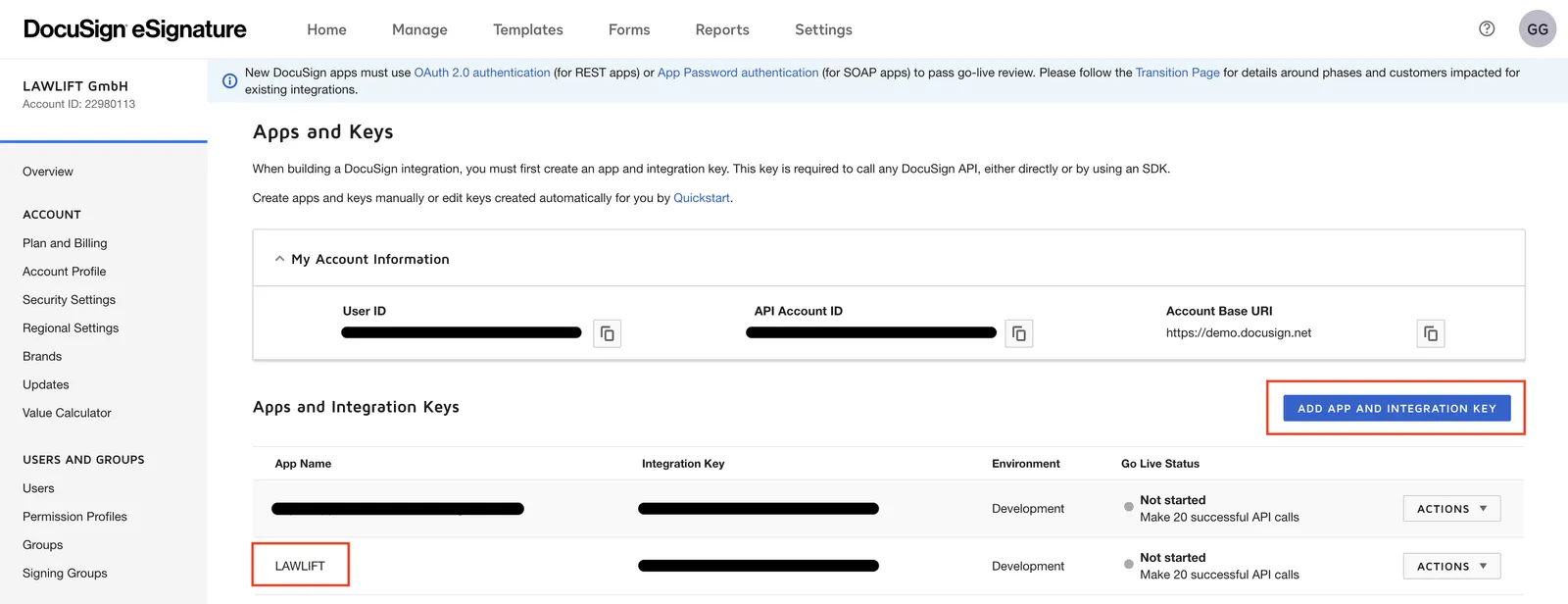
- Once you have registered or logged in, link Lawlift to DocuSign. To do this, open the menu item “Apps and Keys”. Then click on “Add App and Integration Key”. Then enter a name of your choice.
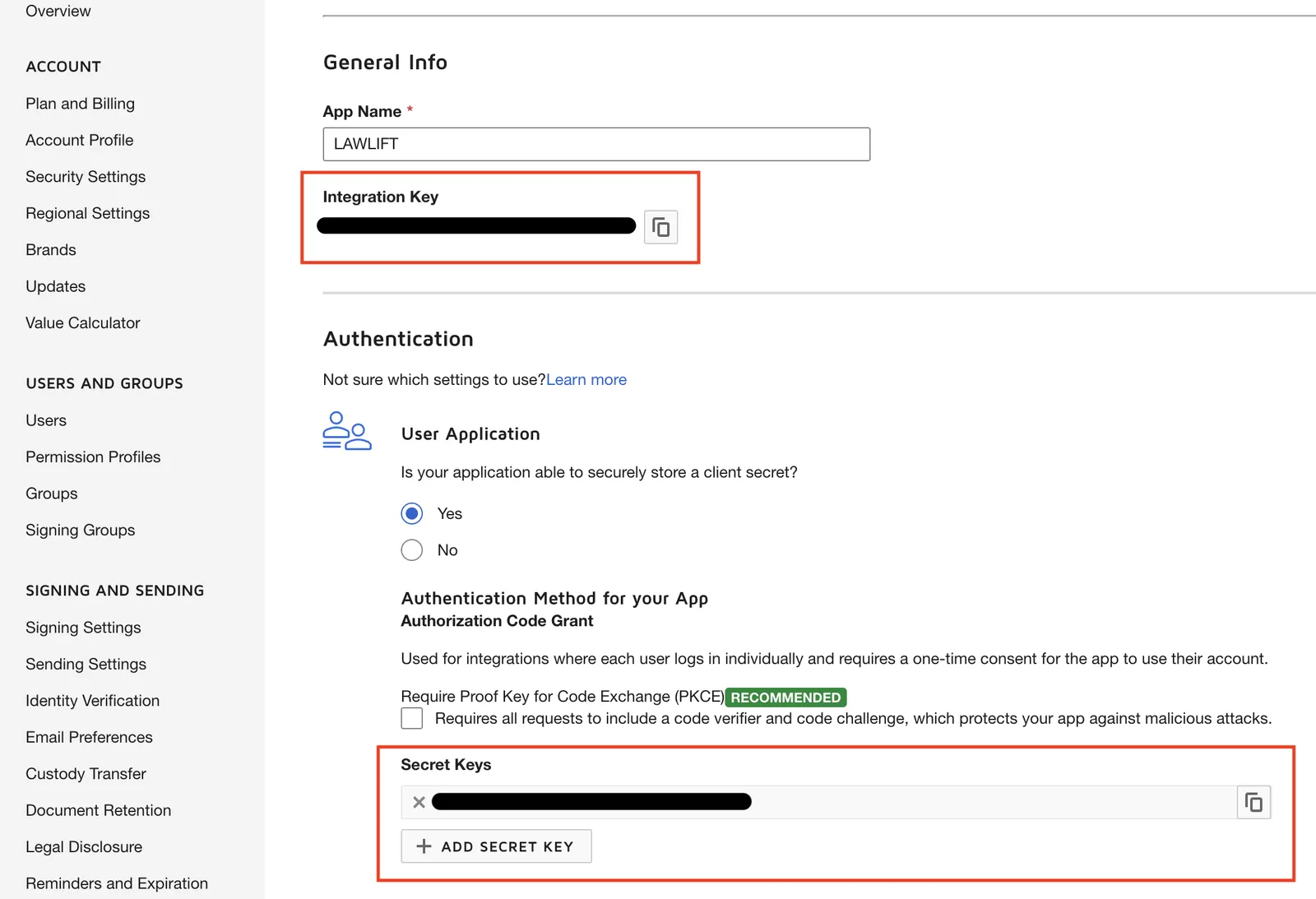
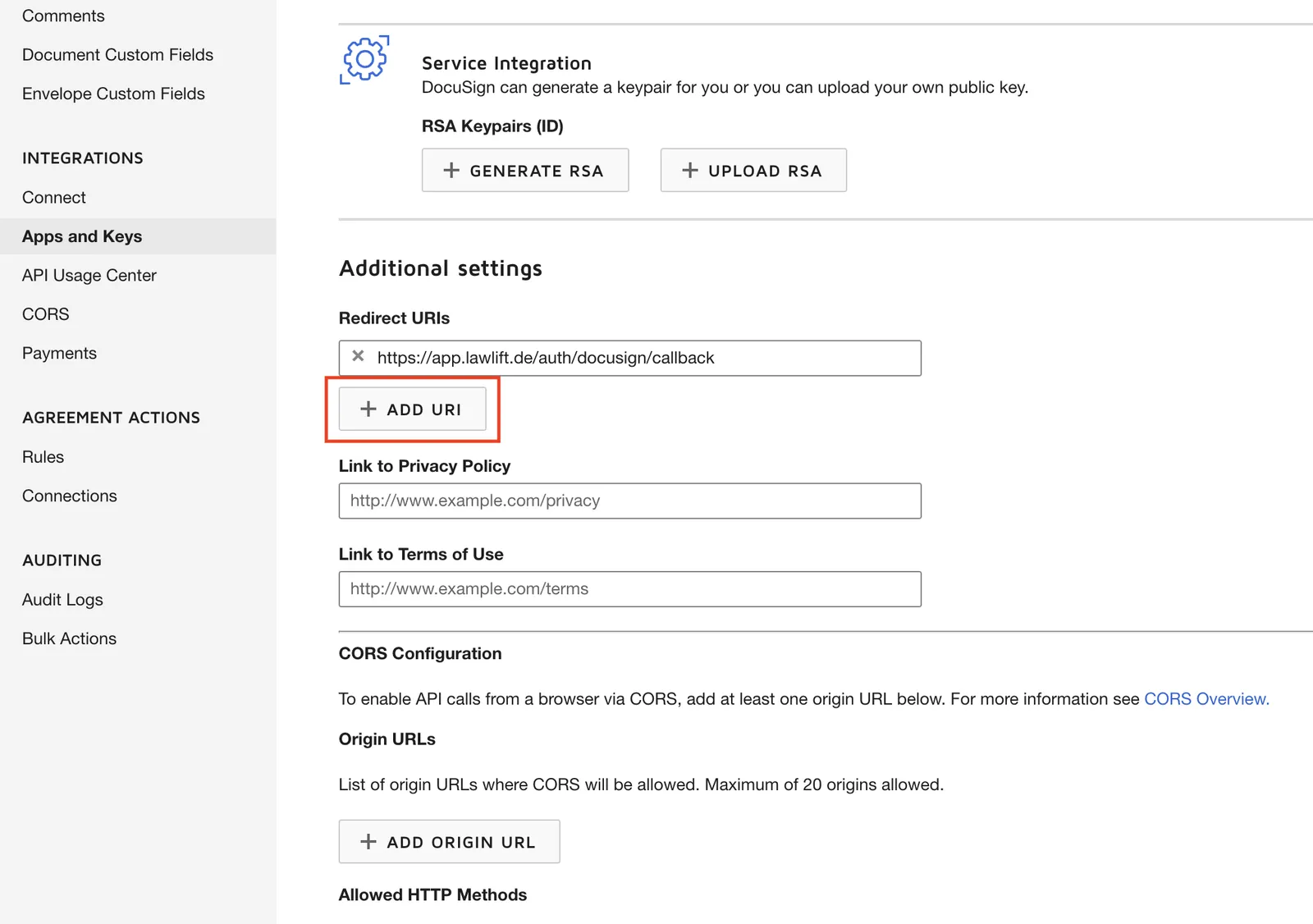
- A page will open on which you can then create a security key via “Add Secret Key”. Also enter the following link via “Add URI”: https://app.lawlift.de/auth/docusign/callback.
- Provide the following information to support@lawlift.de so we can connect DocuSign to your Lawlift account:
- Integration Key
- Secret Key
- Start the Go-Live-Process within DocuSign.
DocuSign’s Go-Live process requires 20 successful trial runs. After completing it you can transfer the API-Connection into the Production-Environment. Please note that the integration- and secret-key change afterwards. To complete the connection, please provide us with the new keys.
DocuSign in publications
DocuSign must be set in your publications.
- First, open the settings of the respective publication.
- Scroll to the option for DocuSign and enable the option. You can also enable the option by default by clicking the checkbox that appears next to it.
- If the published template is now opened, you have the option of either exporting the document as usual or sending it with DocuSign. When sending with DocuSign, you will be prompted to enter your contact details.
DocuSign when using templates
If DocuSign is activated for your account, you can send the document via DocuSign when creating documents and within the preview via the three gray dots next to “Export document”. You can then enter the recipient data here.