Set up single sign-on (SSO) so your users log in to Lawlift through your identity provider. For internal reasons, you may want your employees to sign in exclusively via SSO.
Settings can only be made by a Superadmin, and Lawlift must run on a subdomain - contact support@lawlift.com to set that up.
Note: For information-security reasons, the menu items Documents, Files, Mandates and Case groups are not available with an SSO login.
Step 1: Activate SSO
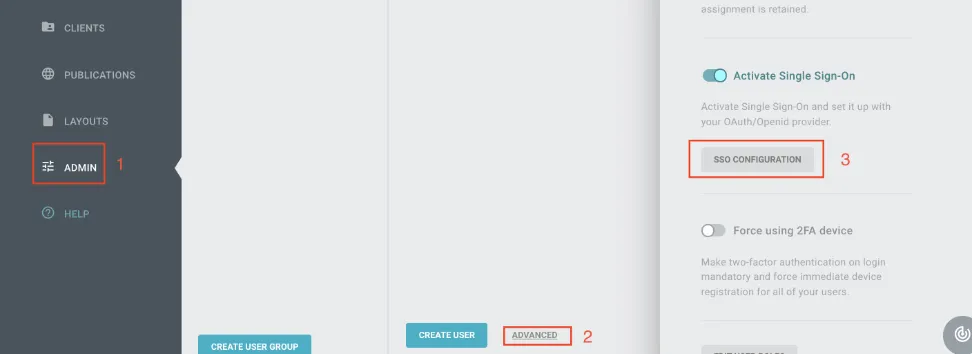
Open Admin → Further actions, turn on Single Sign-On and click the configuration button below it.
Step 2: Add the SSO configuration
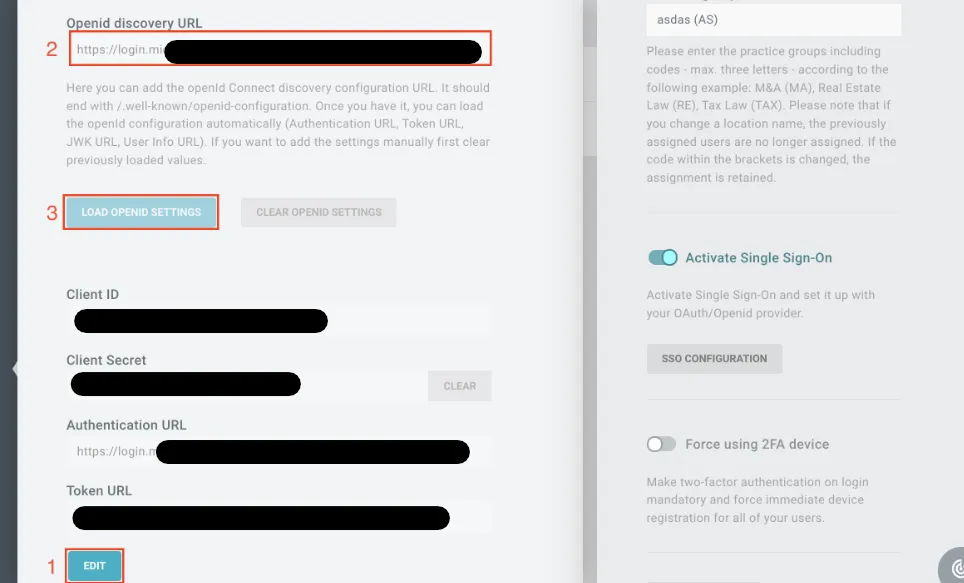
In the configuration, click Edit, add the discovery URL and load the settings. Then add the client ID and client secret.
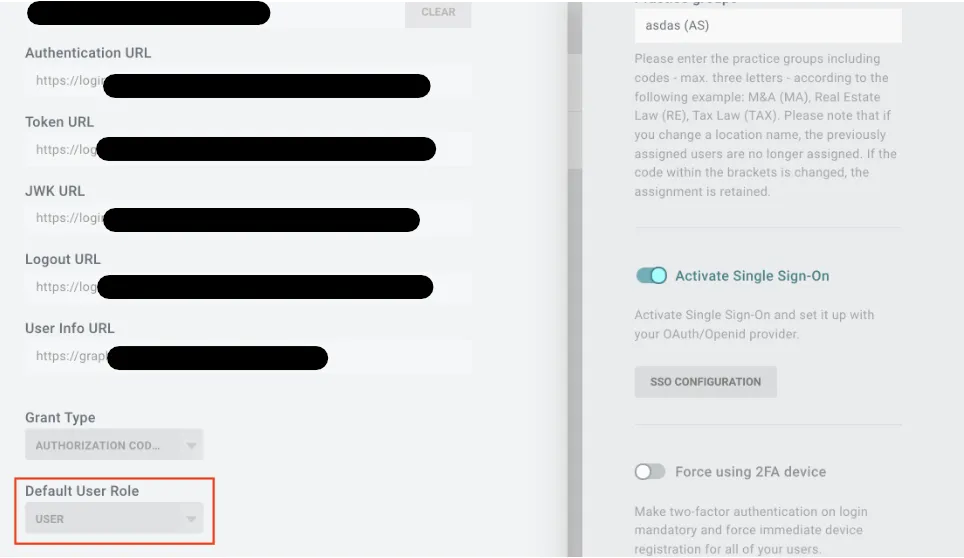
Step 3: Set a default role for new SSO users
This role is assigned to everyone who logs in via SSO for the first time.
Note - redirect URLs in Microsoft Entra ID:
- SSO for publications:
https://app.lawlift.de/auth/publications- SSO for users:
https://app.lawlift.de/auth- If you need both, add both URLs.
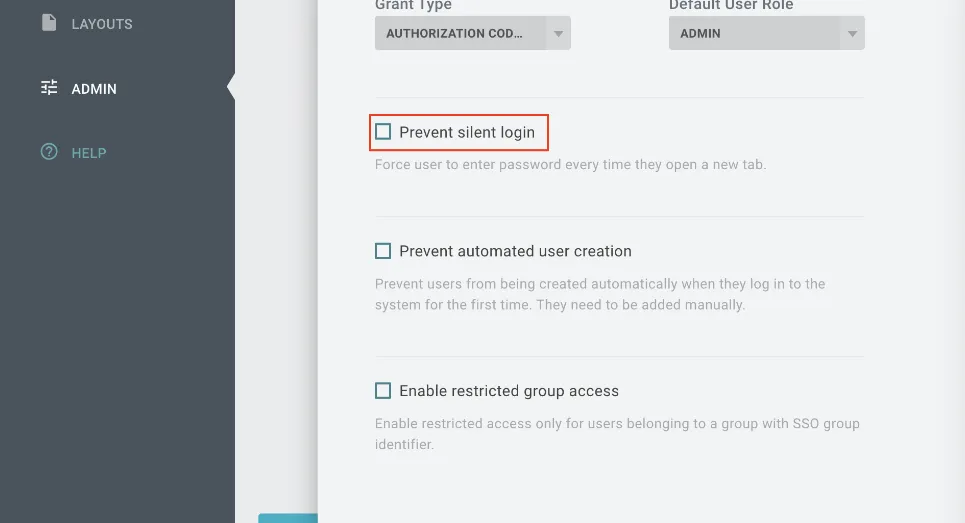
Optional: Prevent silent login
If the user is already signed in with the SSO provider, this option prevents passwordless (silent) login - the password must be entered again in every new tab.
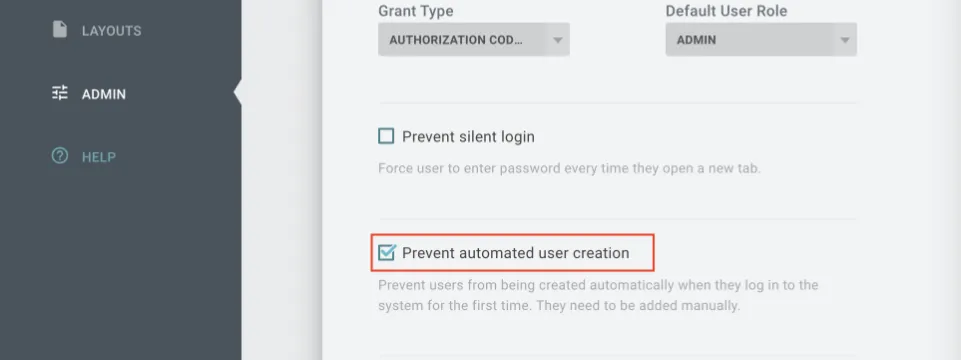
Optional: Prevent automatic user creation
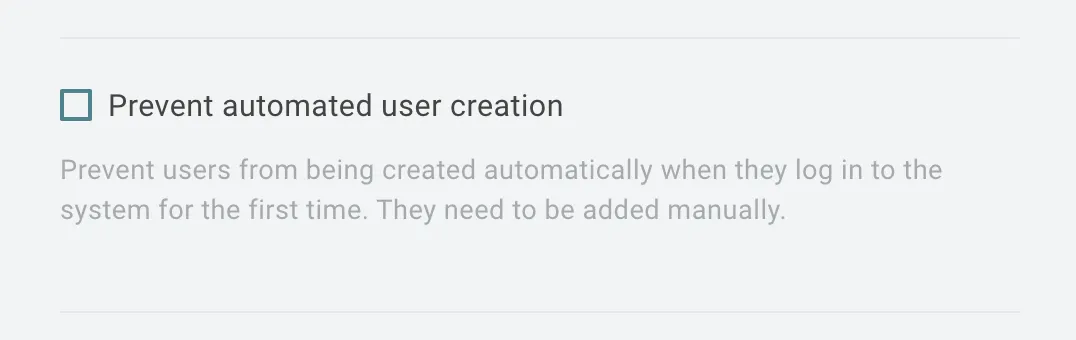
By default, a Lawlift account is created automatically the first time someone signs in through your SSO provider. Turn this on so that only pre-created users (with a matching email address) can log in.
Optional: Restrict access to a group
You can limit access to members of a specific Microsoft Entra group.
-
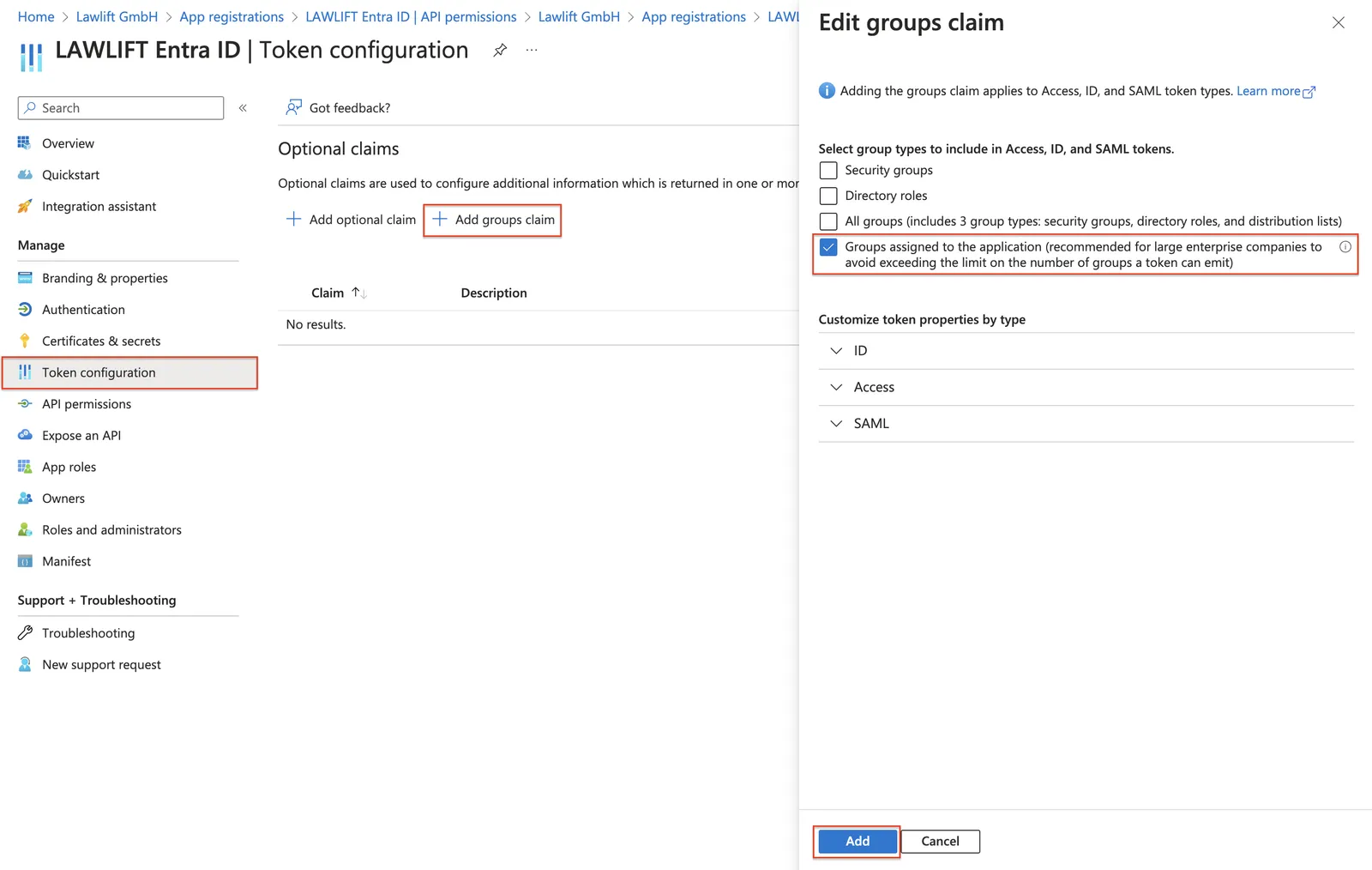
In Microsoft Entra, open your app registration, go to Token configuration → Add groups claim, choose the fourth option and click Add.
-
In Lawlift, activate restricted group access and add the group scope claim (in Microsoft Entra it is
groups; other providers may differ).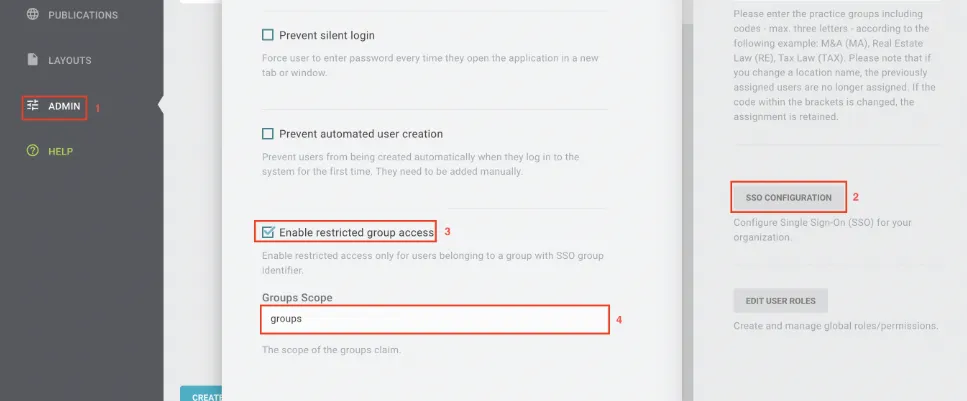
-
Create a user group and add its SSO group identifier. Microsoft Entra uses the
groupId(the group’s objectId); other providers may use a different identifier.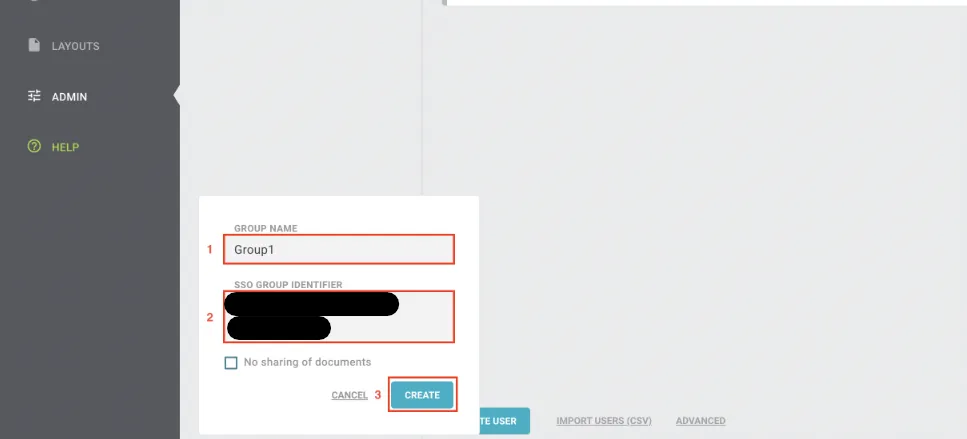
From then on, only users in the specified group can log in. You can add any number of groups.
Optional: Map SSO roles to Lawlift roles
If you use different roles in Microsoft Entra, map them to your custom Lawlift roles. In the Edit user roles menu, choose Map to SSO role.
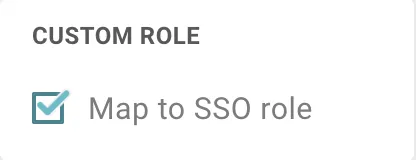
Then enter the Lawlift role name in the role details in Microsoft Entra. When a new user signs in, their account is created and linked to the matching role.
Note: For this to work, Prevent automatic user creation must be off - otherwise the system can’t create the users.