If you have inserted a module in several templates, you can make changes centrally in the module. Every template can then be updated to the new version.
Publish the update
- Click MODULES in the dashboard, open your module and make the necessary changes.
- Click UPDATE TO VERSION in the upper left corner.

- Describe which content changes you have made. Comment on everything that is relevant to the users.
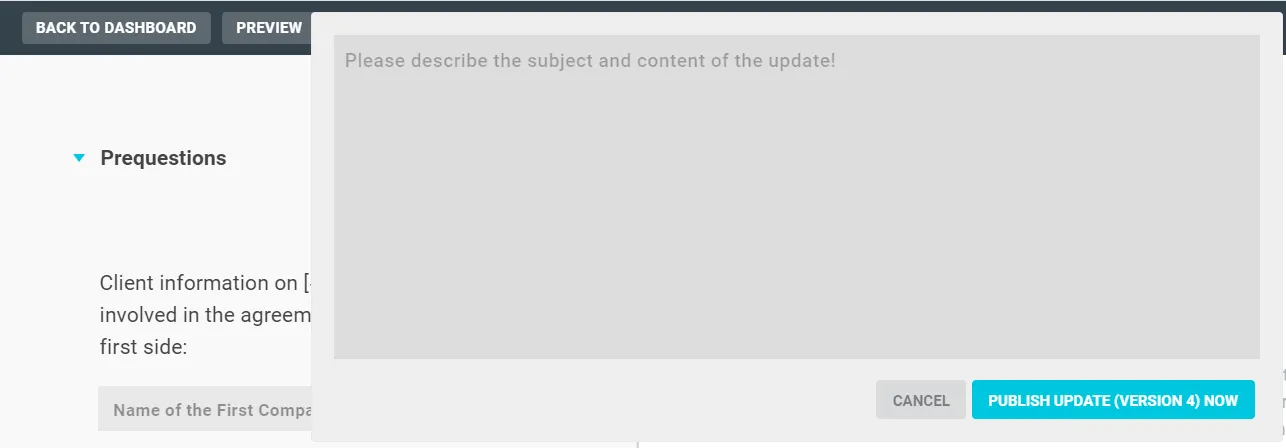
- Click PUBLISH UPDATE (VERSION) NOW to release the update.
Info
Lawlift informs the affected authors by e-mail. All templates that can be updated are highlighted in the dashboard with a small grey box next to the template.

Apply the update in a template
- Open the template in editor mode. The button INSERT MODULE in the upper right corner shows “1/1” again.

- Click the button. An exclamation mark appears in front of the module that contains an update.
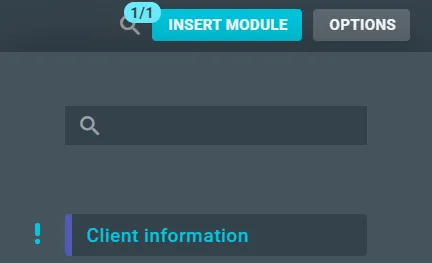
- Click the exclamation mark. A small window appears with the author and the last update.
- Click UPDATE to open the description of the module.
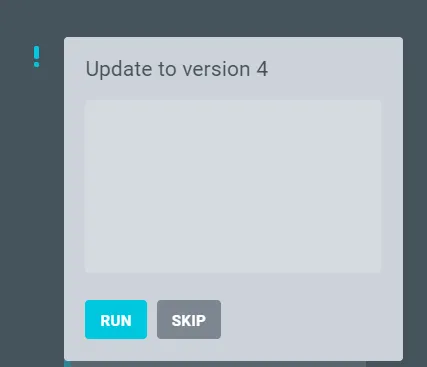
- Decide whether you want to run this update or skip it. Click EXECUTE to apply all new changes to the module.
Info
An update does not overwrite the module in the template - it only inserts the new changes.
The extent of the changes an update to the module makes in the template
Basic rule: Only the specific change of the module since the last version is part of the update. The module is therefore not overwritten or a new “pure form” of the module, but only the respective changes are added.
The background of the rule is that changes can be made to the module in the template. For example, you can rename a text field or link parts of the module to the template. Of course, all these individual changes should not be completely overwritten with every update.
This also requires another basic rule: Those parts of a module that have been changed in the template will not be changed in an update; even if the update affects this changed part.
Tip
Exception: You can exceptionally deviate from the latter basic rule if this is desired in individual cases. We have made the so-called force update available for this purpose. Note that this function does not insert a “pure form” of the module into the template. Instead, it overwrites a part of the module with the new version from the update, despite previous changes in the template. Please note that only the specific change is part of the update, and other aspects of the original module are not reset.
Generally not covered by the update are changes to the order of sections/ questions/ headings/ paragraphs and also additions, i.e. the links of elements from the module with elements from the template, for example, placeholders or rules to other answers that are not part of the module. These additions are retained during an update.
If you delete elements in the template or references, these elements or references are not deleted in the module. The same applies in reverse. If you delete elements or references in a module, these elements or references are not automatically deleted in the template in which the module was inserted, unless you perform an update and the elements or references have not been changed.
Force-Update
What is it?
- With the force update, you can deviate from the basic rule that changed elements of a module are not overwritten by an update.
- Example: You create a template and insert a module. In this template, you change the name of a text field from the module because this fits better with the context of the template. Now the rule would basically apply that this text field would no longer be overwritten during a normal update. Otherwise, you would have to start your work all over again every time you perform an update. However, since in our example a change in jurisdiction requires a change in the text field, you also want to update the text field in your template to the module status. You now have the option of ignoring the basic rule with the force update and overwriting the changes with the update.
- You can also see from the example how important it is to describe the module changes precisely. Only in this way can users sufficiently weigh up whether and how they want to carry out an update. When do you need the Force Update?
- If you find that the update of a module affects parts of your template that you have already customised in the template, you have the option of overwriting these changes. The individual changes in the template will then be overwritten by the update.
- With the force update, you have another option to customise your templates and incorporate knowledge management according to your wishes. You do not have to make use of this. Rather, it is a further customisation option for exceptional cases and should be carefully considered in each individual case. How does the Force Update work?
- If you want the changes of an update to be applied to your template in any case, regardless of your own individual changes, hold down the Shift key while clicking EXECUTE. The update will now be forced for the fields you had changed.
- The forced update cannot set the module in the template to its original state (“pure form”). To achieve this result, the module must be deleted and re-inserted.
- Deleted elements cannot be added by a force update, because the force update only ignores that the element has already been changed.
- An alternative to “retrieve” deleted elements is to delete the element from the module. After deletion, the element can be re-inserted and then updated to the same status as the template.
Example of a Module Change
- You insert a module into a template.
- You change an element (i.e. rules, linking the placeholder to a text field or another question) in the template that was part of the module to another answer outside the module./ Alternative: You change an element in the template that was part of the module to another answer that was also part of the module.
- You delete this changed element in the module.
- When you perform an update, this element that was subsequently set is not deleted in the template because it is “untouchable”.
- If you now force the update with the Shift key, the deviating reference is deleted in the template. Module originally Name: Lawlift GmbH
Location: Potsdam Template with an individual adaptation of the module Name: Lawlift GmbH
Location: Berlin Module modification Name: Lawlift-GmbH
Location: Cologne Template with normal update Name: Lawlift-GmbH
Location: Berlin Template with force update Name: Lawlift-GmbH
Location: Cologne With the normal update of the module in the template, the field “Location: Berlin” is not changed by the update from the module (with the content: “Location: Cologne”). Here the basic rule applies that individual adjustments are not overwritten. You can circumvent this with the force update so that the update also overwrites the individual changes in the template.