In Admin you manage everyone in your organization - create users, unlock and suspend them, set roles, and organize them into groups.
Create a user
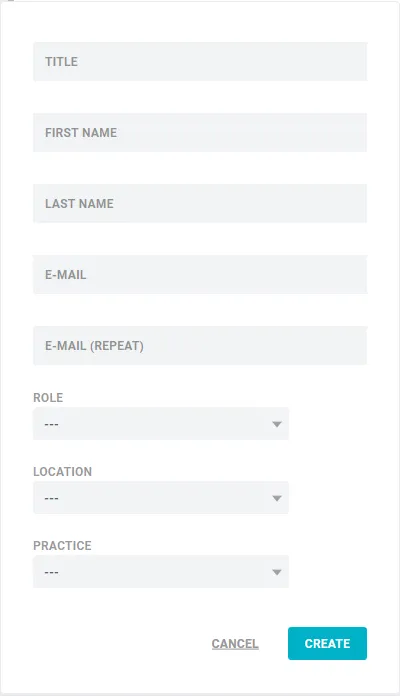
- Open Admin and click Create user at the bottom.
- Fill in the fields carefully (spelling matters) and click Create.
The user immediately receives a password link by email.
Unlock a new user
After a new user completes their first registration, an admin has to activate the account. In Admin, click the red Unlock button next to the user - they are then taken straight to the dashboard.
Only the person who created the user receives the unlock email, but any user with at least the admin role can unlock them.
Manage an existing user
Most actions start the same way: in the user list, hover over the user and click Options. The window that opens lets you:
- Role - assign a role with its own set of rights.
- Force new password - send the user a fresh password link.
- Suspend / Reinstate - block access without deleting the account, then restore it later.
- Delete user - remove the account entirely.
- Edit - change the title, first name, last name and email address.
Note: Changing a user’s email doesn’t affect their templates - nothing is deleted or reassigned. Afterwards the user can only sign in with the new email address.
Locations & practice groups
You can give a user one location and one practice group. First define them: open Admin → Advanced, enter your Locations and Practice groups with a code - for example London (LO), New York (NYC), M&A (MA), Tax Law (TAX) - and click Close. A user can belong to only one location and one practice group.
User groups
Templates can be shared with individuals or with whole groups.
- Create a group: in Admin, click Create user group, enter a name and confirm with Enter (or Create). Unless you tick Do not share documents, generated documents are saved under Documents for everyone in the group.
- Add users: hover over the group, click Add users, then click the grey dot next to each user (it turns green). Click a green dot to remove someone. Click Finish when done.
Good to know
- Replace, don’t delete. When responsibilities or staff change, edit the existing account instead of deleting it - all templates transfer to the new person and nothing is lost.
- User activity index. Each user shows an aggregated activity bar that reflects a longer period, so it changes only slowly.