Instead of typing, you can dictate your request to the Assistant. Voice input uses local speech-to-text: the first time, a speech model downloads once - after that everything runs locally on your device.
Step by step
-
In Preferences, under Speech Recognition, turn on Enable Local Speech-to-Text. The associated Local Speech Model is downloaded (“Downloading model…”).
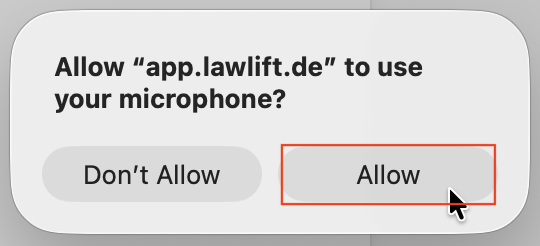
-
In the chat’s input area, click the microphone icon (tooltip Dictation) to start recording and speak your request.
-
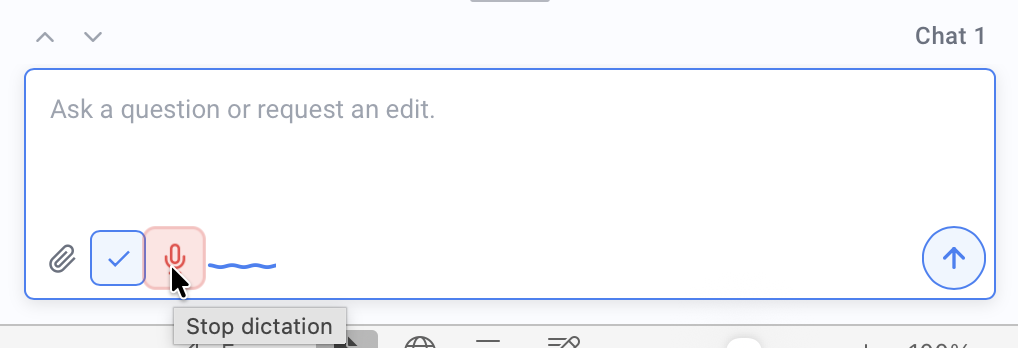
While recording, the microphone icon turns red and the Assistant shows “Processing speech…” or “Transcribing…”. To finish, click the microphone again (tooltip Stop dictation) - you do not type anything. The recognized text then appears automatically in the input field.
-
Review and adjust the text if needed, then send it like any typed message.
Good to know
- Processed locally: Recognition runs on your device. The download is only needed once - as the note says, “Requires model download. Can be removed at any time.”
- Manage the model: In Preferences you can see the Model Status (Model installed / Not installed) and use Delete model to remove it again and free up space.