After you create a guardrail template, you can adapt its questionnaire at any time. In the questionnaire editor you reorder cards and questions, change field types, and add or remove questions.
Step by step
-
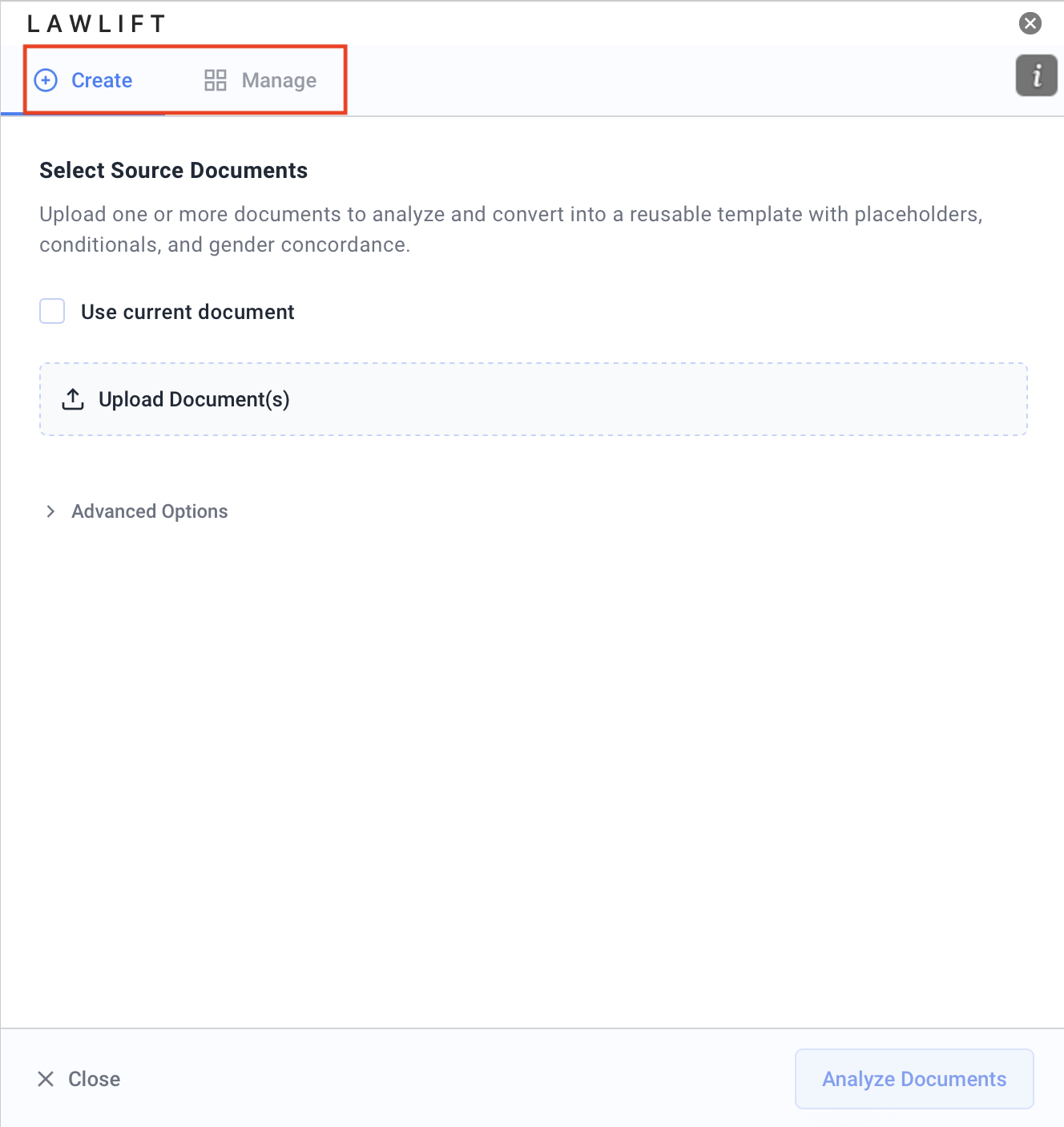
In the Add-in, open Templates from the menu. The Create and Manage tabs take you to your guardrail templates - right after creating one via Edit Questionnaire, or later on the Manage tab via Edit template.
-
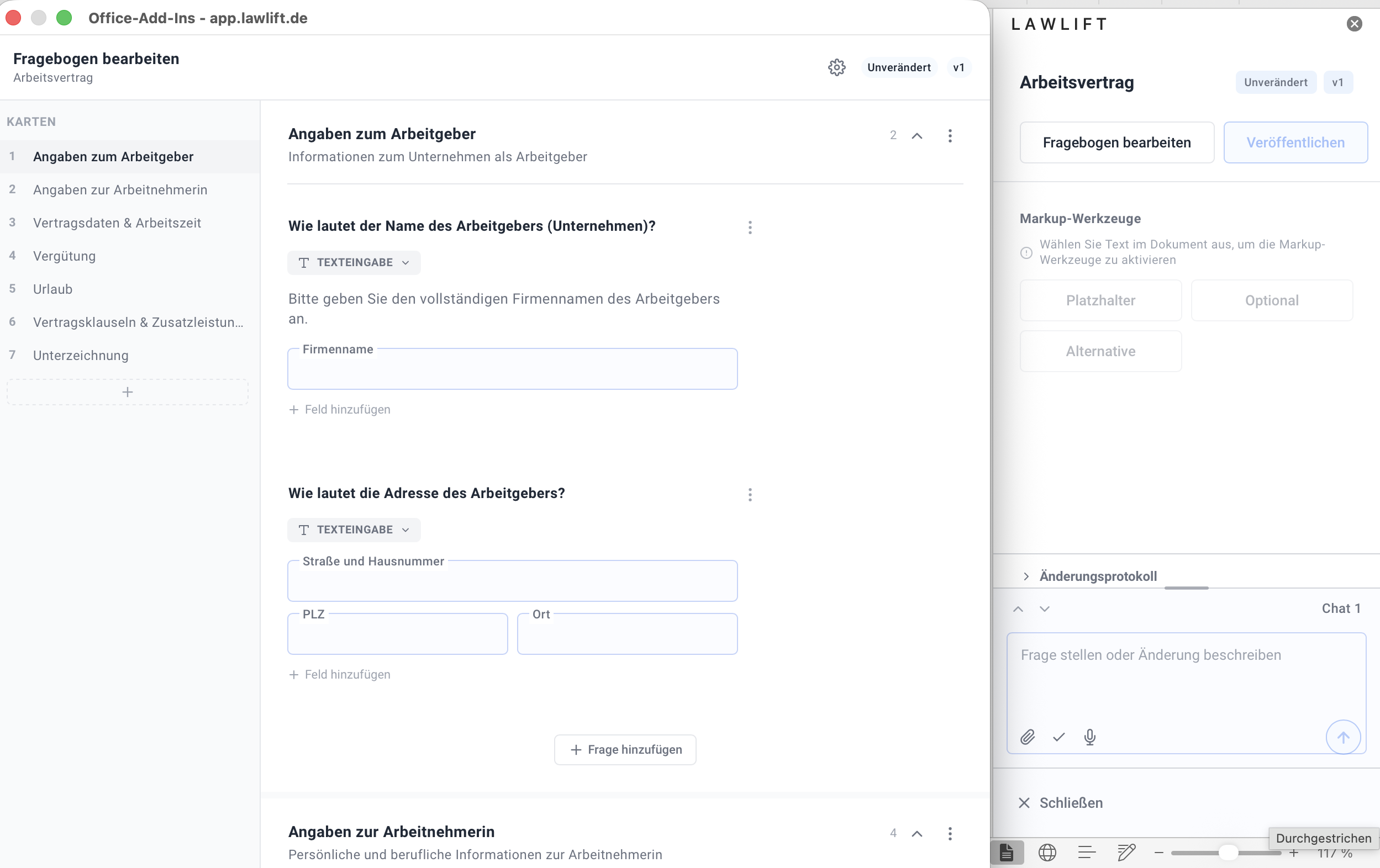
In the questionnaire editor, the cards (sections) are on the left and the questions of the selected card on the right.
-
Adapt the question catalog: reorder, rename or add cards (+); edit questions and change the question type (e.g. text input); use Add field for more fields and Add question for new questions.
-
Your changes are versioned - the Changes Log shows what was adapted.
Good to know
- The questionnaire controls what information is asked when the template is filled in - adapt it to your use case before you share the template.
- To create a guardrail template in the first place, see Create a guardrail template.