When no existing template fits, the AI drafting feature in Lawlift Plus can draft a new document from scratch. It works within clear boundaries - guided by your inputs, an outline you review, and optionally a case-specific questionnaire. This keeps the draft transparent and aligned with your requirements.
Step by step
-
Open the Add-in, switch to the Draft tab and click Create Document. Choose Draft from scratch with AI.
-
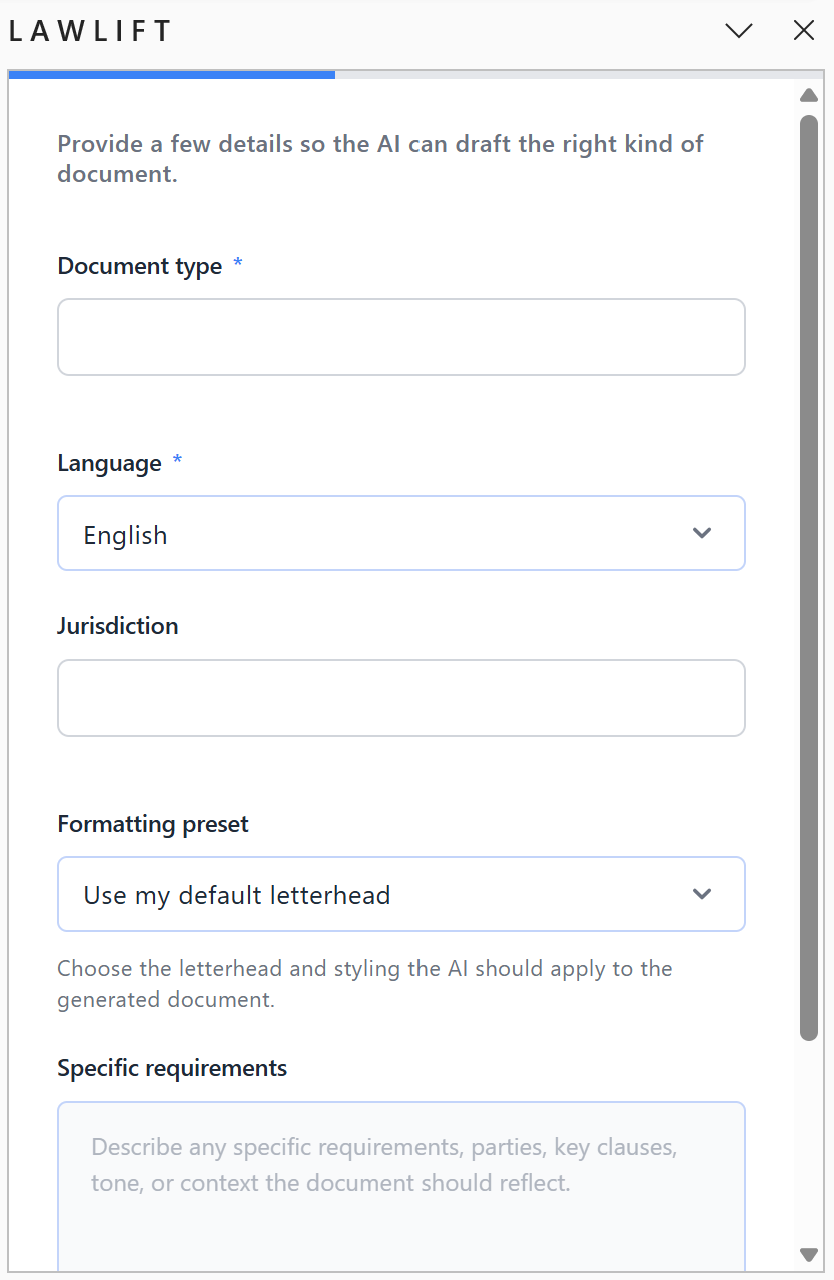
Describe your document: Provide the Document type, Language, Jurisdiction and Specific requirements. Under Formatting preset, choose the letterhead and styling the AI should apply. Click Generate outline.
-
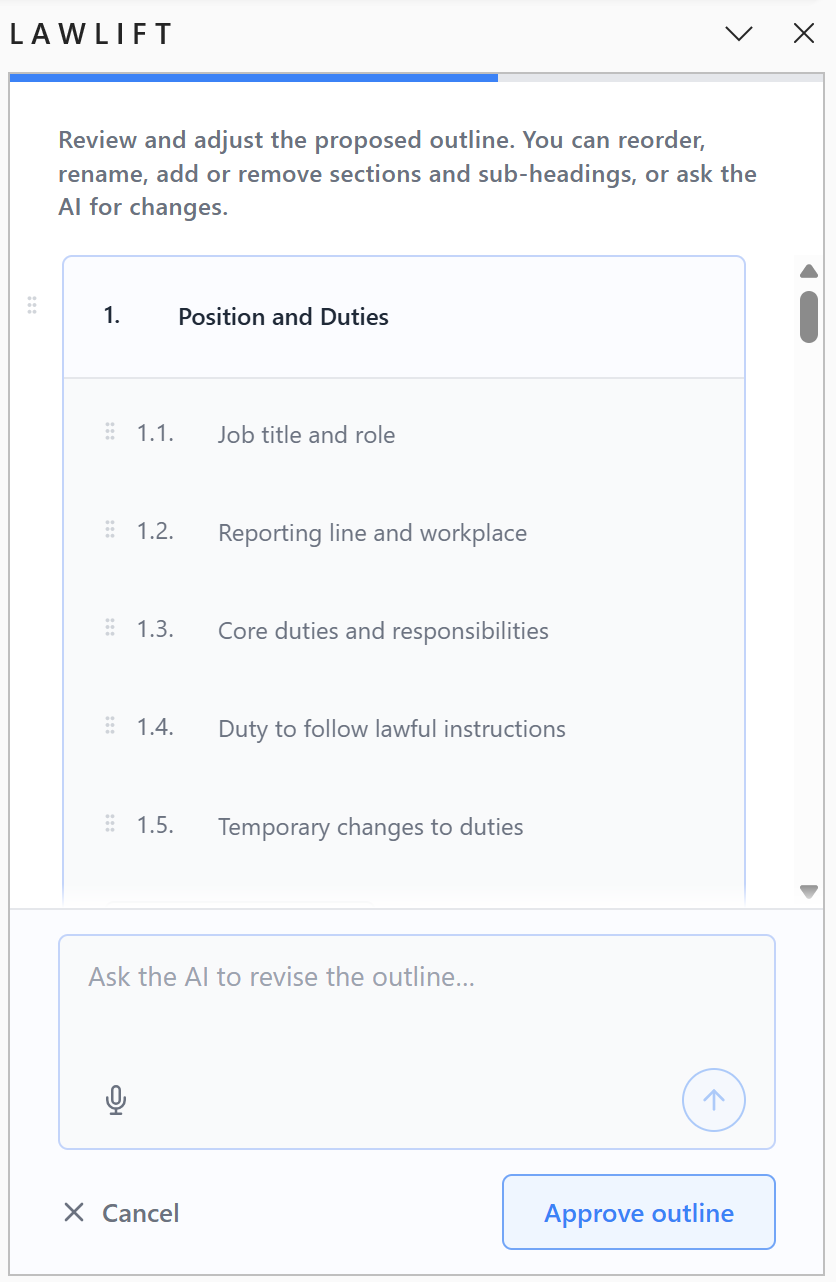
Review the outline: Reorder, rename, add or remove sections and subheadings. Use the input field to ask the AI to revise the outline, and Undo last AI change to step back. Click Approve outline.
-
Case information: Decide whether the AI should capture case-specific information (a short questionnaire tailored to the outline) or whether you want to generate with placeholders that you fill in yourself later. You can also fill the questionnaire automatically from uploaded documents (see Upload context & auto-fill answers).
-
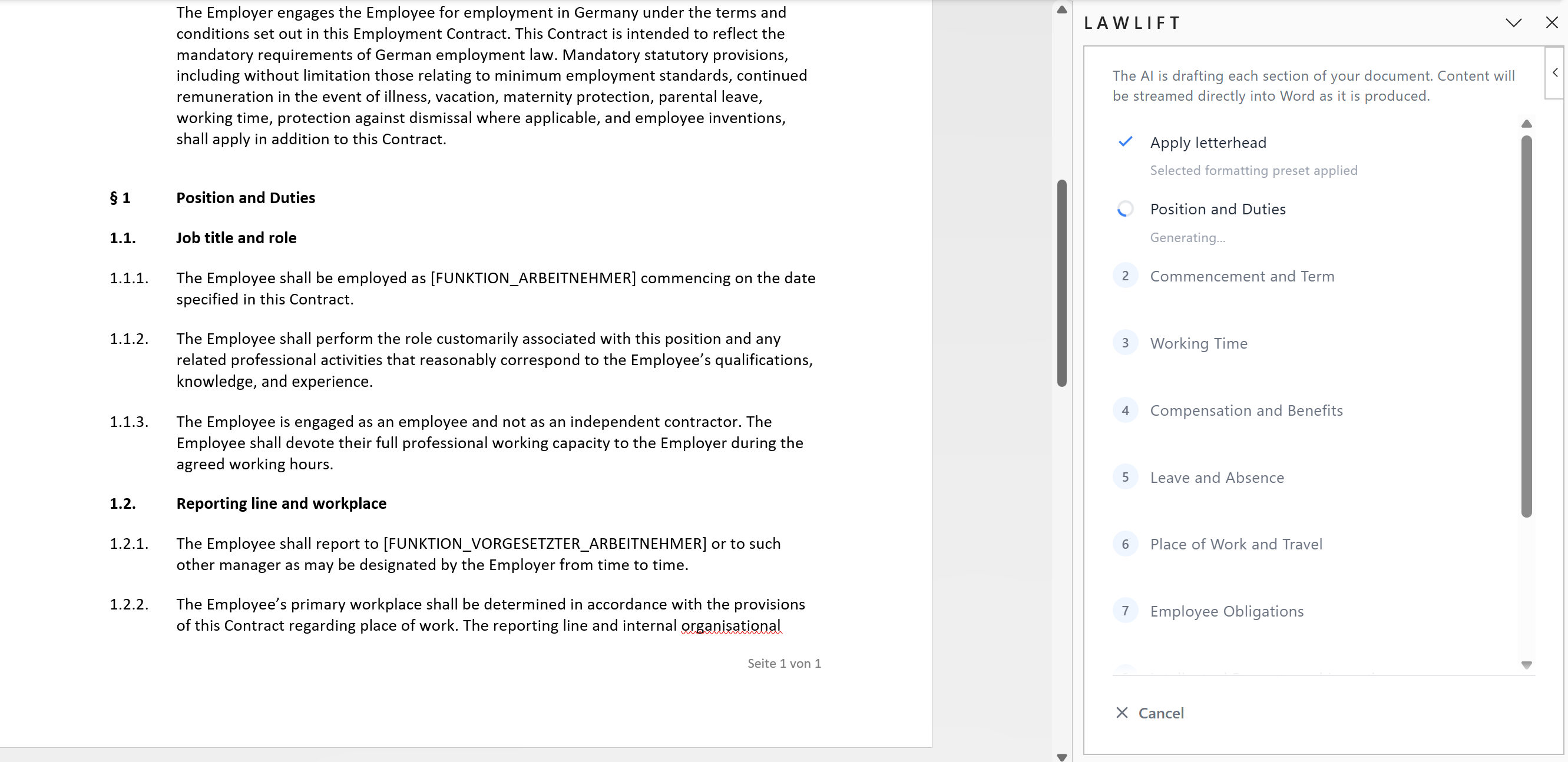
Drafting: The AI writes each section and streams the content directly into Word as it is created. The selected letterhead is applied automatically.
-
When “Your draft is ready” appears, the document is complete.
Tip: Right afterwards, run Document tests to check the draft for common issues such as broken references or inconsistencies.