The Word Add-in detects sensitive information such as names, addresses and other personal data in the open document and replaces it according to your settings. You choose the replacement style, review each occurrence and apply the changes - optionally with track changes.
Step by step
-
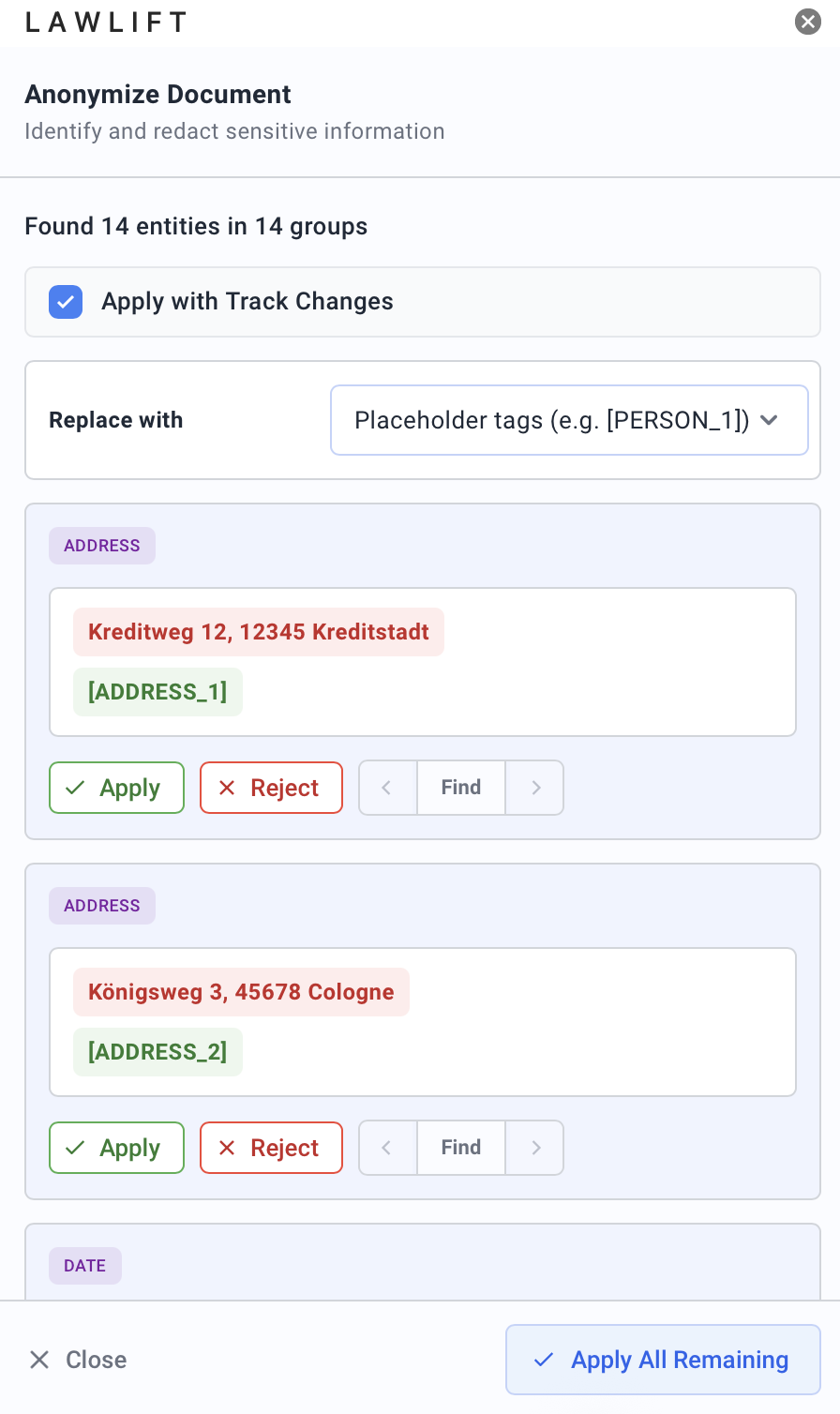
Open the Add-in, switch to the Edit tab and click Anonymize. The Add-in starts automatically with “Analyzing document…” and then reports how many entities were found in how many groups (for example, “Found 12 entities in 5 groups”). If nothing is found, it shows “No sensitive data found”.
-
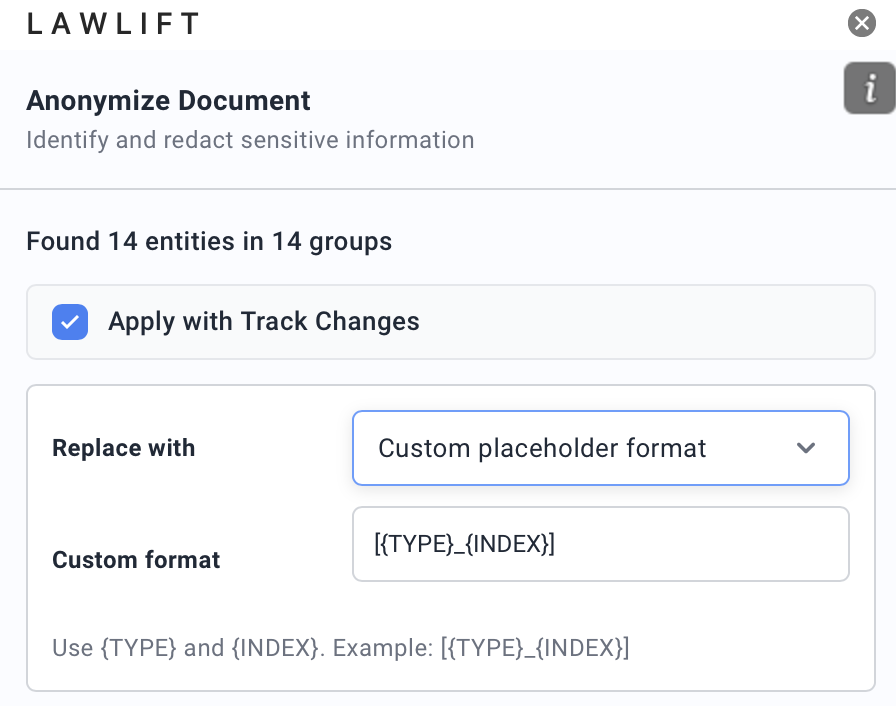
Under Replace with, choose the replacement style:
- Placeholder tags (e.g. [PERSON_1]) - replaced with numbered tags.
- Placeholder tags + yellow highlight - as above, with a yellow highlight.
- Full redaction (black) - fully redacted.
- Custom placeholder format or Custom placeholder + yellow highlight - define your own pattern under Custom format using
{TYPE}and{INDEX}, for example[{TYPE}_{INDEX}].
-
Review the suggestions group by group. Use Previous occurrence and Next occurrence to move between matches in the document, and Find in document to highlight a match. Apply or reject individual groups - the status shows as Applied or Rejected.
-
Optionally enable Apply with Track Changes so the replacements appear as tracked changes.
-
Click Apply All Remaining to apply the remaining suggestions in one step.
Good to know
- Related occurrences: Identical entities are grouped and replaced consistently; linked matches are marked as related.
- Already anonymized: If no sensitive data is detected, the Add-in notes “Your document appears to be already anonymized.”
- Scan failed: On an error you will see “Failed to scan document. Please try again.” - simply re-run the analysis.