A formatting preset normalizes styles and numbering across the open document. You pick a preset - such as a letterhead - and the Add-in applies consistent headings, paragraph styles and numbering.
Step by step
-
Open the Add-in, switch to the Edit tab and click Apply Formatting.
-
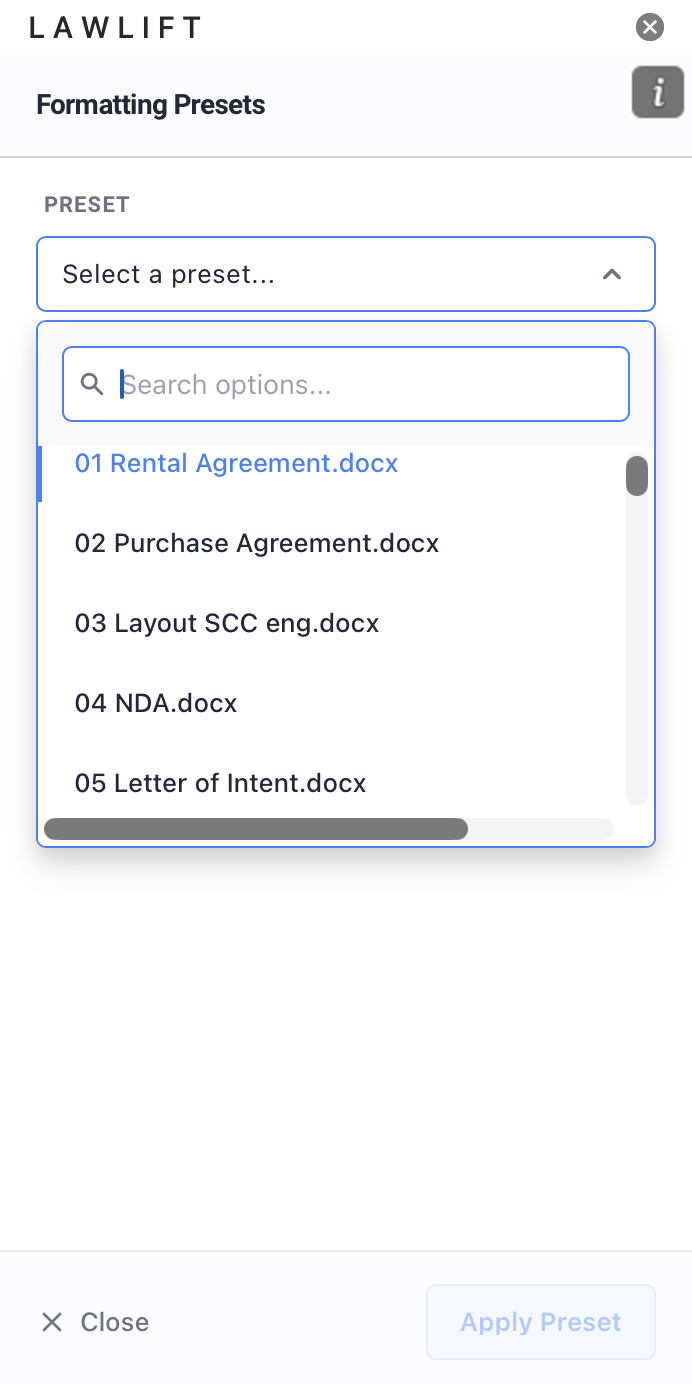
Under Preset, choose the formatting preset you want. The preset marked Default is preselected; your own presets carry a Custom badge. If none exist, you will see “No formatting presets available. Upload a letterhead in the dashboard to get started.”
-
Check the Numbering Preview to see how the preset affects headings and numbering.
-
Click Apply Preset. The Add-in reads the document structure and applies the preset; when it finishes, “Formatting Applied” appears.
Good to know
- Create your own preset: Create Custom opens the Numbering & Style Editor, where you define numbering formats, font styles and spacing for each heading level. A formatting preset is generated automatically when you save. Existing custom presets can be Edited or Deleted.
- Letterheads as the source: Formatting presets are based on the letterheads stored in the dashboard. If no preset is available, upload a letterhead there first.