The Word Add-in translates the open document into another language while preserving context, structure and formatting. The translation runs in the background, so you can keep working while it processes.
Step by step
-
Open the document you want to translate in Word.
-
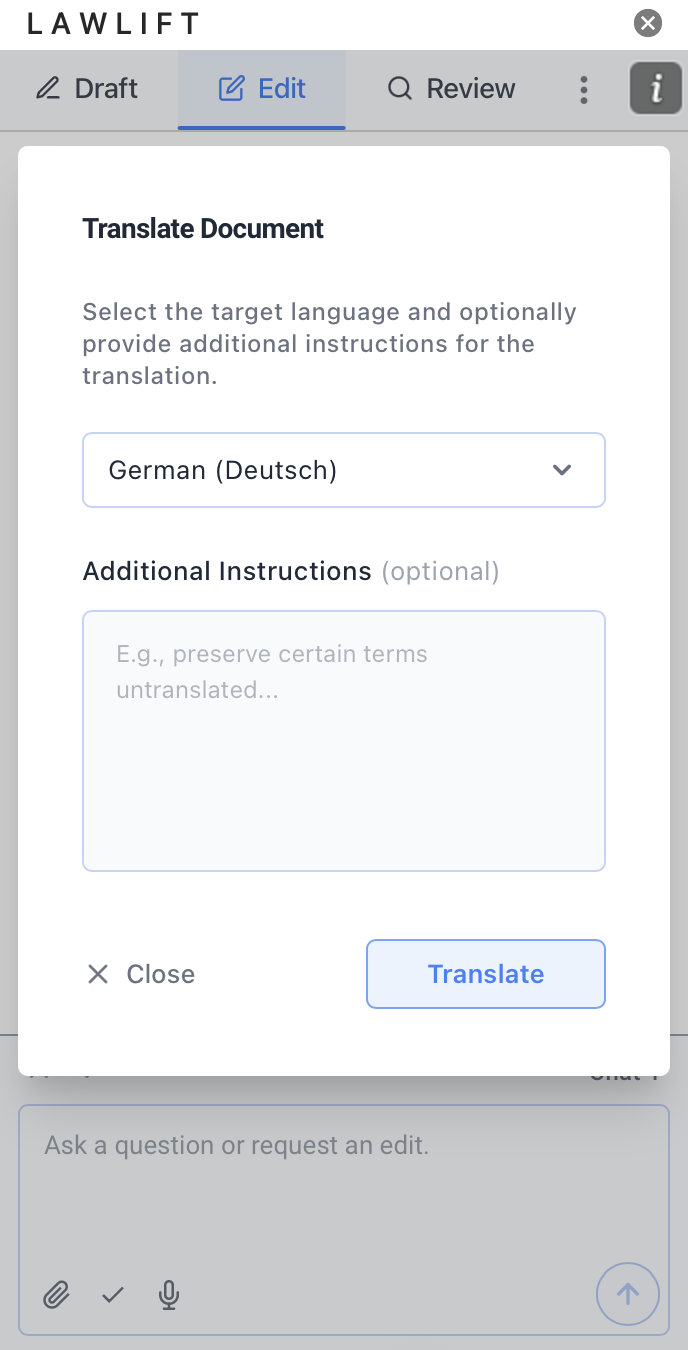
In the Add-in, switch to the Edit tab and click Translate.
-
Under Select a language, choose the target language.
-
Optional: Under Additional Instructions, add guidance for the translation - for example, “preserve certain terms untranslated”.
-
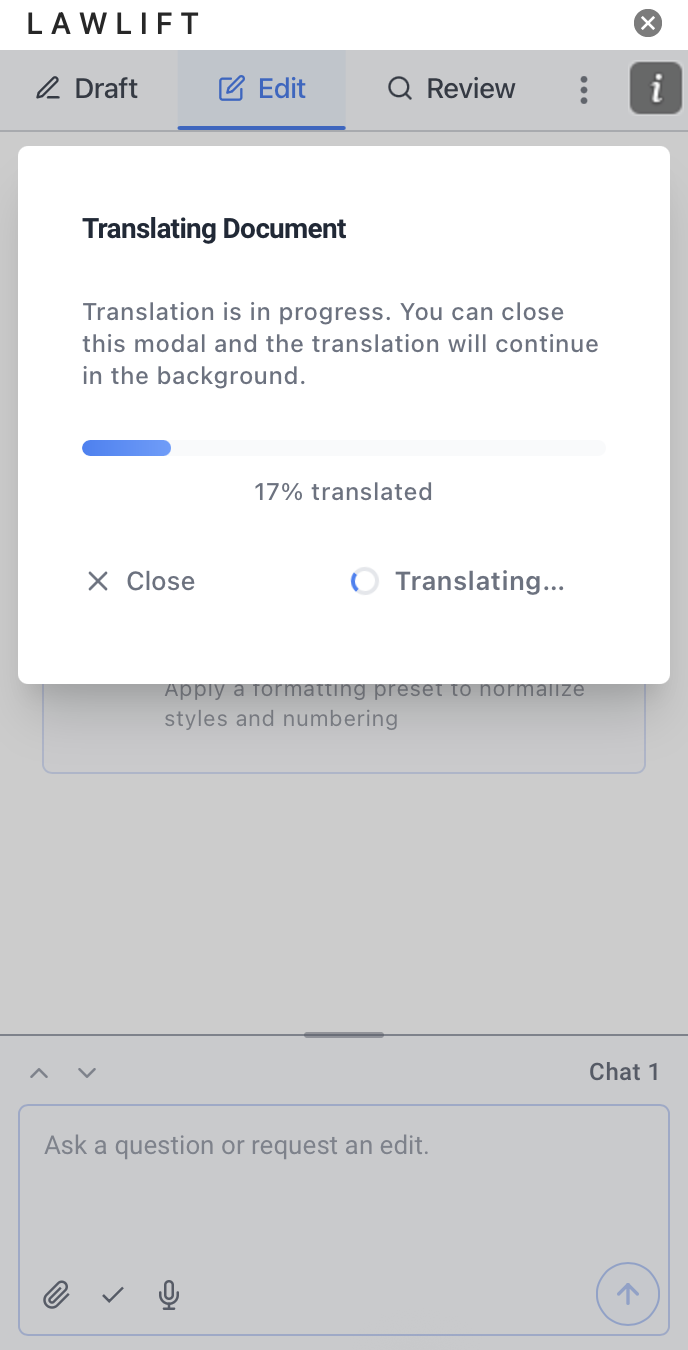
Click Translate. Progress is shown as a percentage. You can close the modal - the translation continues in the background.
Good to know
- Formatting is preserved: Headings, lists, tables and paragraph structures are kept; only the text is translated.
- Incomplete translation: If individual paragraphs could not be translated, the Add-in flags it (“Translation incomplete”). Those paragraphs remain in the original language - please review the document afterwards.