Create Summary produces a structured overview of the open document. You set the detail level and decide whether the summary appears in the Add-in or is generated as a new Word document.
Step by step
-
Open the Add-in, switch to the Review tab and open Create Summary.
-
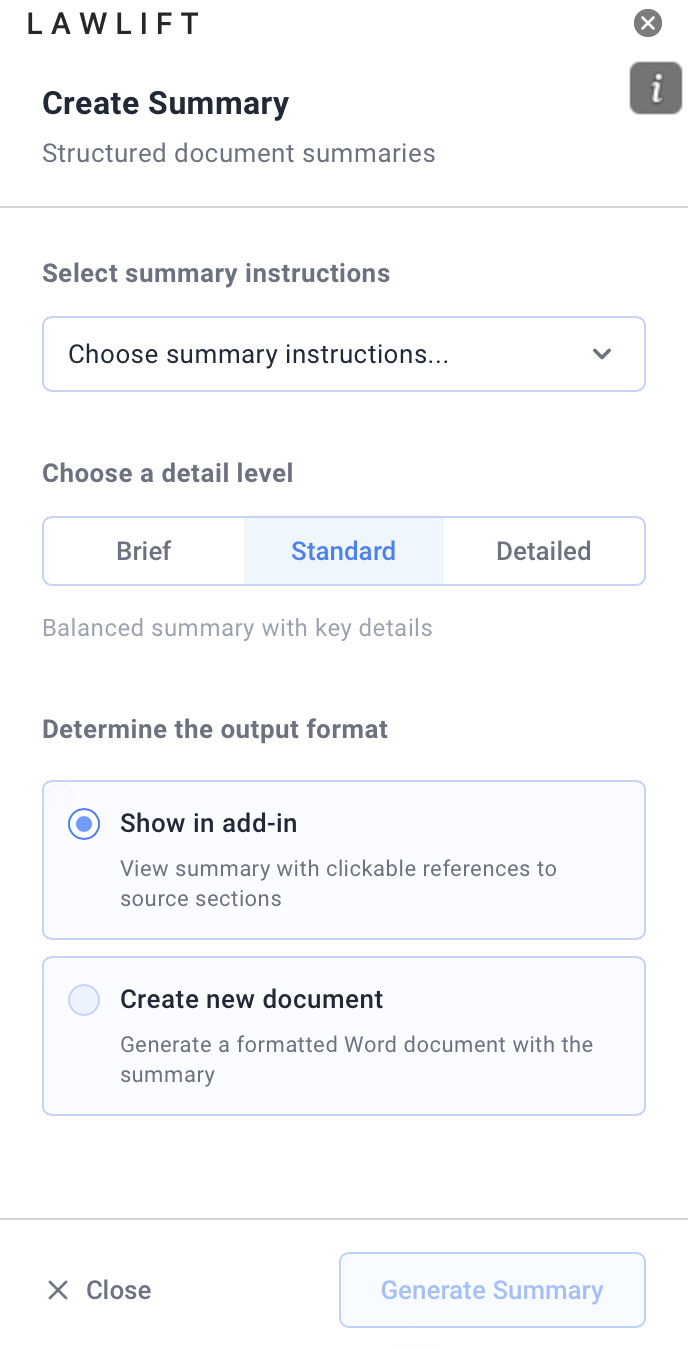
Under Select summary instructions, choose an existing template - or build your own schema with Create custom summary instructions (see “Good to know”).
-
Under Choose a detail level, pick Brief (concise overview with essential points only), Standard (balanced with key details) or Detailed (comprehensive analysis with full context).
-
Under Determine the output format, set the target: Show in add-in (summary with clickable references) or Create new document (a formatted Word document).
-
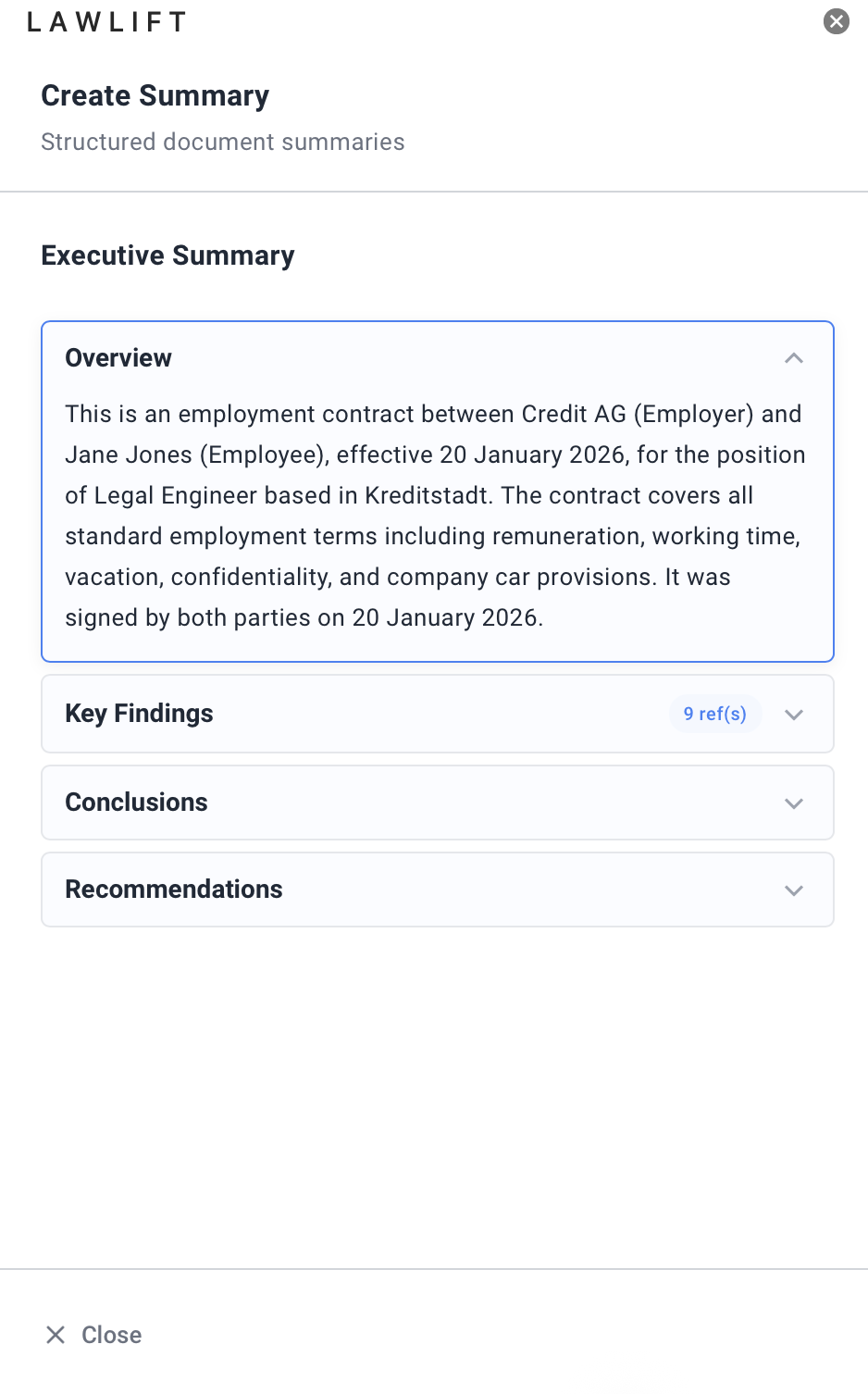
Click Generate Summary. The Add-in extracts the content, analyzes the structure, generates the summary and links the references.
Good to know
- Go to source: When shown in the Add-in, use Go to source to jump to the relevant passage in the document.
- Custom instructions: Under Create custom summary instructions you define sections with their own Output Format - Text (Prose), Bullet Points or Key-Value Pairs for structured data such as dates, names or amounts. This lets you extract specific values.