The Assistant inserts every change as a tracked change in your document, so you can review, accept or reject each one in Word at any time. Auto-apply only controls whether the AI inserts its suggestions automatically or whether you confirm each suggestion yourself. By default you confirm each one.
Step by step
-
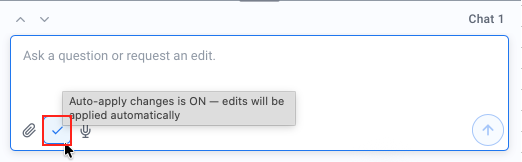
In the chat’s input area you will find the auto-apply toggle.
-
When it is on, it shows “Auto-apply changes is ON - edits will be applied automatically”. Every suggestion in the response is then inserted automatically as a tracked change once it completes.
-
To turn it off, click it again - it shows “Auto-apply changes is OFF - click to enable”. You then apply suggestions individually again (see Edit text from the chat).
Good to know
- Always tracked: Regardless of this setting, the Assistant always inserts changes as tracked changes. Auto-apply only decides automatic vs. manual - not whether changes are tracked. This lets you accept or reject each AI change in Word.
- Always reversible: Auto-applied changes can be reversed with Undo decision just like ones you confirmed manually.
- Per chat: The setting applies to the current chat. For large or sensitive changes, it is still worth reviewing the result in the document afterwards.