When you ask the Assistant for an edit, it does not change the document straight away - it presents each suggestion individually for review. That keeps you in control of what actually gets applied.
Step by step
-
Describe the edit you want in the input field - for example, rewrite a paragraph, replace a phrase throughout the document, or remove a passage.
-
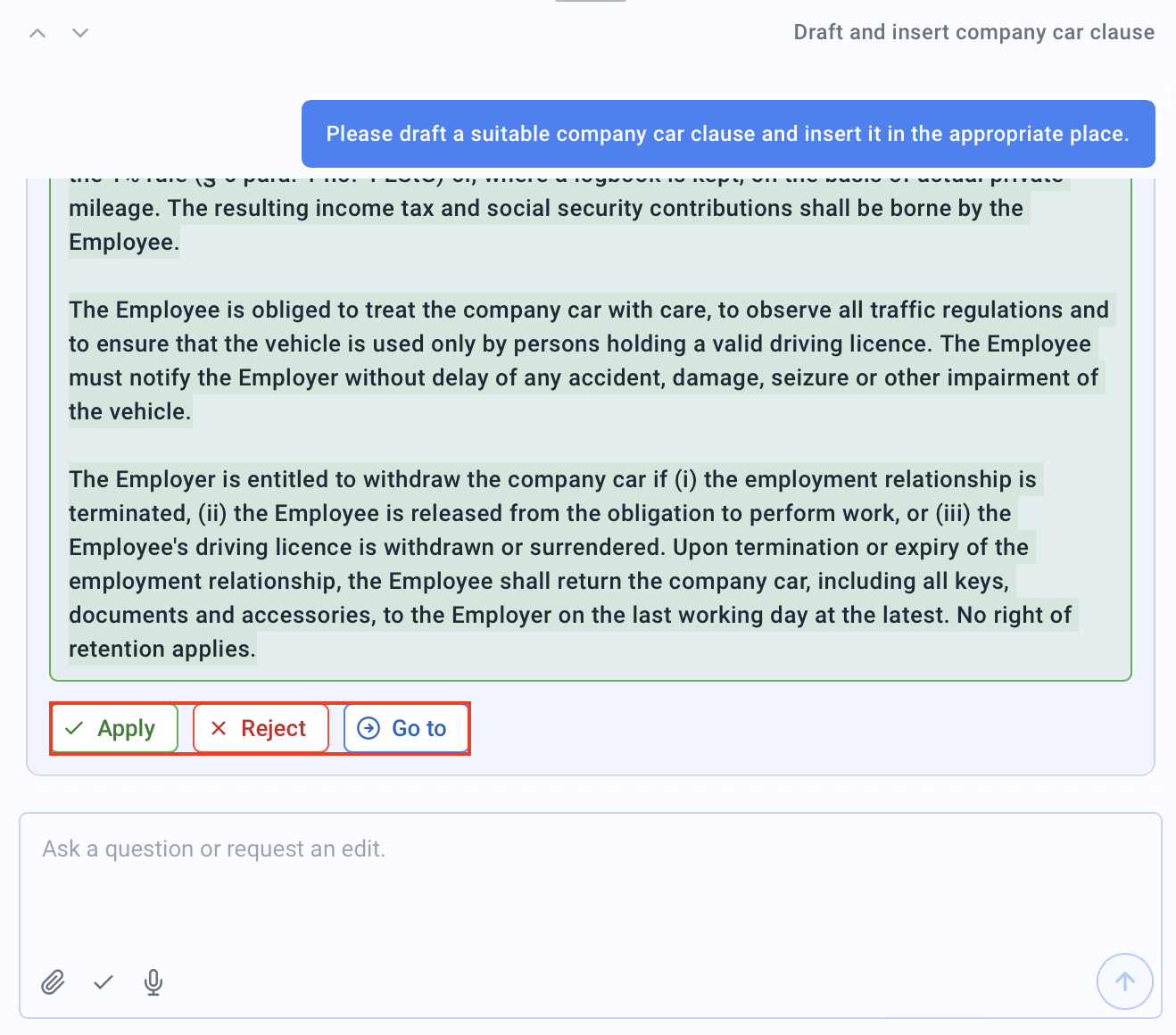
The Assistant shows each suggestion with Original: and Suggested:, so you can compare the old and new wording directly.
-
When an edit affects several places, the Assistant shows the number of occurrences. Use Previous occurrence and Next occurrence to step through them; Navigate to this location in the document highlights the spot in Word.
-
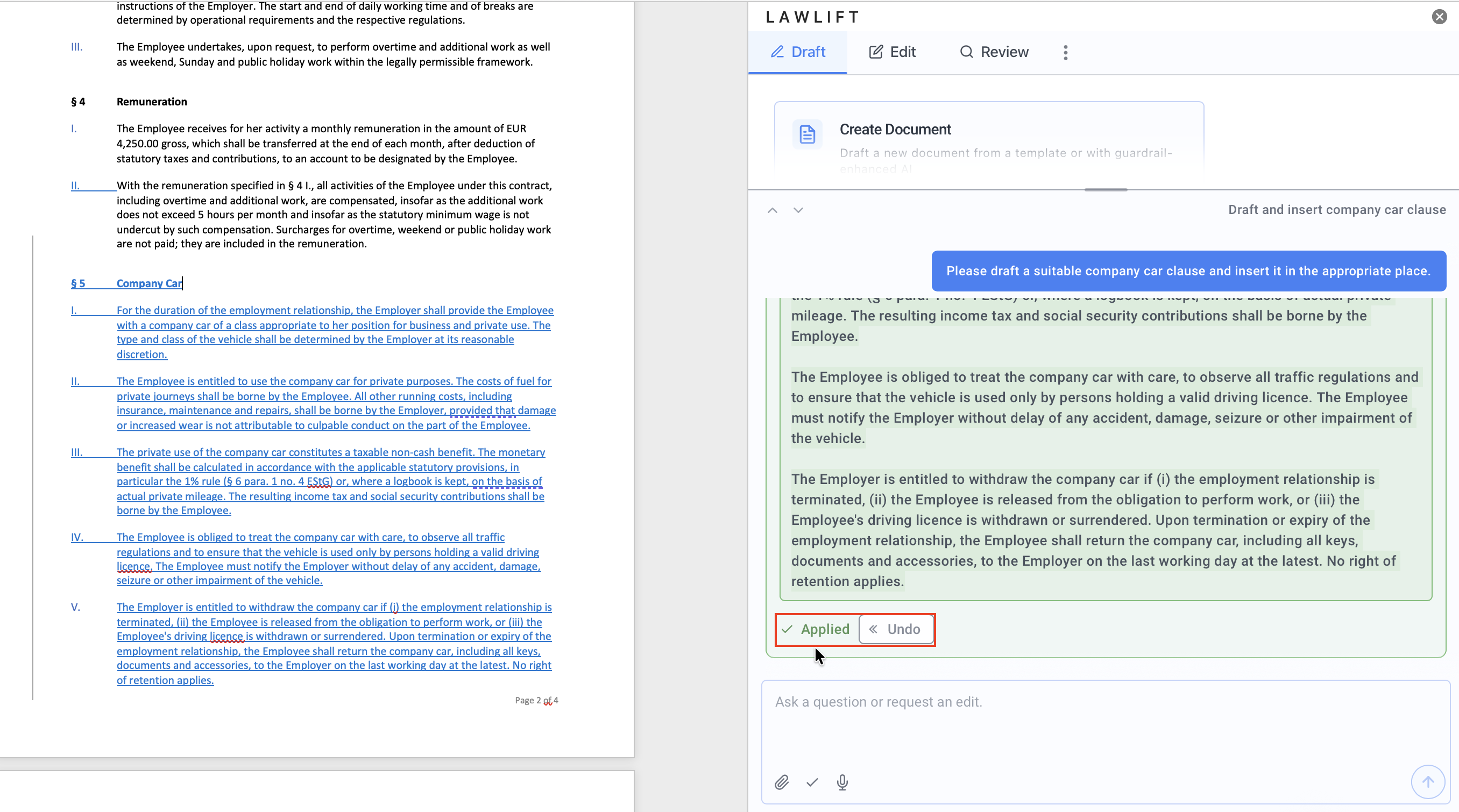
Apply or reject each suggestion individually. After your decision it is marked Applied or Rejected; use Undo decision to reverse it.
Good to know
- Tracked changes: Applied edits are inserted into the document as tracked changes, so you can accept or reject each one in Word afterwards.
- Comments: The Assistant can also suggest comments - as a New Comment or as a Reply to an existing comment. These are applied or rejected the same way.
- Apply automatically: If you would rather not confirm each suggestion, turn on auto-apply (see Auto-apply changes).