After choosing a template, you answer its questionnaire. Your answers drive which text Lawlift inserts into your Word document - and they are kept so you can revisit them later.
Step by step
-
Choose a template and click Use this Template (see Create a document from a template).
-
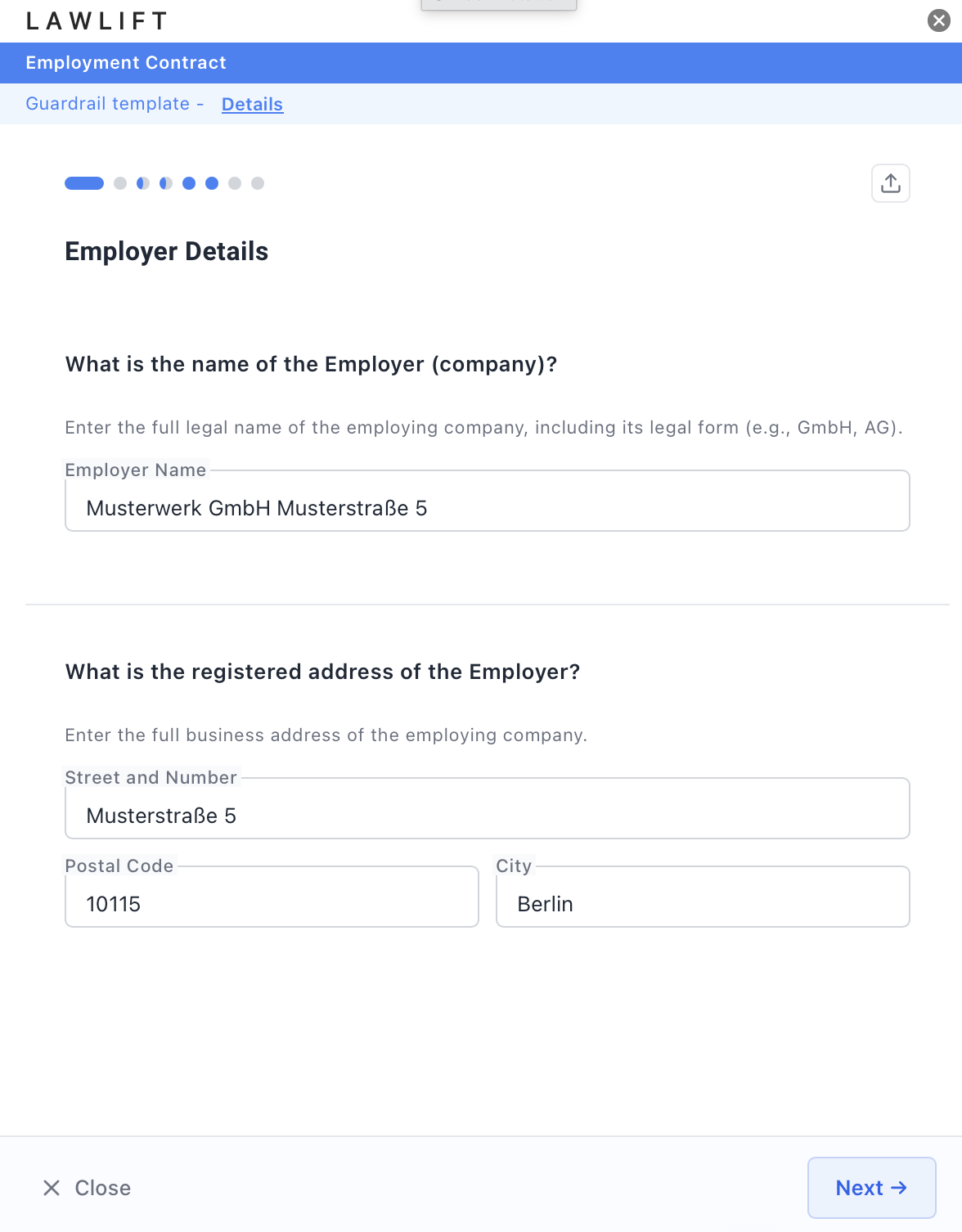
Answer the questions. Use the progress dots at the top to move between sections.
-
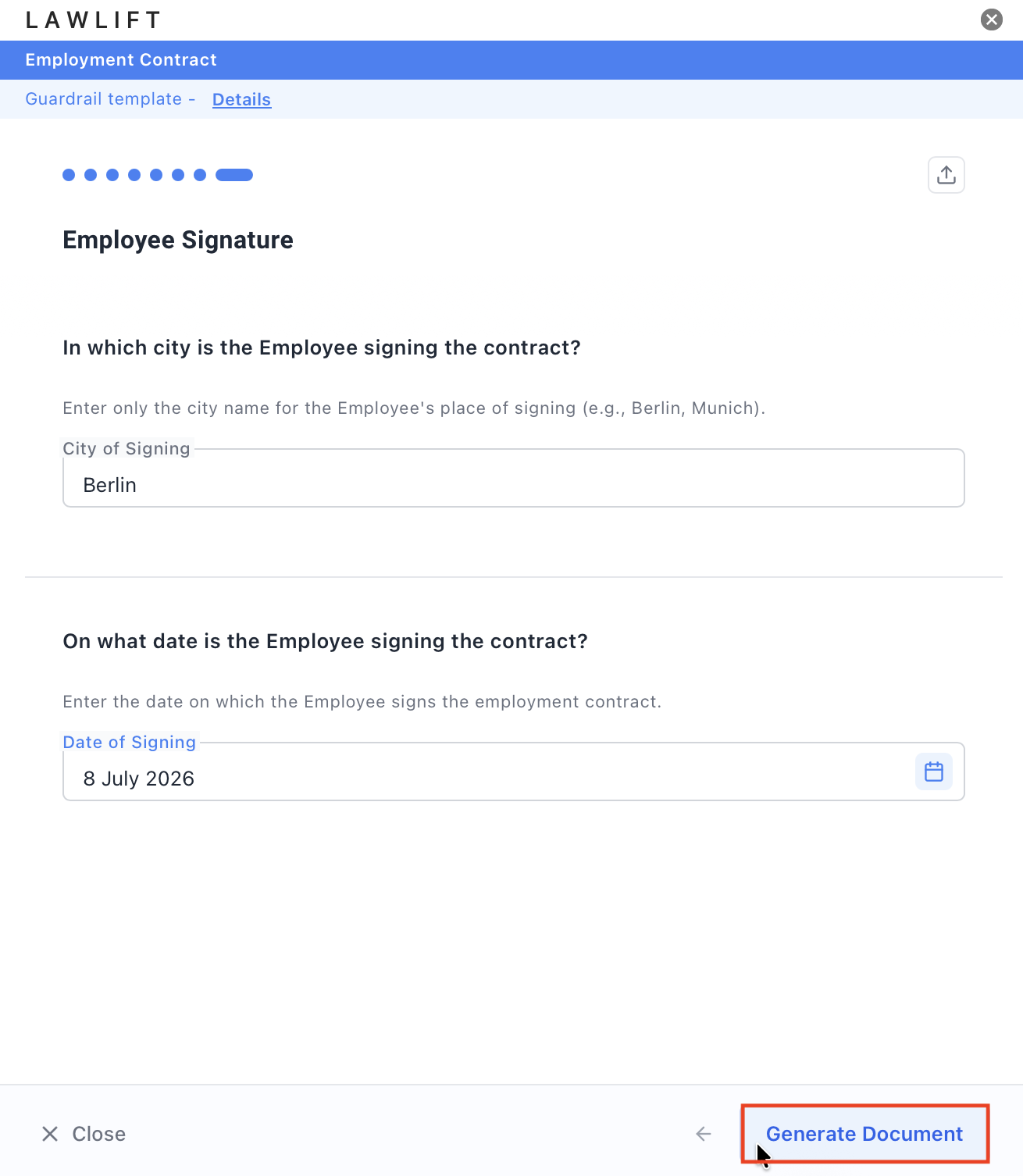
Click Generate Document. Lawlift inserts the finished text directly into your Word document.
-
To revisit your answers or adjust the document later, click View Questionnaire, then Update document.
Good to know
- Unsaved changes: If you go back with open input, the Add-in warns: “You have unsaved changes in the questionnaire. Going back will reset all your input. Are you sure you want to continue?”
- You can also fill the questionnaire automatically from existing files - see Upload context to auto-fill answers.