When you open the Add-in, Lawlift first tries to sign you in automatically with your signed-in Microsoft 365 account (Single Sign-On). If SSO is not set up, you sign in with your Lawlift credentials.
Step by step
-
Open the task pane via the Lawlift button. If SSO is supported, you are signed in automatically with your Microsoft account.
-
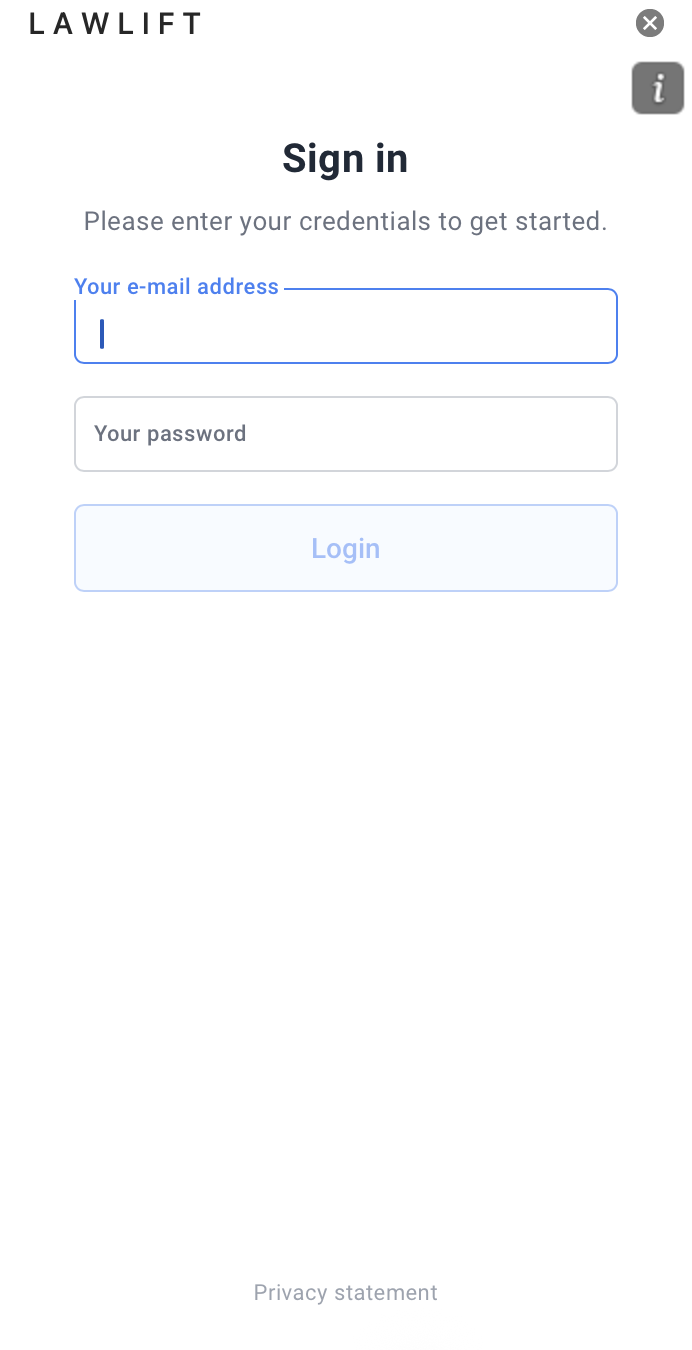
If automatic sign-in does not work (the Add-in shows a notice), use the Sign in form: “Please enter your credentials to get started.” Enter your email address and password.

-
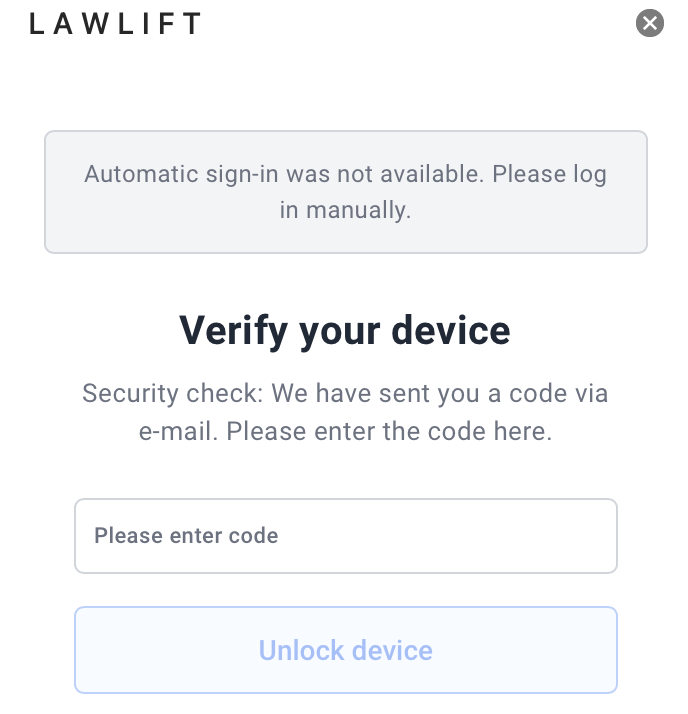
If two-factor authentication is enabled, Verify your device or Two-factor authentication appears. Enter the six-digit code.
-
After a successful sign-in, the dashboard opens with the Draft, Edit and Review tabs.
Good to know
- How SSO works: The Add-in identifies your Microsoft 365 account in the background and signs you in without re-entering credentials. This requires the matching configuration by your administrator (Microsoft Entra registration).
- No SSO available: On older Office versions or without configuration, the Add-in shows a notice and you sign in with email and password.
- Access restricted? If you see “Word Add-in access restricted”, your organization does not have access - see Getting access.